If you’re facing connection issues with Thinkorswim, you’re not alone. Common problems like network instability, corrupted cache files, or firewall conflicts can disrupt your trading experience. Here’s how to fix them:
- Check Your Internet Connection: Ensure stable speeds (at least 1 Mbps) and consider switching to a wired connection.
- Clear Cache: Use Thinkorswim’s built-in tool or manually delete cache files to resolve sluggish performance or reconnecting errors.
- Adjust Firewall and Antivirus Settings: Add Thinkorswim to your firewall and antivirus exclusions to prevent data stream interruptions.
- Reinstall Thinkorswim: If issues persist, delete the
USERGUIfolder or reinstall the app to fix corrupted files. - Disable VPN: Turn off your VPN temporarily, as it can interfere with real-time data feeds.
- Check Server Status: Verify if Thinkorswim servers are down before troubleshooting further.
For futures traders, maintaining a stable setup is critical. Allocate sufficient RAM, use a wired connection, and regularly clear cached data to ensure smooth performance. If you’re trading with futures prop firms, tools like DamnPropFirms can help you stay compliant by offering resources like rule calculators and account management tools.
Addressing these issues promptly ensures you can trade without disruptions and avoid missing critical market opportunities.
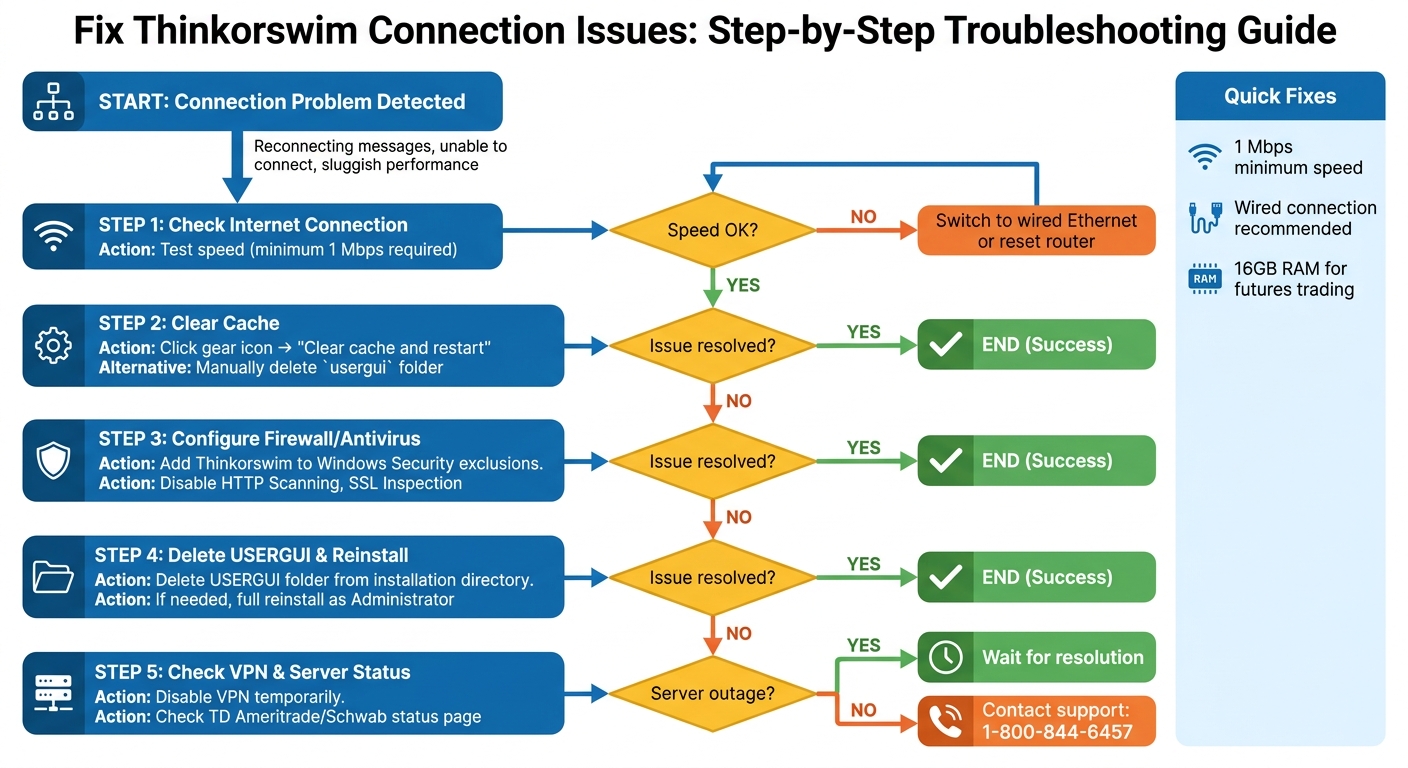
Thinkorswim Connection Issues Troubleshooting Flowchart
How to fix "Thinkorswim couldn’t connect to internet" in less than 2 minutes!
sbb-itb-46ae61d
Verify Your Internet Connection
A reliable internet connection is crucial for Thinkorswim to function properly. As TradersDNA explains, "A shaky connection is the most common reason for thinkorswim to act up" [2]. Before diving into more advanced fixes, make sure your network meets the platform’s basic requirements and operates without interruptions.
Test Your Internet Speed and Latency
Thinkorswim works best with an internet speed of at least 1 Mbps [6]. Use an online speed test to measure your connection, and compare the results with the speed your ISP promises. If there’s a noticeable drop or inconsistency, it could indicate an unstable connection.
Frequent "reconnecting" messages often point to stability issues rather than inadequate speed [2]. Problems like latency spikes or interruptions in the data feed can cause delays in displaying quotes or even freeze your order book – especially during peak trading hours. This is particularly critical when trading with top futures prop firms where execution speed impacts performance. Also, check if your operating system’s metered connection settings are limiting bandwidth, as this can lead to errors [5].
If your tests show instability, consider switching to a wired connection or resetting your router.
Use a Wired Connection or Reset Your Router
Wi-Fi connections can be prone to interference and signal drops. Using a wired Ethernet connection ensures a steady, uninterrupted data flow and eliminates the delays caused by wireless networks [2]. If running an Ethernet cable isn’t an option, try moving your trading device closer to the router to improve signal quality.
To reset your network, unplug your modem and router for about 60 seconds. Plug the modem back in first, wait for it to reconnect, and then power up the router [2][6]. Once your connection is stable, you can move on to troubleshooting Thinkorswim directly.
Clear Cache and Restart Thinkorswim
Thinkorswim uses cache files to speed up logins and improve performance. However, over time, these files can become corrupted, leading to connection issues, repeated reconnect attempts, or sluggish performance.
Clearing the cache prompts the platform to download fresh data from its servers, often resolving these problems without needing a full reinstall. As Base Camp Trading explains, "The cache is saved temporary content from the last times you used the app to speed it up a bit when logging in. Sometimes this cache can have corrupted data, and clearing it can cause data to be freshly downloaded, and it can help resolve some issues" [8].
Using the Built-In Tool
The easiest way to clear the cache is through Thinkorswim’s built-in tool. Here’s how:
- Open Thinkorswim and find the gear icon at the bottom left of the login screen (next to the "Live Trading" and "Paper Money" toggle).
- Click "Clear cache and restart". The platform will automatically close, delete temporary files, and relaunch [8][4].
While in the settings menu, you can also tweak the "Memory usage" options. If the platform is still slow after clearing the cache, increasing the maximum memory allocation (the right-hand pulldown) may help [4].
Manual Cache Deletion
If the built-in tool doesn’t fix the issue, you can manually delete cache files:
- Close Thinkorswim completely.
- Right-click the Thinkorswim shortcut and select "Open file location" to access the installation directory [4].
- Locate and delete the folder named
usergui. - Restart Thinkorswim. The platform will take longer to load initially as it redownloads configuration files [4].
Note: Manually deleting the cache will reset any custom settings you’ve configured [1][2].
For Web and Mac Users
If you’re using the web-based version or a Mac, you’ll need to clear your browser cache and Java temporary files through your system settings [3][7].
Clearing cache, whether through the built-in tool or manually, is a quick way to resolve many common issues and get Thinkorswim running smoothly again.
Configure Firewall and Antivirus Settings
After checking your network and clearing the cache, it’s time to adjust your security software to ensure Thinkorswim operates without interruptions.
Firewalls and antivirus programs can sometimes misinterpret Thinkorswim’s data stream, leading to errors like "reconnecting" or "unable to connect to data server." While a stable network and cleared cache are crucial, properly configured firewall and antivirus settings are just as important. Since Thinkorswim is built on Java, features like HTTP scanning or web shield in antivirus software can interfere with Java’s ability to fetch real-time data [9].
Adding Thinkorswim to Windows Security Firewall
To prevent Windows Security from blocking Thinkorswim, follow these steps:
- Open Windows Security by searching for it in the taskbar.
- Navigate to Firewall & network protection and click on Allow an app through firewall.
- Locate the Thinkorswim executable file and set it to Allow All for both Private and Public networks.
This ensures the platform can communicate using both TCP and UDP protocols [2].
Configuring Antivirus Exclusions
For antivirus software like Bitdefender, McAfee, or Norton, locate the Exclusions or Whitelist settings within the "Virus & Threat Protection" section. Add the entire Thinkorswim installation folder to the list of exclusions. This step prevents the antivirus scanner from interrupting the platform’s operations [10].
If adding exclusions doesn’t resolve the issue, disable specific antivirus features such as HTTP Scanning, IM Scan, and SSL Inspection. These settings are known to interfere with Thinkorswim’s data flow [9].
Checking Router Settings
If software-level adjustments don’t work, your router’s built-in firewall might be causing the problem. This is a common hurdle when setting up futures prop firm accounts that require stable data connections. To test this, connect your computer directly to the modem using an Ethernet cable. If this resolves the connection issues, adjust your router’s security settings or enable port forwarding for Thinkorswim in the router’s configuration menu. Additionally, disable any active VPN or proxy services, as they can conflict with both router and antivirus firewall settings [2].
"The new update has some new security features so that they may run into trouble with existing. Try disabling firewalls/VPN to see if TOS starts up, and then allow an exception for TOS." – useThinkScript Administrative Staff [11]
Running Safe Mode with Networking
If all else fails, try running Thinkorswim in Safe Mode with Networking. This mode disables most background services, allowing you to determine if a firewall or other startup service is blocking the platform. If Thinkorswim connects successfully in this mode, the issue likely lies with a firewall or security program in your normal startup environment.
Delete USERGUI Folder and Reinstall Thinkorswim
If clearing the cache hasn’t resolved your connection issues, the problem might be with corrupted configuration files in the USERGUI folder. These files can cause Thinkorswim to freeze during updates or fail to connect altogether. Unlike general cache clearing, this step focuses on fixing corrupted files that block updates or reconnections. The USERGUI folder stores cached data and user preferences, which can become problematic over time. The good news? Deleting this folder won’t impact your trading data – your charts, custom scripts, studies, and grids are securely stored on Thinkorswim’s servers [12]. However, you’ll need to reconfigure local settings like font size and memory allocation after removing the folder.
Here’s how to delete the USERGUI folder:
- Step 1: Shut down Thinkorswim completely. Use Task Manager on Windows or Force Quit on macOS to ensure the application is fully closed.
- Step 2: Locate the USERGUI folder. On Windows, navigate to
C:Program FilesthinkorswimUSERGUI. On macOS, go toApplications > thinkorswim > USERGUI. If you’re unsure, right-click the Thinkorswim icon and select "Open file location" [12][14]. - Step 3: Delete the USERGUI folder, restart your computer, and relaunch Thinkorswim. The platform will take longer to load the first time as it rebuilds the folder with fresh files [4].
"Delete ‘USERGUI’ file on my computer this sped up TOS, support said that they do this every month since TOS went to no fee trading." – westgl, Member, useThinkScript Community [15]
If this step doesn’t fix the issue, you’ll need to reinstall Thinkorswim entirely. Uninstall the program through your system’s control panel, download the latest version from TD Ameritrade’s website, and reinstall it as an Administrator. This process ensures any remaining corrupted files from previous installations are completely removed [13].
Run Thinkorswim as Administrator and Update Java
Running Thinkorswim with administrator privileges can help resolve connection problems caused by system access restrictions. Many operating systems block non-admin apps from accessing certain network and system files. By launching Thinkorswim as an administrator, you can bypass these restrictions, setting the stage for more advanced troubleshooting steps.
For Windows users, this is straightforward: right-click the Thinkorswim desktop icon and select "Run as administrator." This is especially useful if you’re stuck in an "Installing updates" loop or receiving "connection refused" errors. Administrator access ensures smoother handling of TCP/UDP traffic, which is essential for the platform’s connectivity.
If you’re still facing issues, particularly on Linux, it might be time to check your Java compatibility. Unlike Windows and macOS versions, which come with a bundled Java virtual machine, Linux requires you to install Zulu OpenJDK 21 manually. Using an incompatible Java version can lead to startup crashes or prevent the platform from launching altogether. To install Zulu OpenJDK 21, follow these steps:
sudo apt install gnupg ca-certificates curl Then, import Azul’s public key and add their repository, followed by:
sudo apt-get install zulu21-jdk After installation, configure your system to use Zulu 21 by running:
sudo update-alternatives --config java For better performance, you can tweak Thinkorswim’s memory settings. On the login screen, click the gear icon to adjust RAM allocation. If your system has 16–32 GB of RAM, setting the minimum to 4,096 MB and the maximum to 6,144 MB can enhance responsiveness, particularly during high-volume futures trading sessions with top-tier prop firms. Additionally, updating your graphics drivers via Windows Device Manager (under Display Adapters) can address visual lag.
If performance issues persist, even after updating Java and running the app as an administrator, consider modifying the thinkorswim.vmoptions file in your installation directory. This file controls how system resources are allocated to the platform. Making adjustments here, with administrator permissions, can resolve UI lag caused by too many active charts or studies overwhelming the interface’s single-threaded nature.
Disable VPN and Check Server Status
Turn Off Your VPN Temporarily
Disabling your VPN can sometimes fix connectivity issues with Thinkorswim. VPNs often add encryption layers that may slow down real-time data feeds or conflict with the platform’s communication protocols. If you’re stuck in update loops or experiencing connection delays, your VPN might be the problem. This can happen due to blocked IPs or the added encryption interfering with Thinkorswim updates.
To check if your VPN is the cause, follow these steps: close Thinkorswim, open your VPN client, and select "Disconnect" or "Turn Off." Then, relaunch Thinkorswim and attempt to log in. If it connects without issues, your VPN was likely interfering. Before logging in, click the settings wheel on the login screen to ensure proxy settings are correctly configured.
If you need to use a VPN, try switching to a different server location or protocol (like TCP or UDP) to see if it improves connectivity. Avoid multiple login attempts during troubleshooting, as this can complicate the process. If disconnecting your VPN resolves the issue, the next step is to confirm that Thinkorswim servers are functioning properly.
Check Thinkorswim Server Status
After verifying your VPN isn’t the issue, check the status of Thinkorswim servers. Sometimes, the problem might not be on your end. Visit the official TD Ameritrade or Schwab status pages, or check their social media accounts on X (formerly Twitter) for updates on outages or maintenance. You can also use third-party tools like Downdetector or "Down for Everyone or Just Me" to see if others are experiencing similar issues[2][16].
If Downdetector shows a spike in reports, it’s likely a server-side outage. Unfortunately, in such cases, there’s little you can do but wait. As Peyman Khosravani from TradersDNA advises:
"If the servers are down, there’s nothing you can do but wait it out. Grab a coffee, maybe watch some market news, and try again later"
For quicker answers, you can contact Thinkorswim support directly. Use their live chat for instant assistance or call 1-800-844-6457 during business hours (Monday–Friday, 8:00 AM–6:00 PM ET)[3].
Optimize Thinkorswim for Futures Prop Trading
Configure Platform Settings for Futures Trading
Fine-tuning Thinkorswim is essential for smooth futures prop trading, especially during fast-paced market conditions. These tweaks can help reduce lag and ensure the platform operates efficiently when it matters most.
Start by increasing the memory allocation in Thinkorswim’s settings. If your system has at least 16GB of RAM, allocate 8GB or more to the platform for better performance during high-volatility sessions. Another handy tool is the "Collect Garbage" feature, which clears out unused data and helps maintain responsiveness. If you use multiple charts, open each one in a separate instance. This prevents lag in one chart from spilling over and slowing down the others.
Here’s a quick look at the recommended system specs for futures trading:
| Component | Minimum Requirement | Recommended for Futures Trading |
|---|---|---|
| RAM | 8GB | 16GB or higher |
| Processor | Multi-core | Intel i5 / AMD Ryzen 5 or better |
| Storage | HDD | SSD (Solid State Drive) |
| Connection | Wi-Fi | Wired Ethernet |
Real-time data feeds are another must-have. Make sure your account is subscribed to these feeds, as delayed data can throw off your analysis – a big problem when trading futures with tight stop-losses, often required by prop firms.
For precision trading, take advantage of Thinkorswim’s bid/ask price ladder and one-click order entry tools. These features are tailored for futures traders who need accurate entry and exit points. If you’re testing strategies or getting familiar with the platform, use the paperMoney mode. It’s a risk-free way to simulate trades and fine-tune your setup without putting real money on the line.
Use DamnPropFirms Resources for Prop Trading

Once your Thinkorswim platform is running smoothly, enhance your prop trading experience by tapping into specialized resources like those offered by DamnPropFirms.
Stable connectivity is critical for prop traders, as most firms have strict rules and daily loss limits. Understanding how end-of-day drawdown works is equally vital for account longevity. DamnPropFirms offers tools to help you compare futures prop firms and their platform requirements. They provide verified reviews of firms like Apex Trader Funding, Take Profit Trader, FundedNext Futures, Alpha Futures, Tradeify, Lucid Trading, Purdia, and Topstep. They also offer tools like the Consistency Rule Calculator, which helps you stay within your firm’s trading guidelines.
Another popular feature is access to discounts and promo codes for prop firm accounts. These can save you a significant amount on evaluation fees. Additionally, DamnPropFirms offers TradeSyncer, a tool for copying trades across multiple accounts. This is a lifesaver for managing several prop firm accounts without running into connectivity issues.
Before committing to a prop firm, check DamnPropFirms’ monthly rankings to identify firms with rules that align with your trading style. Each firm has its own set of requirements for platform usage, data feeds, and execution speeds. Understanding these nuances allows you to configure Thinkorswim in a way that meets your chosen firm’s evaluation criteria. Proper setup and leveraging these resources can make a big difference in maintaining consistent performance during futures trading.
Conclusion
Connection problems with Thinkorswim can throw a wrench in your trading plans, but most issues boil down to three main culprits: network instability, software glitches, or hardware limitations. The troubleshooting steps outlined here are designed to guide you through a logical process – start with simple checks like testing your internet speed, move on to intermediate solutions like clearing the cache or removing the usergui folder, and, if needed, explore advanced fixes like tweaking firewall settings or increasing RAM allocation.
As TradersDNA aptly puts it:
"A shaky connection is the most common reason for thinkorswim to act up." [2]
This highlights the importance of addressing even minor connectivity hiccups early on.
For futures traders, ensuring platform stability is non-negotiable. In fast-moving markets, being stuck in a "reconnecting" loop can mean missing out on critical opportunities. To avoid this, allocate at least 16GB of RAM to Thinkorswim, use a wired Ethernet connection, and clear cached data regularly to maintain smooth performance.
If you’re trading with prop firms like Apex Trader Funding, Take Profit Trader, or Topstep, a stable setup becomes even more critical. These firms often enforce strict rules, such as daily loss limits and consistency requirements. A technical glitch – whether it’s a delayed exit or a missed stop-loss – can jeopardize your funded account. Tools like DamnPropFirms can help you compare firms, find discounts, and use resources like the Consistency Rule Calculator to stay compliant.
Lastly, always check the TD Ameritrade/Schwab status page or their social media channels to rule out server outages. If the issue lies with their servers, no local fix will resolve it. Once you’ve confirmed the problem is on your end, following these troubleshooting steps methodically will help you pinpoint and resolve most connectivity issues quickly – many traders find a solution within the first few steps.
FAQs
Why does Thinkorswim keep saying “reconnecting” even with fast internet?
Thinkorswim might show a “reconnecting” message even with a fast internet connection. This can happen due to network instability, server maintenance, or incorrect platform settings. To address this, make sure your internet is stable and check for any platform updates or server-related issues. Simple troubleshooting steps like restarting the platform, reviewing your firewall settings, or verifying data feeds can often fix the problem. If the issue continues, you may need to dig deeper into your network setup or the platform’s current status.
Will deleting the USERGUI folder erase my charts or studies?
Removing the USERGUI folder in Thinkorswim can fix problems such as being stuck on "Installing updates." Don’t worry – this won’t delete your charts or studies, as those are saved elsewhere. Your custom setups will stay unaffected.
What RAM and memory settings are best for futures trading on Thinkorswim?
For the best experience using Thinkorswim, your system should have at least 16GB of RAM, especially if you plan to use multiple charts or monitors. You can also tweak the platform’s memory settings by increasing the minimum and maximum memory allocation to match your system’s capabilities. This adjustment can help avoid lag or crashes during trading. While the platform can technically run with 4GB of RAM, having 16GB or more ensures much smoother performance.