Getting started with MetaTrader 4 (MT4) or MetaTrader 5 (MT5) is more than just downloading the platform – it’s about configuring it properly to meet the rules of proprietary trading firms and protect your account. Here’s a quick summary of what you need to know:
- Account Details: Gather your login credentials (Login ID, Trader Password, and Server Name) from your prop firm.
- System Requirements: Ensure your computer has the necessary specs (e.g., processor with SSE2 support, at least 1GB RAM) and consider using a Virtual Private Server (VPS) for stability.
- Platform Compatibility: Verify if your prop firm supports MT4 or MT5, as they are not interchangeable.
- Installation: Always download the platform from your prop firm or broker’s official site to avoid security risks.
- Setup: Configure charts, add futures symbols, and optimize settings like timeframes and indicators for better performance.
- Testing: Run demo trades to ensure smooth execution and troubleshoot any issues before live trading.
- Optimization: Reduce resource usage by adjusting platform settings and consider using a VPS near your broker’s server for faster execution.
Proper setup is critical for efficient trading, staying within firm rules, and avoiding technical issues. Follow these steps to trade confidently and maintain compliance with prop firm requirements.
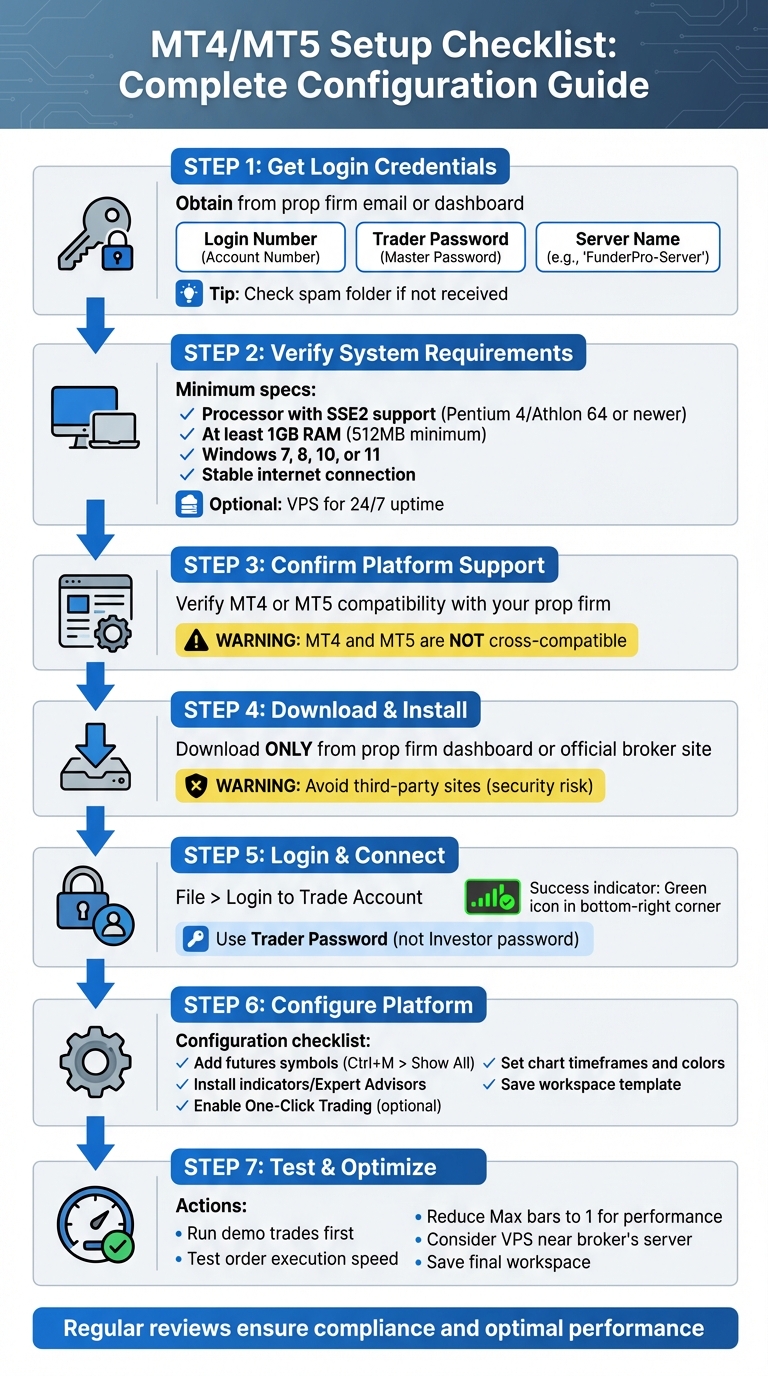
MT4/MT5 Setup Checklist: 7-Step Configuration Guide for Prop Traders
Before Installing MT4/MT5
Get Your Prop Firm Login Details
Before downloading MetaTrader, make sure you have your prop firm login details ready. You’ll need three key pieces of information: Login Number (also called Account Number), Trader Password (sometimes referred to as Master Password), and the Server Name (e.g., "FunderPro-Server"). These details are typically sent to your email right after you purchase a challenge or receive funding.
"Enter the Login number and Trader Password provided by FunderPro via email… Select the correct server name from the list (also provided in the email)." – FunderPro
Can’t find the email? Check your spam folder. Many firms also display these credentials in your account dashboard. To ensure you have the correct server list, download the installer directly from your firm’s dashboard. Be sure to select the server that matches your account type.
Once you have your credentials, double-check that your computer meets the necessary technical requirements.
Check System Requirements
Make sure your computer can handle MetaTrader. Both MT4 and MT5 require a processor with SSE2 support, which is standard in processors like Pentium 4, Athlon 64, or newer. While MetaTrader can run on just 512MB of RAM, it’s better to have at least 1GB for smoother performance.
To check your system specs on Windows, go to Settings > System > About. This will show your RAM, CPU type, and operating system version. MT4 and MT5 are compatible with Windows 7, 8, 10, and 11. If you plan to use Expert Advisors for automated trading, consider using a Virtual Private Server (VPS). A VPS helps avoid disruptions caused by power outages or internet issues. Also, ensure your internet connection is stable. While basic trading data doesn’t require much bandwidth, tracking multiple symbols or running several instances of the platform can increase internet usage.
Confirm Platform Support
Not all prop firms use MetaTrader, so it’s important to confirm that your firm supports it. Some firms prefer platforms like NinjaTrader or Tradovate. For instance, FundingTicks provides access to Tradovate, NinjaTrader, and TradingView alongside MT5. In March 2025, FundingTicks (the futures branch of FundingPips) expanded their offerings to include Tradovate after feedback from their community, which now serves over 750,000 traders.
Check your firm’s website or dashboard to confirm if MetaTrader is supported. Firms like Apex Trader Funding and The Futures Desk may use other platforms. If your firm does support MetaTrader, verify whether they provide MT4, MT5, or both. Keep in mind that MT4 and MT5 are not cross-compatible, so your credentials will only work on the version specified by your firm.
Installing and Logging into MT4/MT5
Download and Install the Platform
To ensure a smooth setup, always download MetaTrader directly from your prop firm’s dashboard or their official partner broker’s website. This guarantees the platform is pre-configured with the correct server settings for your account. Steer clear of third-party download sites, as they may pose security risks and lack the proper configurations.
"The easiest way is to download it from your broker. This way you can be sure that it’s configured properly so you can get started trading right away." – Justin Bennett, Founder, Daily Price Action
Once you’ve downloaded the installer (e.g., .exe for Windows or .dmg for macOS), run it and agree to the license terms. If you need the platform installed in a specific location – perhaps for running multiple instances – click "Settings" during installation to choose your preferred directory. After the installation, you might see a browser window for the MQL5 community pop up. You can close it, as it’s not necessary for using the platform.
Now that the platform is installed, you’re ready to log into your trading account.
Log into Your Account
Using the login details provided by your prop firm, open MetaTrader and navigate to File > Login to Trade Account. Enter your Login ID, Trader (or Master) Password, and the Server Name you were given. Be sure to use the Trader or Master password, as the Investor password only provides read-only access.
After entering your credentials, check for a green icon or active data transfer in the bottom-right corner of the platform. This indicates a successful connection. If you see "No connection" (MT4) or a red/gray icon (MT5), double-check your server name and password. Even small errors, like extra spaces, can trigger an "Invalid Account" message. If everything seems correct but you’re still unable to connect, try restarting the platform or checking if your firewall is blocking the connection.
Complete MetaTrader 5 Tutorial [For Beginners] – 2024 Edition
Setting Up MT4/MT5 for Futures Trading
Once you’ve logged into your account, setting up your trading platform properly is essential for smooth operations and staying within regulatory boundaries.
Add Futures Symbols to Market Watch
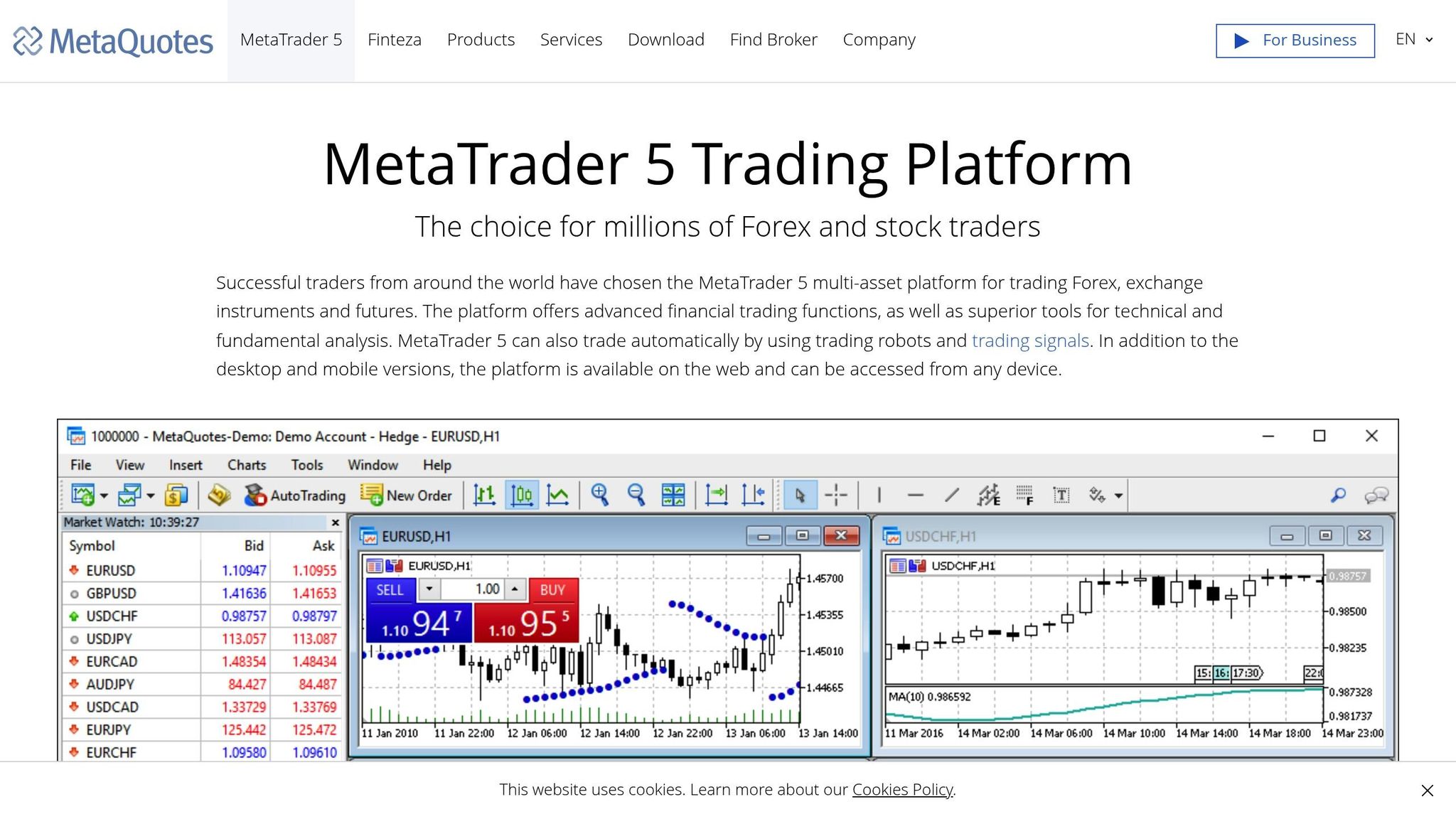
After logging in, the first thing you’ll want to do is populate the Market Watch window with the futures contracts offered by your proprietary trading firm. If the Market Watch window isn’t visible, press Ctrl+M (or Cmd+M on Mac) to bring it up. Then, right-click anywhere in the window and select "Show All" to display all available instruments.
If you focus on specific contracts, like the E-mini S&P 500 or Crude Oil, you can streamline your workspace by right-clicking and selecting "Symbols" to search for and add only the instruments you need. This keeps your platform organized and reduces unnecessary data usage – particularly helpful when running multiple charts or Expert Advisors. You can also rearrange symbols by dragging and dropping them or remove unused ones by right-clicking and selecting "Hide".
Before placing any trades, take a moment to review the specifications of a futures symbol. Right-click on the symbol and choose "Specification" to view details like contract size, margin requirements, and trading hours. This step helps you avoid costly errors. For a quick reference, you can also drag a symbol from Market Watch directly onto an open chart.
Once your symbols are set, it’s time to optimize your charts for better analysis.
Configure Charts and Timeframes
With your chosen symbols in place, adjust your charts for clarity and ease of use. Candlestick charts are a popular choice for visualizing price movements, as they clearly show highs, lows, and price shadows. To customize your chart, right-click and go to "Properties" to tweak colors. Many traders prefer green for bullish candles and red for bearish ones, often set against a white background for maximum readability. Removing gridlines can further declutter the view.
Enable the "Chart Shift" feature in the chart properties to create extra space on the right side of the screen. This gives you room to project trend lines and analyze potential price movements without the current candle crowding the edge. If you’re using MetaTrader 5, you’ll have access to 21 timeframes, compared to just 9 on MT4, offering more flexibility for analyzing fast-paced futures markets.
Once you’ve customized your chart, save your settings as a template. Right-click on the chart and select "Template > Save Template". Give it a descriptive name, or save it as "default.tpl" to automatically apply these settings to all new charts. Keep in mind that templates save visual settings and indicator configurations, while profiles save the entire workspace layout, including charts and timeframes.
Add Indicators and Expert Advisors
To enhance your trading experience, you may want to install custom indicators or Expert Advisors (EAs). Start by downloading the appropriate file types – .mq4/.ex4 for MT4 or .mq5/.ex5 for MT5. Then, navigate to File > Open Data Folder in your platform. Locate the MQL4 or MQL5 directory, depending on your version, and paste the files into the Indicators or Experts folder. Refresh the Navigator panel to make the new tools appear.
To activate an indicator or EA, simply drag it from the Navigator onto your futures chart. Make sure the "AutoTrading" button (MT4) or "Algo Trading" button (MT5) is enabled – otherwise, automated strategies won’t run. Some tools may also require you to check "Allow DLL imports" in their settings for full functionality.
"MetaTrader 5 brings changes and improvements in virtually all areas compared to MT4. For traders focusing on developing and using automated trading systems it means that MT5 is faster and more efficient in testing strategies by using a multithreaded approach." – FTMO
Before you deploy any EA, double-check that it aligns with your proprietary trading firm’s rules. Some firms may prohibit practices like copy trading or using identical signals from other traders, which could lead to violations. If you’re trading fast-moving futures like the E-mini S&P 500, consider enabling One-Click Trading via Tools > Options > Trade to execute orders instantly.
sbb-itb-46ae61d
Testing and Optimizing Your Setup
Run Demo Trades
Before diving into live trading, it’s smart to test your setup using a demo account. To get started, go to File > Open an Account and find your prop firm’s server in the list. If it’s not listed, type the broker’s name into the "add new broker" field and hit Scan to locate the right server. Double-check that your login credentials are displayed correctly before moving forward.
Execute a few test trades to ensure everything runs smoothly. Pay close attention to how quickly orders are processed and watch for slippage, especially if you’re trading fast-moving instruments like the E-mini S&P 500. If you’re using Expert Advisors, open the Strategy Tester (Ctrl+R) and choose the "Every tick" modeling method – or "Every tick based on real ticks" in MT5 – to replicate real market conditions.
Improve Platform Performance
Once you’ve confirmed that your trades execute properly, it’s time to fine-tune your platform for maximum efficiency. Start by reducing the strain on your CPU and RAM. You can do this by setting both "Max bars in history" and "Max bars in charts" to 1.
"Rendering new bars on the charts take most of computing resources so we want to reduce that to the minimum".
Other ways to improve performance include disabling platform sounds and removing unused symbols from Market Watch.
If you’re using a VPS to run MT4/MT5, opt for a 64-bit Windows Server 2019 or 2022 instance located near your broker’s server. Popular locations include London, New York, and Singapore.
"Host near your broker’s region (e.g., London/New York/Tokyo/Singapore) to cut round-trip time".
Additionally, keep about 20% of your RAM free to handle sudden volatility during news events. Note that modern MT5 installers (starting with build 3930) are exclusively 64-bit, as 32-bit versions became obsolete on January 1, 2024.
Save Your Workspace
After testing and optimizing your platform, save your workspace to preserve your custom settings. Once you’ve tailored your workspace, save your template and double-check key configurations like server settings, sounds, and notifications through Tools > Settings.
If you’re using Expert Advisors, export their input variables as separate files. This way, you can reload them later without having to reconfigure everything manually.
Finally, restart the terminal to ensure all your changes are locked in. This step ensures you can quickly restore your trading environment, whether you’re switching accounts or recovering from a system issue.
Troubleshooting Common Issues
MT4/MT5 Problem Solutions
Even after fine-tuning your setup, technical hiccups can still arise. Below are some common problems traders encounter and how to address them.
One frequent issue is connection failure, which appears as a red icon or a "No Connection" message in the bottom-right corner of your platform. To resolve this, click the connection status and select "Rescan servers" to locate the fastest data center. Double-check your login credentials and server name to avoid "Invalid Account" errors. Prop firms often use specific server names like "PropFirm-Live" or "PropFirm-Demo", and selecting the wrong one will trigger this error.
Another issue is missing futures symbols. If symbols don’t appear even after verifying your Market Watch settings, right-click inside the Market Watch window and select "Show All". For MT5 users, you can also click the "+" button at the bottom of the Market Watch list and manually type in the symbol name. To handle expired futures contracts, enable "Auto remove expired" in the context menu. This ensures old contracts are replaced with active ones after restarting MT5.
Platform slowdowns often stem from too many open charts or poorly optimized custom indicators. Review your platform’s performance settings as discussed earlier. If the platform freezes, check the "Experts" or "Journal" tabs for error codes, and remove any problematic custom tools.
Here’s a quick reference table for common issues and their fixes:
| Issue | Common Cause | Recommended Fix |
|---|---|---|
| No Connection | Internet outage or server maintenance | Rescan servers; restart MT4/MT5; check router |
| Invalid Account | Incorrect login, password, or server name | Re-enter credentials; verify server name |
| Symbol not in list | Hidden by default | Right-click Market Watch → Select "Show All" |
| Platform Freezing | Poorly coded custom indicators/EAs | Remove custom tools; check "Experts" tab for errors |
| Slow Order Execution | Network issues or server overload | Switch to wired connection or use a VPS |
For persistent issues, the Journal tab can help you pinpoint the problem with error codes like "Error 404: Server Not Found" or "Error 133: Trade is Disabled". You can also access detailed connection logs in the /MQL4/Logs/ or /MQL5/Logs/ folder and share them with your prop firm’s support team for further assistance.
Conclusion
This checklist has walked you through the essential steps for setting up your MT4/MT5 platform. A well-configured platform is crucial for success in futures prop trading, as it directly impacts execution speed, risk management, and adherence to strict drawdown limits.
Taking a systematic approach to your setup can mean the difference between achieving your capital goals and violating trading rules. Prioritizing security, fine-tuning performance, and creating an efficient workspace are all vital to protecting your funded capital and maintaining top-tier performance.
Keep in mind, configuration isn’t a one-and-done task. Regular reviews are necessary to stay compliant and perform at your best. As prop firms update their rules or you scale your accounts, revisit your platform settings. Check your Terminal window, ensure your Expert Advisors align with firm policies, and periodically clear your platform cache.
FAQs
What are the advantages of using a VPS for MT4/MT5 trading?
Using a Virtual Private Server (VPS) for MetaTrader 4 or MetaTrader 5 can make a big difference, especially for traders managing futures prop firm accounts. A VPS is hosted in a data center located near broker servers, which cuts down latency to as little as 0–5 milliseconds. This means faster order execution, which can be crucial for capturing trades and avoiding missed opportunities.
Another advantage of a VPS is its ability to run 24/7 on a dependable infrastructure. Even during power outages or internet issues, your trading platform and automated strategies stay up and running without interruption. This ensures you don’t lose valuable trading time.
A VPS also offers a secure and stable environment with dedicated resources like CPU, RAM, and storage. This reduces the risk of performance hiccups, allowing you to run multiple charts, indicators, and robots smoothly. Plus, you can access your trading platform from any device with internet access, giving you flexibility and convenience.
For traders working with prop firms, consistent platform uptime is often a must to meet firm rules. A VPS helps you stay compliant with these requirements. Resources like DamnPropFirms can help you compare VPS specifications and ensure your setup aligns with your firm’s expectations.
How do I properly set up my MT4/MT5 platform to meet my prop firm’s requirements?
To make sure your MT4 or MT5 platform is set up properly for your prop firm, follow these steps:
- Download the platform from a reliable source: Stick to MetaQuotes or your prop firm’s official dashboard to avoid any security issues.
- Log in with the credentials provided by your prop firm: Double-check that the server name matches the firm’s instructions, whether for an evaluation or a live trading environment.
- Adjust essential settings: Set up your account type, leverage (often 1:100 for futures), and risk parameters like stop-loss limits and maximum daily drawdowns.
- Match time zone and chart settings: Align these with the firm’s requirements, such as using Eastern Time (ET) for timestamps and US dollars ($) for currency displays.
- Run a demo session: Test order execution to ensure everything is working as expected and complies with the firm’s rules, helping you avoid potential violations.
By following these steps, you’ll be better prepared to meet your prop firm’s guidelines and keep your funded account in good standing. Using tools like checklists or calculators can make the setup process even smoother.
How can I fix connection issues on MT4 or MT5?
If you’re seeing a “No Connection” or “Waiting for update” message on MT4 or MT5, it means the platform isn’t connecting to your broker’s server. This can interrupt your trading, but the issue is often related to connectivity and can be fixed with a few straightforward steps:
- Check your internet connection: Make sure your connection is stable by opening a website or restarting your router if needed.
- Restart the platform: Close MT4/MT5, reboot your computer or VPS, and then relaunch the platform.
- Verify login details and server settings: Double-check your account credentials and ensure you’ve selected the correct broker server. If the main server doesn’t work, try connecting to an alternate one.
- Adjust firewall or antivirus settings: Temporarily disable them or add MT4/MT5 as an exception to ensure they’re not blocking the platform.
If none of these steps solve the problem, reach out to your broker to check for server issues or account-specific concerns. These simple fixes usually get your platform back online so you can continue trading without interruptions.