
TopOneFutures now offers integration with Tradovate and NinjaTrader 8, giving traders access to widely-used platforms for futures trading. This update allows users to move beyond the proprietary Project X platform and leverage tools they might already know. Key benefits include:
- Tradovate: Cloud-based, multi-device access with fast order execution and TradingView integration.
- NinjaTrader: Advanced Trade Management (ATM) strategies, customizable charting, and algorithmic trading via NinjaScript.
- Key Features:
- 90% profit split
- Fast payouts (under 4 hours)
- Simulated capital up to $150,000
- End-of-day drawdown management
To get started, users complete a quick Market Data Subscriber Certification and can then connect their accounts to either platform. Whether you prefer desktop tools or cloud-based flexibility, this update simplifies trading and account management.
Tradovate Ninja TradingView now at Top One Futures!
sbb-itb-46ae61d
Tradovate Features and Benefits
Tradovate is built on a cloud-based system, accessible through both web and desktop apps (compatible with Windows and macOS), and integrates seamlessly with TradingView. With all TopOneFutures accounts tied to a single user profile and login, you no longer need to juggle multiple credentials. Plus, there’s no hassle with software installations or manual updates – everything operates smoothly through Tradovate’s cloud infrastructure. This makes it easy to switch between devices without missing a beat.
Multi-Device Interface
Tradovate ensures a consistent trading experience across all your devices. Whether you’re using a desktop, tablet, or smartphone, your charts, watchlists, and workspace settings sync automatically. This means you can analyze trades on your laptop during the day and later check your positions on your phone, all without losing your setup. For TopOneFutures traders, this seamless interface simplifies position management, no matter where they are.
Fast Order Execution and Charting Tools
Tradovate’s cloud infrastructure powers fast order execution and advanced charting features. Built on CQG infrastructure, it streamlines order routing without requiring you to select servers manually. The platform supports bracket orders, enabling you to set stop losses and take profits directly from the order entry screen. For traders who rely on automation, Tradovate integrates with TradersPost, allowing you to execute alerts from platforms like TradingView or TrendSpider with ease.
Cloud-Based Platform Access
One of the standout benefits of Tradovate is its secure, cloud-based storage. Your account data, custom indicators, and trading history are safely stored remotely, protecting you from hardware failures and ensuring you can access your information from any device with an internet connection. After completing the required Market Data Subscriber Certification – by choosing the "Non-Professional" status to keep monthly fees lower – your login credentials will appear in the TopOneFutures dashboard under the "Key" icon. From there, you can access the "Tradovate Prop – Simulation" mode to manage your challenge or funded accounts effortlessly.
NinjaTrader Features and Benefits
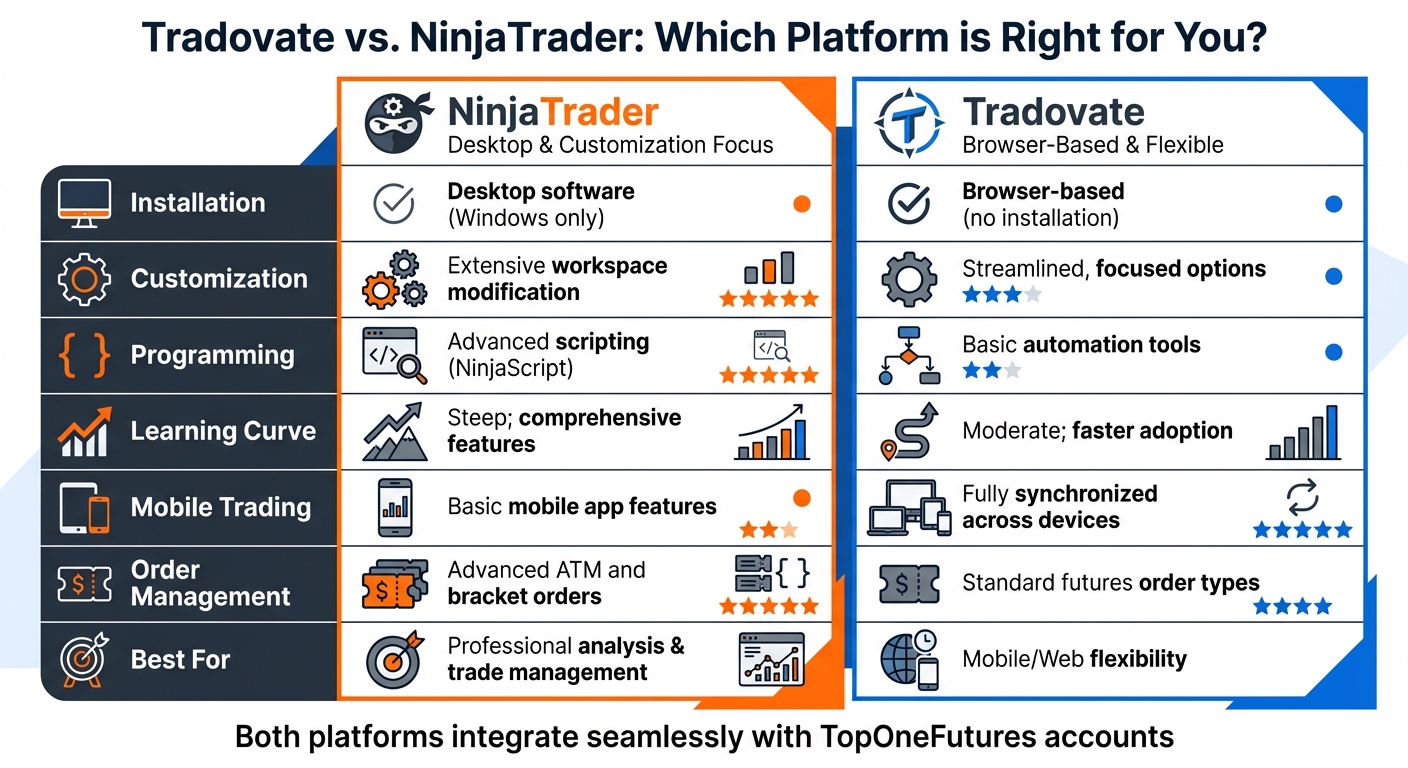
Tradovate vs NinjaTrader Platform Comparison for Futures Trading
NinjaTrader, paired with TopOneFutures’ focus on performance and adaptability, offers traders a robust platform for in-depth market analysis and precise trade execution. Designed as a desktop application for Windows, it gives users complete control over their trading environment. You can even save custom workspace layouts tailored to specific market conditions – whether trending, range-bound, or volatile.
Advanced Charting and Order Flow Analysis
NinjaTrader’s charting engine is built to handle multiple timeframes at once, providing a comprehensive view of market trends. Tools like Volume Profile and real-time Market Depth allow traders to identify institutional activity and pinpoint key buying or selling pressure. Automated trendline drawing and pattern recognition algorithms further streamline the process, flagging potential setups without requiring manual effort.
"NinjaTrader charts deliver analytical firepower that competitors struggle to match. The charting engine handles multiple timeframes simultaneously without performance degradation." – MyFundedFutures
For those with technical expertise, the NinjaScript environment (built on C#) lets users create custom indicators and strategies, including those using machine learning. The Market Analyzer tool further enhances this by scanning hundreds of instruments in real time, based on user-defined conditions. All these tools integrate smoothly with TopOneFutures’ trading ecosystem, building on the platform’s earlier enhancements.
ATM Strategies for Trade Management
NinjaTrader’s Advanced Trade Management (ATM) strategies are designed to simplify trade management by automating key processes. These include automatically setting profit targets and stop-loss orders upon trade entry. Features like Auto Breakeven adjust the stop loss to the entry price once a specific profit level is reached, while Auto Trail tightens the stop loss as the trade moves further into profit.
During volatile markets, tools like Target Chase and Chase dynamically adjust orders to help traders secure optimal entries and exits. The Shadow Strategy feature even allows traders to test alternative trade management settings in a simulated environment before applying them live. Additionally, TopOneFutures’ end-of-day drawdown management provides a safety net against temporary unrealized losses, giving traders more flexibility to handle intraday fluctuations.
Tradovate vs. NinjaTrader Comparison
| Feature | NinjaTrader | Tradovate |
|---|---|---|
| Installation | Desktop software (Windows only) | Browser-based (no installation) |
| Customization | Extensive workspace modification | Streamlined, focused options |
| Programming | Advanced scripting (NinjaScript) | Basic automation tools |
| Learning Curve | Steep; comprehensive features | Moderate; faster adoption |
| Mobile Trading | Basic mobile app features | Fully synchronized across devices |
| Order Management | Advanced ATM and bracket orders | Standard futures order types |
| Best For | Professional analysis & trade management | Mobile/Web flexibility |
How to Set Up Tradovate or NinjaTrader with TopOneFutures

To connect your TopOneFutures account, you’ll first need to complete the Market Data Subscriber Certification.
Select and Activate Your Platform
Log into Tradovate and complete the Market Data Subscriber Certification. This step is required only once for your first account and ensures access to real-time market data. Make sure to select "Non-Professional" status during this process. Selecting "Professional" could lead to hefty monthly data fees and might even block access to real-time data.
Once certified, you can access your TopOneFutures accounts using any of the following platforms:
- Tradovate Web: trader.tradovate.com
- Tradovate Desktop
- NinjaTrader Web: account.ninjatrader.com
- NinjaTrader Desktop
You’ll only need one set of Tradovate login credentials to access all these platforms. However, keep in mind that NinjaTrader Desktop works only on Windows, so Mac users should stick to Tradovate or the web-based options.
Get Your Login Credentials
Your login details are available in the TopOneFutures trader dashboard at portal.toponefutures.com. Simply click the key icon in the dashboard to view your username and password.
When logging in, make sure to select the appropriate trading mode:
- For Tradovate users: "Tradovate Prop – Simulation"
- For NinjaTrader users: "NinjaTrader Prop – Simulation"
This ensures you’re accessing your TopOneFutures challenge or funded account, not a standard live or demo account. This setup is similar to other futures prop firms that utilize the Tradovate ecosystem.
Configure Your Trading Settings
If you’re using NinjaTrader Desktop and your accounts don’t appear after login, navigate to the "Connections" tab, select "Simulation", and check for the green status light. For those using non-TopOneFutures Tradovate credentials, make sure to enable "Multi-Provider" mode in the NinjaTrader settings.
Keep in mind that all positions must be closed by 4:10 PM EST, as overnight holding is not allowed and will result in forced liquidation. If you encounter platform issues, be prepared to submit a clear video recording for troubleshooting.
Tips for Trading with TopOneFutures Platforms
Using NinjaTrader ATM Strategies
NinjaTrader’s Advanced Trade Management (ATM) strategies are a handy tool for automating your trading process. They automatically place preset Stop Loss and Profit Target orders as soon as your entry order is filled. These strategies use "One Cancels the Other" (OCO) logic – if your profit target is hit, the stop order is canceled, and vice versa. To maintain consistency, save your ATM setups as templates (like "8 Tick 1 Target"). Keep in mind, though, that in the NinjaTrader and Tradovate web apps, these templates are tied to specific instruments. For example, a strategy configured for NQ won’t show up when trading ES.
For better risk management, you can set a Profit Trigger to move your stop to breakeven (with an optional offset) once the market moves a certain number of ticks in your favor. Trailing stops are another useful feature – they automatically tighten as your trade gains more profit, with up to three adjustment steps available. If you’re scaling into a position, enabling the "SelectActiveATMStrategyOnOrderSubmission" setting ensures that NinjaTrader adjusts your stop and target sizes automatically as new fills occur.
Managing Multiple Accounts
Efficiently managing multiple accounts is just as important as setting up effective trade strategies. All TopOneFutures Tradovate accounts are linked under one user profile, which simplifies account organization. If you’re using NinjaTrader 8.1 or later, connect multiple accounts simultaneously via the "NinjaTrader" connection type (rather than the older "Tradovate" adapter). To keep things organized, rename your accounts in the NinjaTrader Control Center and use unique chart colors to differentiate between evaluation and funded accounts.
If you’re managing a large number of accounts – say, 10 or more – hardware limitations like RAM and CPU performance can become a bottleneck. Upgrading your VPS or reducing the number of open chart windows can help address connectivity issues.
Fixing Common Platform Issues
Sometimes, platform hiccups happen. If your accounts don’t appear after logging in, head to the "Connections" tab, select "Simulation", and wait for the system to sync. Authentication errors are often caused by clock drift, so make sure your computer or VPS is synchronized with an NTP server. Tradovate relies on time-sensitive tokens, and even a few minutes of time drift can cause login problems.
If an account is missing from your API list, check the Tradovate web portal to ensure the account is active – inactive or pending accounts won’t show up in NinjaTrader. For TradingView users, always select the "Demo" environment during login to access your TopOneFutures accounts. If you notice lag after adding multiple accounts, monitor your RAM and CPU usage to avoid performance drops.
"If you experience a platform outage or technical issue while using Tradovate / Ninjatrader, we require clear video evidence in order to properly investigate the situation." – Top One Futures Help Center
Conclusion
TopOneFutures now integrates with both Tradovate and NinjaTrader, making account management simpler with unified Tradovate credentials.
With a 90% profit split and payouts processed in under 4 hours – backed by over $22 million in verified payouts – TopOneFutures demonstrates its dedication to active traders, as noted in our Futures Prop FIrm Reviews & Guides. This payout model is paired with strong risk controls to provide a balanced trading environment.
To further safeguard traders, end-of-day drawdown management helps prevent intraday losses from triggering account violations when the day ends profitably.
When it comes to platforms, NinjaTrader stands out for its customization options and algorithmic trading powered by NinjaScript, while Tradovate offers seamless multi-device syncing and an easy onboarding process. Both platforms deliver professional-grade tools, reflected in a 4.8/5 Trustpilot rating from over 1,350 reviews. Together, they highlight TopOneFutures’ focus on providing flexible and efficient trading solutions.
Get started today: activate your platform, complete the Market Data Subscriber Certification, and trade with confidence. The combination of powerful platform features and TopOneFutures’ trader-friendly terms sets the stage for executing your trading strategies effectively.
FAQs
Can I use the same login for all my TopOneFutures accounts?
Each TopOneFutures account needs its own unique set of login credentials. To maintain proper functionality and security, accounts must be linked individually to platforms such as NinjaTrader.
What does the Market Data Subscriber Certification do?
The Market Data Subscriber Certification ensures that traders have completed the necessary training to access real-time market data. This certification is a key requirement before connecting a Tradovate account to platforms such as NinjaTrader, helping traders meet compliance standards and prepare for live trading.
Why don’t my TopOneFutures accounts show up in NinjaTrader?
If your TopOneFutures accounts aren’t showing up in NinjaTrader, it’s likely due to a connection or activation issue. Start by confirming that your Tradovate credentials are properly linked to NinjaTrader and that you’ve completed the Tradovate Market Data Subscriber Certification. Also, check if your account activation and setup details are fully completed.
Sometimes, visibility problems can arise from incomplete setups or delays caused by system maintenance. Make sure to review all the necessary steps to address the issue effectively.