Encountering a rejected order can disrupt your trading plans. These errors often stem from insufficient margin, exceeding position limits, or incorrect order parameters. Understanding the cause and applying the right fix can save you from missed opportunities. Here’s how to address and prevent order rejections:
- Common Causes: Margin issues, contract/position limits, or invalid order settings.
- Quick Fixes: Check margin, adjust order size, verify contract validity, and ensure proper stop/limit placement.
- Prevention Tips: Monitor account metrics daily, roll contracts before expiration, and stay updated on platform or prop firm rules.
- For Automated Traders: Avoid exceeding API rate limits by throttling requests or using tools like PickMyTrade.
Order rejections are not random – they’re safeguards to protect your account. By following these steps, you can troubleshoot and prevent disruptions in your trading.
Workarounds for REJECTED Overnight Orders in TradersPost
Common Reasons Orders Get Rejected
Understanding why orders fail can help you address issues quickly. Most rejections fall into three main areas: margin problems, position limits, and order parameter errors. These issues can block your trades before they even reach the market – often at the worst moment when you’re trying to act on a key setup. Let’s break down each category.
Not Enough Margin or Buying Power
One of the most frequent reasons for order rejection is insufficient margin. As NordFX explains:
If free margin is too low, the broker’s server rejects the order to prevent a margin call immediately after opening [2].
This happens when pending orders or open positions use up your available margin [9]. In fast-moving markets, losses can quickly reduce margin, leading to rejection – even if your account seemed funded enough at first [9].
Futures traders should be especially mindful of the difference between day trading and overnight margin. Holding a position past the daily close requires a much higher margin, which can catch you off guard if you’re not closely monitoring your account [5]. Matt Z from the Optimus Futures Support Team explains:
Orders may be rejected because you don’t have enough funds to trade a futures contract or because you placed an order too large [5].
Position or Contract Limits Exceeded
Most trading accounts have strict position limits set by brokers, proprietary trading firms, or exchanges. If you exceed these limits, your order will be rejected immediately [3]. For prop traders, these restrictions are often tighter. For instance, a $50,000 account might only allow 10 micro contracts, and trying to open an 11th would trigger a "Maximum order quantity reached" error [6].
In 2025, Tradovate saw a 15% increase in rejected orders, with 30% of these due to max position limits [3]. The rise came from stricter risk controls by prop firms and updated platform rules enforcing these limits more rigorously [1][3]. Additionally, if you hit a Daily Loss Limit while trading with a prop firm, your account will switch to "Liquidation-Only Mode", preventing any new trades for the rest of the day [6][3].
Incorrect Order Parameters
Errors in order parameters – like invalid lot sizes, misplaced stops, or expired contracts – are another common cause of rejection. Futures instruments have specific rules about minimum volume and step size (the smallest tradable increment). For example, if you attempt to trade 0.015 contracts when the step size is 0.01, your order will be rejected [2].
Another frequent issue is placing buy stops below the current market price or sell stops above it. This violates basic order logic and results in automatic rejection [1]. Platforms also block overly aggressive limit orders that stray far from the market price to prevent accidental trades [10].
For prop traders, trading the wrong contract month can cause problems. Platforms like Topstep require you to trade the "Front Month" contract – the most current one. If you mistakenly try to trade an expired contract, your order won’t go through [8]. During high-volatility events, such as Non-Farm Payroll releases, about 20% of traders in 2025 faced order issues. Many of these were due to "No Quote Available" errors, which happen when liquidity dries up or data feeds lag [3].
Knowing these rejection causes is essential for troubleshooting, setting the stage for the solutions covered later.
How to Identify Why Your Order Was Rejected
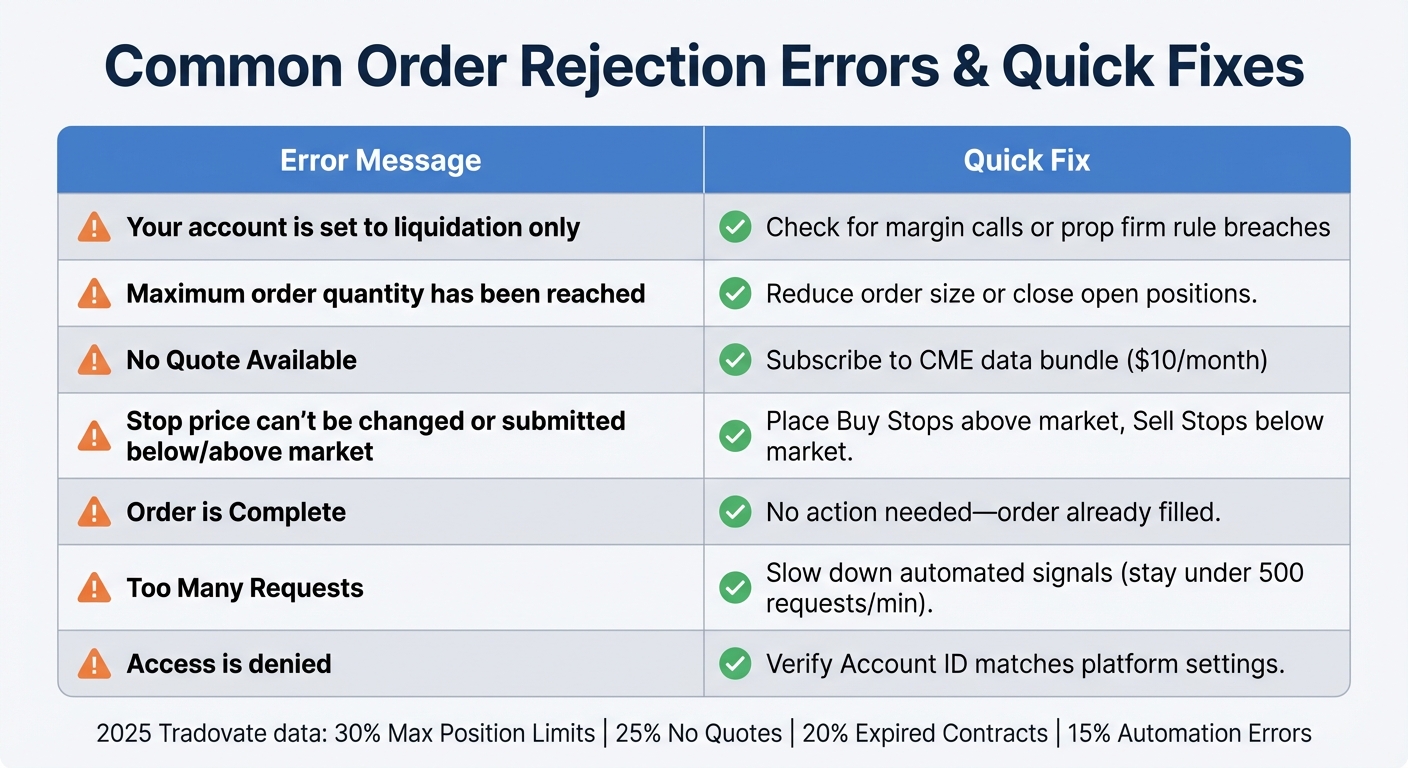
Common Trading Order Rejection Errors and Quick Fixes
Reading Platform Error Messages
When an order gets rejected, your platform will display an error message, but it might not tell the whole story. To uncover the complete reason for the rejection, you’ll need to dig a bit deeper.
If you’re using Tradovate or NinjaTrader, head to the Orders Module and select the rejected order to view the detailed error message [6][7]. For a more formal record, go to the Reports Module, choose "Order Details", and input the Order Number [6][7].
For those using automated trading tools like PickMyTrade, check the Alert Log for failure messages. These logs will show specific reasons like "Access is denied" or "Invalid Symbol" [11]. These messages are generated by your broker’s Order Management System (OMS) and passed directly to your platform [4].
Quick Reference: Rejection Messages and Fixes
Here’s a quick breakdown of common rejection messages and what you can do to resolve them:
| Error Message | What It Means | Quick Fix |
|---|---|---|
| Your account is set to liquidation only | Your account is restricted to closing trades only [6] | Look into margin calls or check if you’ve breached prop firm rules [6] |
| Maximum order quantity has been reached | You’ve exceeded the contract limits (e.g., 10 micros for a $50,000 account) [6][3] | Lower your order size or close some open positions |
| No Quote Available | Either market data is missing, or there’s low liquidity [3] | Subscribe to the CME data bundle ($10/month) [3] |
| Stop price can’t be changed or submitted below/above market | The stop order is incorrectly placed on the wrong side of the market [4] | Ensure Buy Stops are above and Sell Stops are below the current price [4] |
| Order is Complete | You tried to modify or cancel an order that’s already been filled [4] | No action needed – the order filled due to rapid market movement [4] |
| Too Many Requests | API rate limits were exceeded (e.g., 500 requests per minute on Tradovate) [3] | Slow down automated signals or space out your orders [3] |
| Access is denied | The account ID is invalid, or a prop account is blocked [11] | Double-check that your active Account ID matches your platform settings exactly [11] |
In 2025, Tradovate reported a 15% rise in order rejections. Among these, Max Position Limits caused 30% of the issues, followed by No Quotes Available (25%), Expired Contracts (20%), and Automation Errors (15%) [3]. Recognizing these trends can help you anticipate and address problems before they disrupt your trading.
With these error messages and their fixes in mind, you’re ready to move on to the next section, where you’ll find step-by-step solutions for rejected orders.
How to Fix Rejected Orders: Step-by-Step
Now that you know how to interpret error messages, here’s a step-by-step guide to help you resolve rejected orders. The most common causes are margin and position-limit issues, so it’s best to start there before diving into more technical adjustments.
Step 1: Check Your Margin and Buying Power
Look for errors such as "Insufficient margin", "Not enough money", or "Max position met" in your Orders or Reports module. These errors indicate whether your account has enough free margin to meet the initial margin requirement for the new trade. Don’t rely solely on the dashboard display – margin requirements can fluctuate during high volatility, which might create discrepancies. Also, check if pending orders are tying up your available margin. If you’re trading with a funded account, confirm that your order doesn’t exceed the Max Open Quantity or Max Open Positions allowed by your prop firm.
Next, review your open position limits.
Step 2: Confirm Position and Contract Limits
Check your current open positions and pending orders to see if you’ve hit the contract limits set by your platform or prop firm. If you receive an error like "Maximum order quantity has been reached", you’ll need to adjust your positions or request an increase in your limits.
Step 3: Review Order Parameters and Types
Double-check your order type, price levels, and time-in-force settings. For stop orders, ensure Buy Stops are placed above and Sell Stops below the market price. Confirm that your order price aligns with the symbol’s tick size – e.g., the S&P 500 E-mini moves in 0.25 increments, so an order at 1,650.01 would be rejected. Also, make sure the contract is active; roll futures contracts about seven days before expiration to avoid errors. During volatile markets, widen your stop distances to accommodate rapid price changes. If you encounter "outside bands" errors, consider entering with a market order and manually setting your profit targets and stop losses afterward.
Step 4: Fix API and Rate Limit Issues for Automated Trading
If you use automated strategies, watch for errors like "Too Many Requests" or HTTP 429, which indicate you’ve exceeded your broker’s API limits. For example, Tradovate caps requests at 500 per minute [1], and in 2025, automation-related issues caused about 15% of order rejections on their platform.
Matt Z of the Optimus Futures Support Team explains:
"APIs allow a fixed number of requests per second. If you exceed these orders per second, you may be rejected by the API."
To avoid this, throttle your alerts to stay within the rate limit. Use fixed price settings (e.g., fp= in your scripts) and verify symbols to reduce API calls. Tools like PickMyTrade can help manage API usage by offering server-side queuing with around 50ms latency. If you encounter 429 errors, implement exponential backoff or retry logic to resume trading once the limit resets.
Step 5: Check Account Permissions and Market Data Access
After resolving technical order issues, ensure your account setup supports smooth execution. Errors like "No Quote Available" may mean you’re missing a real-time data feed or trading during low-liquidity periods. Subscribing to the CME data bundle (about $10/month) can help prevent these errors. Also, confirm that the correct trading account is selected in your Strategy Properties or Chart Trading Panel, as manual and automated trading may require different account settings. Make sure the symbol on your chart matches your broker’s configuration, including the price scale and big point value. If needed, re-login or refresh your connection to sync your account.
For traders using prop firms, review your firm’s specific guidelines on margin, position limits, and order parameters. For detailed reviews and the latest information on futures prop firms – including companies like Apex Trader Funding, Take Profit Trader, FundedNext Futures, Alpha Futures, Tradeify, Lucid Trading, and Topstep, visit DamnPropFirms.
sbb-itb-46ae61d
Platform-Specific Fixes for Prop Traders
Prop Firm Rules and Daily Loss Limits
Trading with a funded account comes with strict rules, especially around the Daily Loss Limit (DLL). If you hit this limit, your account will automatically liquidate open positions and block further trades for the day. For instance, on Apex Trader Funding, you might see the error: "Order can be placed by administrators only." Similarly, Topstep and FundedNext Futures accounts display messages like "Your account is set to liquidation only."
Breaching the Maximum Loss Limit is more severe, putting your account into liquidation-only mode until you reset it or start a new evaluation.
Interestingly, as of August 25, 2024, TopstepX accounts no longer include a Daily Loss Limit. However, traders using Topstep with NinjaTrader or Tradovate must still follow this rule.
If you’re locked out due to a DLL violation, you’ll need to wait until the next day to resume trading. For Maximum Loss breaches, resetting your account or beginning a new evaluation is the only way forward.
Now, let’s dive into specific platform error messages and their solutions.
Platform Comparison: Fixes by Trading Platform
Each trading platform has unique error messages and solutions. Here’s a quick guide to resolving common issues:
| Platform | Common Error Message | Primary Resolution Step |
|---|---|---|
| NinjaTrader | "Logon failed / bad input" | Reconfigure the connection. If password issues persist, delete the .sqlite DB file in DocumentsNinjaTrader 8db. |
| NinjaTrader | "Session count exceeded" | Disable RTrader Pro market data and uncheck NT8 Plug-in mode. |
| NinjaTrader | "OCO ID cannot be reused" | Press Ctrl+Z to cancel OCO mode. |
| Tradovate | "Contract Expired" | Right-click the symbol and choose "Roll Forward" to update to the current front-month contract. |
| Tradovate | "No Quote Available" | Subscribe to the CME Bundle ($10/month) and sign the "Non-Professional" agreements. |
| Rithmic | "Rejected at RMS" | In the RTrader dashboard, right-click your account and disable "Enable Liquidating Only (Trader)." |
| TradingView | "Failed to Login" | Refresh or reauthorize your broker connection in the TradingView panel. |
For NinjaTrader users facing "Unable to load risk template" errors, delete the NinjaTrader Brokerage Default.xml file located in the templatesRisk folder. Tradovate users encountering automation issues with bid/ask prices on micro contracts can switch to settled or last prices to resolve the problem.
In 2025, Tradovate saw a 15% increase in order rejections due to stricter prop firm limits and API updates [3]. Of these rejections, 30% stemmed from "Max Position Met" errors, while another 25% were caused by "No Quote Available" issues [3].
To avoid unnecessary errors, always double-check that you’ve selected the correct account type (SIM, Eval, or Live) in your platform’s account selector. Set your default order size to just one contract to minimize accidental limit breaches. For those using automation, make sure your alerts are throttled to stay under Tradovate’s 500 requests per minute API limit, which can otherwise trigger "Too Many Requests" rejections.
These tailored fixes can streamline your trading experience and help you stay compliant with prop firm rules.
How to Prevent Order Rejections
Track Your Account Metrics Daily
Keeping a close eye on your account metrics every day is crucial to avoid order rejections. Margin requirements can shift quickly in volatile markets, so always check real-time metrics for both initial and maintenance margins before placing trades. Remember, brokers often impose stricter margin requirements than exchanges [1]. Even pending orders that don’t fill can tie up your available margin [9].
Use your prop firm dashboard to monitor key limits like daily and maximum loss thresholds. Tools from platforms such as FundedNext Futures and Topstep provide real-time updates on how close you are to hitting critical statuses like "Auto Liquidation" or "Liquidation Only." For example, if you’re trading with a $25,000 account, you may be limited to 2 mini or 20 micro contracts [12]. If you’re already holding positions, double-check that adding new orders won’t exceed your position limits. In 2025, 30% of Tradovate rejection cases were caused by breaches of maximum position limits [3].
Don’t overlook contract expiration, either. Expired contracts often result in "Contract Expired" errors, so roll your contracts at least seven days before their expiration date [8][3]. Setting calendar reminders for these roll dates can save you from a last-minute rush.
Beyond manual checks, consider tools that can make these processes more efficient.
Use Prop Firm Tools and Resources
Leverage the tools provided by prop firms to stay compliant and reduce errors. For instance, DamnPropFirms offers a Consistency Rule Calculator to help you manage volume and profit distribution requirements during evaluations. Many traders lose funded accounts not because of bad trades but because they unintentionally violate these rules.
If you’re juggling multiple accounts, trade copiers like SyncFutures and Replikanto can help. These tools synchronize orders across accounts, minimizing manual errors and ensuring you don’t exceed position limits in one account while staying within limits in another [4][13].
Server-side validation tools are another game-changer. Platforms like PickMyTrade automatically check for margin levels, position limits, and API throttles, helping to prevent common rejection triggers [1][3]. These tools can execute orders with as little as 50ms latency, giving you an edge in fast-moving markets [1].
To stay on top of prop firm requirements, keep a checklist of their rules visible on your trading monitor. Firms like Apex Trader Funding and Topstep each have unique rules, and a quick visual reminder can prevent costly mistakes during high-pressure moments.
Alongside these tools, staying updated on rule changes is equally important.
Keep Up with Platform and Prop Firm Rule Changes
Prop firm policies can change frequently, and missing these updates can lead to unexpected rejections. For example, as of August 25, 2024, TopstepX accounts removed the Daily Loss Limit for new or reset Trading Combines and Express Funded Accounts. However, this rule still applies to NinjaTrader and Tradovate users [8].
Platform updates can also affect your trading. Tradovate’s 2025 WebSocket upgrades increased polling speed by 20%, but this also led to more "Too Many Requests" errors for traders who hadn’t adjusted their automation settings [3]. In fact, stricter prop firm limits and API updates caused a 15% increase in order rejections that year [3].
To avoid surprises, use economic calendars from sources like Forex Factory, Investing.com, or TradingView to track high-impact news events. Close your positions at least 15 minutes before and after major announcements like FOMC, CPI, or NFP to prevent sudden liquidations. In 2025, around 20% of users experienced order rejections during NFP spikes [3].
Finally, subscribe to platform status pages and prop firm newsletters. For example, Tradovate’s status page (status.tradovate.com) provides real-time alerts for maintenance windows and outages that could disrupt your trading [3]. Regularly reviewing FAQs and updates on drawdown calculations or news restrictions can help you stay compliant with the latest rules [13].
Taking these steps can significantly reduce the likelihood of order rejections and keep your trading on track.
Conclusion
Tackling order rejections requires a clear and methodical approach. Start by identifying the specific error message, checking your account limits and margin, confirming order parameters, and ensuring your market data subscriptions are active. With recent platform updates and stricter prop firm rules, traders have faced an uptick in rejections, often stemming from issues like exceeding contract limits or missing CME data subscriptions [3]. Each rejection points to a specific problem that can be resolved with targeted action.
Addressing these errors promptly improves trading consistency and reduces disruptions. Staying proactive is key. As Matt Z from the Optimus Futures Support Team explains:
As a trader, it’s important to know that futures orders can be rejected [5].
To stay ahead, monitor your daily loss limits, roll contracts at least seven days before expiration, and manage automated signals to stay within API rate limits, such as Tradovate’s 500 requests per minute threshold [1][3]. High-volatility events, like NFP spikes, can lead to rejections for about 20% of traders. Adjusting your strategy during such times can help you avoid unnecessary setbacks [3].
For prop traders, understanding and adhering to firm-specific guidelines is critical. Resources like DamnPropFirms are designed to help you navigate firms such as Apex Trader Funding, Topstep, and Tradeify. Tools like the Consistency Rule Calculator can help you maintain compliance and protect your funded account. Check out detailed reviews and updates at https://damnpropfirms.com/futures-prop-firms/apex-trader-funding/ for the latest rules and funding opportunities. With estimates suggesting that 80% to 90% of traders fail their first prop firm challenge due to preventable rule violations rather than lack of skill [13], staying informed can make all the difference.
FAQs
How can I tell if a rejection is due to margin, limits, or bad order settings?
To figure out why an order was rejected, start by reviewing the rejection message on your trading platform. If it’s margin-related, the message might mention things like insufficient funds or a lack of buying power. For limit or order setting issues, you could see messages such as "contract limit exceeded" or "limit order too aggressive." Check the order details in the platform’s Orders Module to determine whether the problem stems from margin constraints, a limit violation, or a configuration error.
Why are my futures orders rejected when I hold past the close?
Futures orders often face rejection if held past market close since trading is not allowed outside regular hours. Exchanges enforce strict rules to block order entries during these times. Other reasons for rejections include market pauses, exceeding position limits, or attempting to place orders during system maintenance. These measures are in place to manage risks effectively and maintain orderly trading conditions.
What’s the fastest way to stop “Too Many Requests” rejections in automation?
To stop "Too Many Requests" errors, start by cutting down on the number of requests your system sends at the same time. Implement retries with exponential backoff – this means gradually increasing the wait time between retries to prevent overwhelming the server. Make sure your application respects the API’s rate limits, as many platforms set hourly or per-minute request caps. Using official SDKs can be a smart move since they often manage these limits for you, improving efficiency and reducing the chances of requests being rejected.