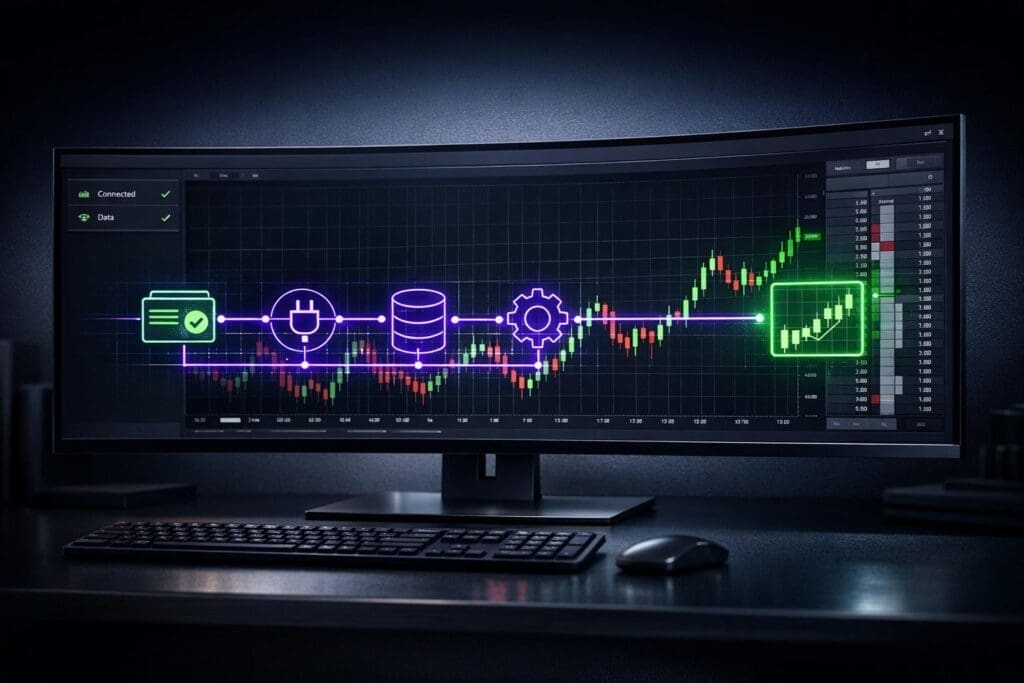
If your Tradovate or NinjaTrader charts are freezing or you’re seeing the dreaded "Real-time market data required to trade" error, you’re not alone. Whether it’s expired contracts, subscription issues, or a shaky internet connection, these problems can derail your trading fast. The good news? Fixing them is usually straightforward.
This guide breaks down the common culprits – subscription lapses, connection problems, and platform glitches – and gives you actionable fixes. From resetting your database to tweaking firewall settings, I’ll walk you through how to get your data back up and running without wasting time. Let’s get your charts moving again.
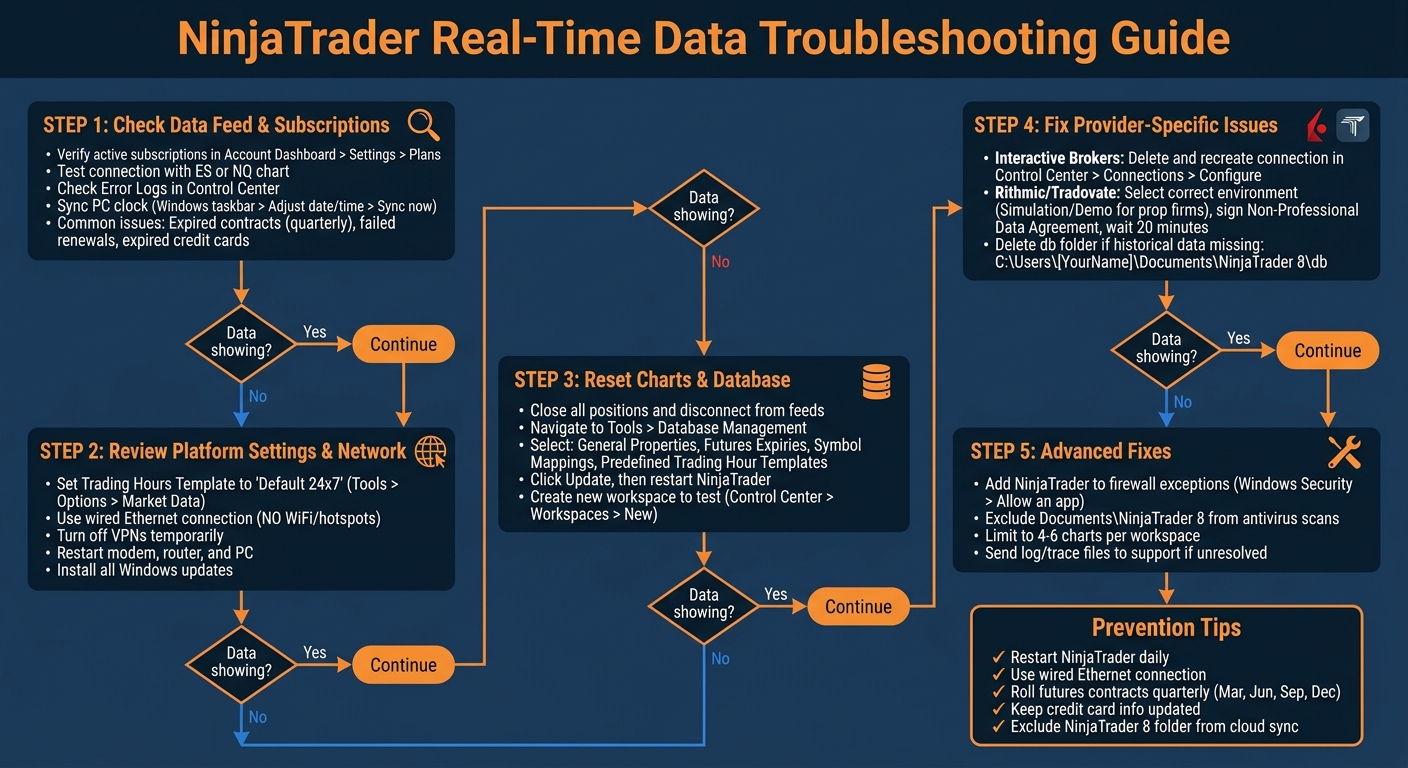
NinjaTrader Real-Time Data Troubleshooting Flowchart
Check Your Data Feed and Subscriptions
First things first – make sure you’re subscribed to the real-time data you need for your trading instruments. This is often the main reason traders experience frozen charts or errors like "Real-time market data required to trade" [4]. If you’re trading futures contracts like ES or NQ, you need an active subscription for those specific instruments.
Verify Active Subscriptions
Log into your NinjaTrader Account Dashboard, then head to Settings > Plans to check your current market data subscriptions [2][4]. If you’ve added a new subscription, restart the NinjaTrader Desktop app to activate it. Keep in mind, renewals can fail for reasons like expired credit cards, insufficient funds, or canceled subscriptions [1][4].
Also, don’t forget futures contracts expire quarterly. If you’re trying to trade an expired contract, you’ll run into "market not open" errors, even if your subscription is active [1].
Once you’ve confirmed your subscriptions, it’s time to test your data connection to make sure everything is working.
Test Your Data Feed Connection
Open a chart for a common symbol like ES or NQ to test your connection. If live data shows up, you’re good to go. If you see a yellow "Connecting" status in the Control Center, there’s a communication issue [3]. Here’s what you can do:
- Go to Control Center > Connections > Configure, delete the existing connection, and recreate it [3].
- If that doesn’t fix it, flush your DNS cache. Open Command Prompt, type
ipconfig/flushdns, and hit Enter [3].
Still having issues? It’s time to dig into the error logs.
Check Error Logs
Go to the Log tab in the Control Center and look for errors. NinjaTrader support suggests:
Click the Log tab at the bottom of the Control Center window. Look for the Log entries displaying specific Instrument symbols with delayed data [2].
If you get a pop-up saying "Instruments not subscribed for real-time data have been detected", the Log will pinpoint which symbols are missing [2]. From there, just return to your dashboard and add the necessary subscriptions.
One last tip – make sure your PC clock is synced. Right-click the clock in your Windows taskbar, select "Adjust date/time", and click Sync now [6]. An out-of-sync clock can cause login issues and data errors that look like subscription problems but aren’t.
sbb-itb-46ae61d
Review Platform Settings and Network Connection
Even if you’ve got an active subscription, bad platform settings or a shaky network can stop real-time data from showing up on your charts. NinjaTrader relies on a constant, uninterrupted connection to its data provider. Unlike Netflix, trading data doesn’t “buffer” to make up for lost time. A few quick tweaks can often fix these problems.
Set Trading Hours Template
The Trading Hours Template tells NinjaTrader when to expect data for each instrument. If this is misconfigured, you’ll end up with gaps or frozen charts even during market hours. Head to Tools > Options > Market Data > Trading Hours and set it to Default 24×7. This setting ensures the platform doesn’t cut off your data feed during active trading sessions.
Still seeing delayed data? Open the Log tab in the Control Center. It’ll show which instrument symbols are lagging. Double-check you’re trading the current contracts. After that, confirm your internet connection can handle the setup.
Test Your Internet Connection
Once your platform settings are squared away, make sure your network is solid. Stick to a wired Ethernet connection. WiFi, mobile hotspots, or public networks aren’t reliable enough for trading. If you’re still having trouble with Ethernet, restart your modem, router, and PC to clear up any glitches.
Turn off VPNs temporarily – they can block or slow down connections to your broker’s servers. If the problem doesn’t go away, try connecting your computer to a different network. This will help you figure out if the issue is with your ISP or your home equipment. Lastly, make sure all your Windows updates are installed. Sometimes missing updates can cause issues that look like data feed problems.
Once your network is rock-solid, you can move on to resetting charts and repairing your database.
Reset Charts and Database
If your platform settings and network checks are in order but data still isn’t coming through, corrupted charts or database files might be the issue. These can cause freezing, mismatches, or general sluggishness. NinjaTrader keeps historical data, order logs, and symbol mappings – when these files get corrupted, resetting the database can fix the problem without touching your custom workspaces, indicators, or strategies.
Repair the Database
Before making any changes, close all open positions and disconnect from brokers and data feeds through the Connections menu. Then, in the Control Center, navigate to Tools > Database Management. Select the following options: General Properties, Futures Expiries, Symbol Mappings, and Predefined Trading Hour Templates. Click Update to reset these settings[7].
Afterward, close NinjaTrader and restart it. If you’re using a VPS, reboot the VPS too so that all settings reload correctly[7]. Once you’re back up, reconnect to your data provider and test a simple chart. Just remember, this reset will permanently delete your historical trade data. If you need those records for taxes or performance tracking, back them up beforehand[7].
If this doesn’t fully fix the issue, your workspace might be the problem.
Reload Your Workspaces
If repairing the database doesn’t bring back live data, the issue could lie within your workspace. To check, create a new workspace by going to Control Center > Workspaces > New. Open a single chart and see if real-time data flows as it should[8]. If the new workspace works fine, your old one is likely causing the problem. Check the Log tab for any indicators or settings that might be dragging down performance[8].
If the platform won’t load at all, take these extra steps: Go to:
DocumentsNinjaTrader 8templatesRisk and delete the file named NinjaTrader Brokerage Default.xml[5]. Also, make sure your DocumentsNinjaTrader 8 folder isn’t being scanned by antivirus software or synced to OneDrive, as these can mess with workspace file saving[3][5].
Fix Provider-Specific Problems
After checking your general settings, it’s time to tackle issues tied to your specific data provider. Interactive Brokers, Rithmic, and Tradovate all come with their own quirks that can mess with real-time data feeds. Luckily, most of these problems can be fixed by tweaking a few settings.
Interactive Brokers Issues
If you’re using Interactive Brokers (IB) as your data provider, one common headache is a faulty connection between NinjaTrader and IB’s Trader Workstation (TWS). You might see a "stuck" connection status or a green indicator that doesn’t actually deliver data. Here’s how to fix it:
- Go to Control Center > Connections > Configure.
- Delete your existing IB connection.
- Recreate the connection from scratch.
This clears out any lingering issues and re-establishes a clean connection. Keep in mind, NinjaTrader needs a constant connection – any drops will cause delays, as mentioned earlier.
Rithmic and Tradovate Errors
Rithmic and Tradovate feeds are favorites among prop firms, but they can be tricky to set up. A common mistake is choosing the wrong environment during login. If you’re trading with a prop firm like Tradeify, make sure to select "Simulation" or "Demo" in the connection settings, even if you’re on a funded account. Picking "Live" will result in login failures every time.
Another issue you might run into is orange symbols or data delayed by 10+ minutes. This usually means you haven’t signed the Non-Professional Data Agreement. To fix this:
- Log into the Tradovate web platform at trader.tradovate.com.
- Look for the data agreement pop-up or banner and sign it.
- Wait about 20 minutes, then restart NinjaTrader.
Also, double-check your credentials. Your dashboard login (email and password) is different from your platform trading credentials (often starting with "TRAD" for Tradovate-based feeds). If you’re getting "Access Denied" errors, copy the credentials directly from your provider’s dashboard to avoid typos or capitalization mistakes.
If your charts load real-time data but fail to display historical data, you might have a corrupted local database. Here’s how to fix that:
- Close NinjaTrader.
- Navigate to
C:Users[YourName]DocumentsNinjaTrader 8. - Delete the db folder.
When you reopen NinjaTrader, the platform will rebuild the database automatically. If the login button gets stuck on "Loading", make sure your computer’s clock is synced (check the earlier section for details).
Advanced Fixes
If the basic steps didn’t solve your problem, it’s time to dig deeper. These advanced fixes tackle stubborn issues like firewall conflicts or hardware overload.
Add NinjaTrader to Firewall Exceptions
Sometimes, your firewall or antivirus software might block NinjaTrader’s connections without you realizing it. This can happen after a Windows update or when you install new security software. To fix this, add NinjaTrader to your firewall’s exceptions:
- On Windows: Go to Windows Security > Firewall & network protection > Allow an app through firewall. Find NinjaTrader in the list and make sure both Private and Public boxes are checked.
- On Mac: Open System Settings > Security & Privacy > Firewall > Firewall Options. Add NinjaTrader to the list and select Allow incoming connections.
Additionally, exclude the DocumentsNinjaTrader 8 folder from antivirus scans, firewall rules, or backup services like OneDrive. These scans can interfere with file access, causing issues like data lag or chart errors. If switching to a mobile hotspot fixes the problem, your primary network or router might be the culprit.
Reduce Workspace Load
Running too many charts at once can overwhelm your computer’s CPU and RAM. Stick to 4–6 charts per workspace. If you need more, spread them across multiple workspaces instead of loading them all at once. Also, close any SuperDOM, Market Analyzer, or Chart windows for instruments you’re not actively trading. This is especially important when trading through futures prop firms where data stability is critical for meeting evaluation rules. These windows can hog resources and lead to "delayed data" errors[2].
Restarting NinjaTrader daily can also help refresh its database and connections[3]. And if you’re using Wi-Fi, consider switching to a wired Ethernet connection for a steadier real-time data feed[3].
Send Log Files to Support
If nothing else works, send your log and trace files to NinjaTrader’s support team. These files provide a detailed look at what’s going on behind the scenes, like order events or connection issues. Here’s how to do it:
- Close NinjaTrader.
- Open Windows File Explorer (Windows key + E) and go to
DocumentsNinjaTrader 8. - Locate the log and trace folders. Hold Ctrl, click both folders, right-click, and choose Send To > Compressed (zipped) Folder[10].
- Email the zipped file to [email protected][10].
Before contacting support, check the Log tab in the Control Center. It often lists specific error messages or instruments causing delays[9][2]. And here’s a heads-up: don’t post log or trace files on public forums or social media. As NinjaTrader Customer Service (NinjaTrader_LuisH) advises:
Please do not leave log and trace files in this forum post as it may contain sensitive information[10].
Get Help from Your Prop Firm
Contact Your Prop Firm’s Support Team
If you’re running a funded account with firms like Apex Trader Funding or Topstep and run into NinjaTrader data issues, your first move should be to contact their support team. Start by checking the Log tab in the NinjaTrader Control Center. Look for any orange (warning) or red (critical) messages and grab screenshots of them[2].
Some common problems traders face include expired futures contracts (these roll over every March, June, September, and December), failed data subscription renewals[1], or "session count exceeded" errors from logging into more than two devices at once[6]. If you get a "Real-time market data required" error, it usually means you’re not subscribed to live data for the instrument in question. You can check and update this in your Account Dashboard[4].
To help support diagnose the problem, close NinjaTrader, go to DocumentsNinjaTrader 8, and compress the log and trace folders into ZIP files. Attach these files to your support ticket. For more details, check out the "Send Log Files to Support" section. Also, make sure to include the connection light color (yellow for "connecting" or red for "disconnected") in your message[3].
If your prop firm’s support can’t fix the issue right away, don’t worry – there are other ways to troubleshoot.
Use DamnPropFirms Resources
Sometimes, the quickest fixes come from self-help resources. At DamnPropFirms.com, we’ve put together a library of troubleshooting guides and setup tutorials specifically for funded traders using NinjaTrader with firms like Apex and Topstep. These guides tackle everything from connection drops to firewall exceptions and clock sync problems that can cause login loops.
For example, if you’re dealing with an "Instruments not subscribed" error, our guides will walk you through checking the Log tab in the Control Center[2]. Or if your login button isn’t responding, syncing your Windows clock might do the trick[6]. Stuck on a "Loading" screen or having Captcha issues? Right-click your Windows taskbar clock, select "Adjust date/time", and hit "Sync now"[6].
Still need help? Jump into the free DGT Discord. With over 3,000 active futures traders, it’s a goldmine for real-time advice from others who’ve already solved the same NinjaTrader headaches. You can also win a futures prop firm account through our regular community giveaways.
Summary and Prevention Tips
Real-time data issues in NinjaTrader usually come down to a few usual suspects: expired subscriptions, network problems, firewall interference, or outdated futures contracts. The good news? Most of these can be fixed quickly. Start by checking your data feed connection and subscription status in the Control Center. From there, work through platform settings, database repairs, and any provider-specific fixes. If you’re still stuck, reach out to your prop firm’s support team – they can help analyze log files and pinpoint deeper problems.
Here are some steps to keep things running smoothly and avoid future interruptions. Restart NinjaTrader and your PC daily. This simple habit refreshes your database and connections, solving most stability problems[3]. Make sure to exclude your DocumentsNinjaTrader 8 folder from your firewall, antivirus, and cloud sync services to avoid file access issues[3]. Also, use a wired Ethernet connection to minimize packet loss and prevent chart freezes[3]. As NinjaTrader Support says:
A reliable, uninterrupted connection between your computer and the internet is the most important factor regarding NinjaTrader Desktop’s connections to the brokerage, price feed, and historical data servers.[3]
For long-term performance, stick to these quarterly maintenance tasks: Roll over futures contracts in March, June, September, and December to avoid expired data[1]. Keep your account funded and your credit card info up to date to prevent data feed cancellations[1]. If you’re using Rithmic, set "Market Data" in RTrader Pro to OFF and uncheck "Plug-in Mode" in NinjaTrader – this avoids session count errors.
Need more help? Check out the DamnPropFirms troubleshooting library or hop into the free DGT Discord. With over 3,000 active futures traders, chances are someone else has already solved the issue you’re facing. Staying proactive with these steps keeps your platform running smoothly and your focus where it belongs – on trading.
FAQs
How can I tell if it’s a subscription issue or a connection issue?
To figure out if the problem is tied to your subscription or your connection, start by checking your data connection in NinjaTrader. Make sure you’ve got the right provider selected and that it’s active. If you’re connected but still running into trouble, try disconnecting and then reconnecting.
Next, double-check your subscription status. Are your real-time data feeds active? If you’re only seeing delayed data, it’s likely a subscription issue. On the other hand, if you’re getting disconnected often, that’s probably a connection problem.
Will repairing the database remove any of my indicators or settings?
Repairing the NinjaTrader database can reset certain platform settings and outdated instrument configurations. The good news? It usually doesn’t mess with your indicators or personal settings. That said, after the reset, you might need to manually reload your indicators or columns if they don’t update on their own.
What information should I provide to support to resolve real-time data issues faster?
To get your real-time data issues sorted fast, make sure to include detailed info about your setup and what you’ve already tried. Here’s what to share:
- Platform details: Your username and whether you’re using RTrader or NinjaTrader, including any relevant setup specifics.
- RTrader login confirmation: Let them know if you’ve logged in, accepted the agreements, and entered your license key.
- Troubleshooting steps: Mention if you’ve cleared your cache or restarted your system.
- Data feed status: Share info about your subscriptions and whether you’ve seen any warnings or alerts.
- Errors or connection problems: Be specific about any error messages or connection issues you’ve run into.
The more details you provide, the quicker they can help.