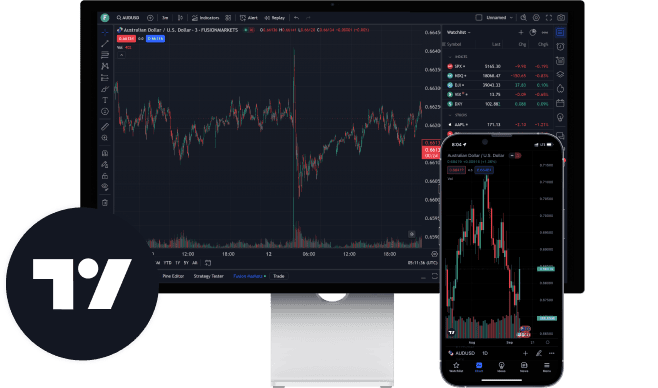
TradingView is the most-used charting and analysis platform in the world — over 100 million registered traders use it for technical analysis, market scanning, idea sharing, and live execution across stocks, futures, forex, and crypto. For most traders it's the charting layer. For a growing number of prop firm traders, it's also the execution layer when paired with a broker like Tradovate.
This page covers everything traders need to know about TradingView: how it works, what it costs, the features that actually matter, and where it fits in a prop firm trader's toolkit. If you're specifically looking for futures prop firms that support TradingView, head to prop firms with TradingView for the verified firm list.
The 30-second summary:
- Free plan — solid for single-chart analysis, limited to 1 indicator and 1 device
- Essential ($14.95/mo) — best entry point for serious traders: 2 charts, 5 indicators, Bar Replay, Volume Profile
- Plus ($29.95/mo) — 4 charts, webhooks for automation
- Premium ($59.95/mo) — 8 charts, 25 indicators, alerts that never expire, Volume Footprint
- Ultimate ($239.95/mo) — 16 charts, 50 indicators, tick-based intervals (overkill for almost everyone)
30-day free trial on all paid plans. Annual billing saves 13-17%.
What TradingView Actually Does
TradingView started as a charting platform in 2011 and grew into something closer to a full trading operating system. The platform handles four distinct jobs at the same time:
1. Advanced Charting
This is the core. TradingView’s charting engine is the cleanest, fastest, and most customizable in the retail trading space. It supports:
- 15+ chart types — candlesticks, bars, Heikin Ashi, Renko, Kagi, Point & Figure, Line Break, Range, Volume Candles
- Custom timeframes — anything from 1 second (Premium+) to monthly. Set non-standard intervals like 7-minute or 54-minute charts
- Multi-chart layouts — 2 to 16 charts per tab depending on plan, synced symbol changes and crosshair
- Tradingview drawing tools — 100+ drawing tools including Fibonacci suites, Elliott Wave, Gann tools, harmonic patterns, and custom shapes
- Replay mode — scrub back through historical data and “trade” bar by bar to practice setups
2. Market Scanning & Screening
The TradingView screener filters thousands of instruments by hundreds of criteria — fundamentals, technicals, custom Pine Script conditions. Scan all S&P 500 stocks for RSI under 30. Filter all forex pairs for a specific candlestick pattern. Find every crypto with volume above a threshold. The screener runs in real time and exports to watchlists with one click.
3. Alerts & Automation
TradingView alerts trigger on any condition you can define on a chart — price levels, indicator crosses, custom Pine Script logic, drawing tool touches. Alerts deliver via:
- Mobile push notification
- SMS (limited plans)
- Webhook URL — the key feature for automated trading, available on Plus and above
Webhook alerts are what makes TradingView work with bot platforms, prop firm copy traders, and external execution engines. A TradingView alert fires, a webhook POST hits your server, your server places a trade — all in under a second.
4. Live Broker Execution
This is the part most traders don’t know about. TradingView connects directly to 30+ brokers and you can execute trades from the chart without leaving the platform. For futures traders, this includes Tradovate, AMP Futures, Optimus Futures, and TradeStation. For forex it includes OANDA, FOREX.com, and IC Markets. The Trading Panel sits at the bottom of the chart with bracket orders, hotkey support, and full depth-of-market.
TradingView Pricing in 2026
TradingView uses a freemium model with five tiers. All paid plans include a 30-day free trial. Annual billing saves 13-17% compared to monthly. Here’s what each plan unlocks (verified May 2026 from tradingview.com/pricing):
Free Plan — $0
The free plan is genuinely useful for single-chart analysis and learning. You get:
- 1 chart per tab, 1 device
- 1 indicator per chart (effectively limits serious analysis)
- 2 active alerts
- Ads in the UI
- Full access to drawing tools and community-published indicators
Who it’s for: Brand new traders learning the platform, hobby traders, anyone who only watches one chart at a time.
Essential — $14.95/mo monthly, $12.95/mo annual
The best value in the lineup. The 2-chart layout alone is worth the upgrade — you can monitor your entry timeframe and confirmation timeframe simultaneously. You get:
- 2 charts per tab
- 5 indicators per chart
- 20 active alerts (expire after ~2 months)
- Volume Profile, custom timeframes, Bar Replay
- Multiple watchlists, no ads
- 10,000 historical bars
Who it’s for: Most active traders. If you trade multiple timeframes or use more than 1 indicator, Essential pays for itself.
Plus — $29.95/mo monthly, $24.95/mo annual
Doubles Essential’s chart count and adds webhook alerts. Where it gets debated is the price — double Essential for features that don’t help every trader. You get:
- 4 charts per tab
- 10 indicators per chart
- 100 active alerts
- Webhook alerts — critical for automation and bots
- Everything in Essential
Who it’s for: Traders running automated strategies (need webhooks), traders who track 4+ timeframes per instrument, or traders managing 4+ different markets simultaneously.
Premium — $59.95/mo monthly, $49.95/mo annual
The workhorse tier for professional retail traders. Premium unlocks features genuinely unavailable on lower tiers:
- 8 charts per tab
- 25 indicators per chart
- 400 active alerts that NEVER expire
- Second-based chart intervals (1s, 5s, 15s, 30s) — critical for scalpers
- Volume Footprint charts
- Auto chart patterns recognition
- Custom formula charts (pairs trading, ratios)
- 20,000 historical bars
Who it’s for: Scalpers (need second-based intervals), serious algo traders (need non-expiring alerts), order flow traders (need Volume Footprint).
Ultimate — $239.95/mo monthly, $199.95/mo annual
The institutional tier. Almost nobody who isn’t a professional needs this:
- 16 charts per tab
- 50 indicators per chart
- 1,000 active alerts
- Tick-based chart intervals
- Priority customer support
- Everything in Premium
Who it’s for: Professional traders managing multiple strategies across many markets. Most retail traders should skip this entirely — even most prop firm traders top out at Premium.
Hidden Cost: Real-Time Exchange Data
TradingView includes delayed data on most exchanges by default. For real-time data on CME (futures), NYSE/NASDAQ (stocks), and some other exchanges, you pay a separate exchange data subscription on top of your TradingView plan. CME real-time non-professional data runs $14/month for major contracts. Pros pay significantly more — exchange data agreements require accurate professional classification.
Tip: Black Friday Sales
TradingView runs deep discounts in November (Black Friday) and Cyber Week — annual plans often drop 50-70%. If you’re not in a rush, wait. A Premium subscription at 60% off costs less than Essential at full price.
TradingView as an Execution Platform
Most traders use TradingView for charting and place their trades elsewhere — in their broker’s web platform, in NinjaTrader, in MetaTrader, or in their prop firm’s native frontend. But TradingView has a fully functional execution layer that connects to 30+ supported brokers.
How TradingView Execution Works
Click the “Trading Panel” tab at the bottom of any chart. Select your broker from the dropdown. Log in with your broker credentials (or your prop firm’s credentials if your prop firm routes through a supported broker). The Trading Panel now shows:
- Real-time position size and P&L
- Open orders ladder
- Buy/Sell buttons with size input
- Bracket order configuration (entry, stop, target)
- Depth of market (DOM) when available
You can place trades by clicking the buy/sell buttons, dragging entry/stop/target lines directly on the chart, or using hotkeys for instant execution. For most traders this is faster than opening a separate platform.
TradingView-Compatible Brokers for Futures
If you’re trading futures and want execution via TradingView, the main broker integrations to know:
- Tradovate — direct Tradovate integration, no third-party bridge needed. Works with any Tradovate-routed prop firm account
- AMP Futures — direct integration via the AMP TradingView gateway
- Optimus Futures — direct integration
- TradeStation — direct integration
- NinjaTrader — indirect via NinjaTrader’s web bridge (limited feature set)
For prop firm traders specifically, the Tradovate integration is what matters. Most major futures prop firms route through Tradovate, which means TradingView execution works on your prop firm account if the firm supports it. See the verified list at prop firms with TradingView.
Chart-Only vs Execution Access
This is the most common confusion. When a prop firm advertises “TradingView support,” they could mean one of two things:
- Chart-only access — you use TradingView for analysis but execute on the firm’s native platform. The TradingView Trading Panel is not connected to your prop firm account.
- Full execution access — you can place trades on your prop firm account directly from the TradingView chart via Tradovate integration.
Always check which type a firm offers before signing up. Phrases to look for: “trade directly on TradingView” or “TradingView order routing via Tradovate” mean full execution. “TradingView compatible charts” usually means chart-only.
TradingView Indicators & Pine Script
TradingView ships with over 100 built-in indicators covering every category — trend, momentum, volume, volatility, market structure, statistical models. But the real depth comes from Pine Script, TradingView’s custom scripting language.
Built-In Indicators That Matter for Prop Traders
For futures and forex prop trading specifically, the indicators worth mastering:
- Volume Profile (Essential+) — visualizes traded volume at each price level over a session. Identifies high-volume nodes (HVNs), low-volume nodes (LVNs), point of control (POC), and value areas. Critical for any trader who reads price levels by participation, not by time.
- VWAP — institutional anchor. Most prop traders use VWAP as a trend filter or dynamic support/resistance level.
- Anchored VWAP — VWAP anchored to a specific bar (typically the prior day’s high, the open, or a key event). Top-tier prop traders use anchored VWAP extensively.
- Market Structure indicators — third-party Pine Script indicators detecting higher highs/lows, break of structure (BOS), change of character (CHoCH)
- Volume Footprint (Premium only) — order flow visualization showing bid/ask volume at each price within each bar. Approximates what dedicated platforms like Sierra Chart and Bookmap do, in TradingView
What Is Pine Script?
Pine Script is TradingView’s proprietary scripting language for custom indicators and strategies. It’s deliberately simpler than C# (NinjaTrader) or ACSIL (Sierra Chart) — designed so traders without a programming background can write useful tools. Pine Script v6 (current as of 2026) handles:
- Custom indicators with visual outputs (lines, areas, shapes, labels)
- Alert conditions tied to indicator logic
- Strategy scripts that generate backtest results
- Multi-timeframe analysis
- Custom math, statistics, and pattern recognition
The Community Library
TradingView has the largest community-built indicator library in retail trading. The Public Library contains 100,000+ free Pine Script indicators contributed by users — including thousands of variations on every popular trading methodology (ICT, Wyckoff, Smart Money Concepts, harmonic patterns, supply/demand, order blocks, fair value gaps, breaker blocks). Most of what serious traders need is already published; you can fork and customize without writing scripts from scratch.
Pine Script for Strategy Development
The Pine Script Strategy framework lets you build a complete trading system, backtest it on historical data, and view detailed performance metrics — win rate, profit factor, max drawdown, average trade, Sharpe ratio. The TradingView strategy tester runs the backtest and outputs a tradeable signal series that can drive live alerts.
The TradingView backtest is good for proof-of-concept strategy development. For deeper backtesting (tick data, multi-instrument portfolios, walk-forward analysis), serious algo traders still use NinjaTrader or Sierra Chart. But for the 80% of strategies that work on bar data with simple logic, TradingView’s strategy tester is more than enough.
Paper Trading on TradingView
TradingView has a built-in paper trading account that simulates a live broker. It works on every plan including free, and on both desktop and mobile. Paper trading lets you practice setups, test new strategies, and demo a prop firm style of risk management without any real capital at risk.
How to Enable Paper Trading
- Open any chart on TradingView
- Click the “Trading Panel” tab at the bottom of the screen
- From the broker dropdown, select “Paper Trading”
- Accept the terms and your paper account is funded with $100,000 of virtual capital instantly
- Place trades by clicking buy/sell from the Trading Panel, dragging entry lines on the chart, or using hotkeys
What Paper Trading Simulates Well
- Order placement workflow (market, limit, stop, bracket)
- Position tracking and P&L calculation
- Daily P&L history and trade log
- Order chart visualization (entry, stop, target lines)
- Hotkey practice
What Paper Trading Doesn’t Simulate
- Slippage and fills. Paper trading assumes you get filled at the displayed price. Real markets — especially during news or on illiquid contracts — give worse fills than paper trading shows.
- Commissions. Paper accounts often default to zero commission, which inflates real-world profitability.
- Emotional pressure. Trading $100K of fake money feels nothing like trading real capital. This is paper trading’s biggest weakness and why it doesn’t translate 1:1 to live results.
Paper trading on TradingView is best used as a workflow trainer — learn how the platform works, practice your hotkeys, drill the mechanics of placing brackets. For actual strategy validation use real money in small size, or use a prop firm evaluation as a structured test environment.
Backtesting on TradingView
TradingView has two backtesting methods that serve different purposes:
Method 1: Bar Replay (Manual Backtesting)
Bar Replay is on Essential and above. Rewind a chart to any historical date, then “play” the chart bar by bar at any speed. Practice taking trades as the market reveals itself. This is the closest thing to live trading without using live capital, and it’s the best way to test discretionary strategies that depend on pattern recognition.
How to use Bar Replay:
- Click the Bar Replay icon (clock/play button) at the top of the chart
- Pick a date to start from
- Set playback speed (slow, normal, or fast)
- Place paper trades from the Trading Panel as the chart plays forward
Method 2: Strategy Tester (Automated Backtesting)
The TradingView Strategy Tester runs Pine Script strategies against historical data and outputs a performance report. Available on all plans.
How to backtest a strategy:
- Open the Pine Editor (bottom of screen)
- Write or paste a Pine Script strategy (or pick one from the public library)
- Add the strategy to a chart
- The Strategy Tester panel shows: net profit, max drawdown, profit factor, total trades, win rate, average trade, and a list of all trades
- Tweak the strategy parameters and re-run to optimize
Limitations of TradingView Backtesting
- Bar-level data only — no tick-by-tick backtesting like NinjaTrader or Sierra Chart offer
- Historical depth is plan-limited — Free gets 5,000 bars; Premium gets 20,000; Ultimate gets more. Long-term strategies on small timeframes need more depth
- Single-instrument focus — TradingView strategies test one symbol at a time. Portfolio backtesting isn’t built in
- No walk-forward optimization — manual parameter sweeps only
For 80% of strategies you can develop and validate on TradingView. For the remaining 20% (institutional-grade systems, multi-asset portfolios), move to NinjaTrader or Sierra Chart once you’ve proven the basics.
TradingView for Prop Firm Traders
For prop firm traders, TradingView serves three roles depending on how you structure your workflow:
Role 1: Analysis Layer (Universal)
Even if your prop firm doesn’t directly integrate with TradingView, you can use TradingView for chart analysis and switch to the firm’s native platform (Tradovate, NinjaTrader, Quantower) to execute. Most prop firm traders run this dual setup — TradingView on one monitor for analysis, execution platform on another.
Role 2: Direct Execution Layer (Tradovate Firms)
For prop firms that route through Tradovate (most major futures props), you can execute directly from the TradingView chart via the Tradovate integration. Connect your prop firm’s Tradovate credentials inside TradingView’s Trading Panel — orders fire to your evaluation or funded account, the firm’s risk rules enforce on the back end exactly as they would on the native platform.
Role 3: Strategy & Alert Layer (Algo Traders)
Prop firm traders running automated systems use TradingView for the signal layer: Pine Script alerts fire on the chart, webhook URLs push the signal to an external execution bridge, the bridge places the trade on the prop firm account through Tradovate or Rithmic. This is how the majority of “algo prop traders” actually run — TradingView for signal generation, separate bridge for execution.
The Critical Distinction: Chart-Only vs Execution
This is worth repeating because it trips up new prop firm traders constantly:
- Chart-only TradingView access = analyze on TradingView, execute in the firm’s native platform
- Full TradingView execution = trade directly from the TradingView chart, orders route to your prop firm account
Both are useful, but only full execution access gives you the workflow most traders want. Always verify which type the firm offers before signing up. The complete list of firms with verified TradingView support is at prop firms with TradingView.
Data Costs for Prop Firm + TradingView Setups
If you use TradingView with a prop firm, you pay for data twice in some cases:
- Your prop firm provides exchange data for trade execution (usually included in eval/funded fees)
- TradingView requires its own exchange data subscription for real-time charts ($14/month for CME non-pro)
The TradingView data subscription is separate from your prop firm — TradingView doesn’t see your prop firm’s data feed. Plan to pay the data fee on top of your TradingView plan if you want real-time futures charts.
TradingView vs Alternatives
The most common comparison questions traders ask:
TradingView vs NinjaTrader
NinjaTrader wins on backtesting depth, automated strategy framework (NinjaScript with C#), and the indicator ecosystem for futures-specific tools. TradingView wins on UI quality, cross-device sync, community indicator library size, and execution flexibility across multiple brokers. Most prop firm traders use both — NinjaTrader for strategy work, TradingView for live chart analysis.
TradingView vs Sierra Chart
Sierra Chart wins on tick-level backtesting precision, ACSIL custom studies in C++, and server-side strategy execution. TradingView wins on accessibility, learning curve, and the cross-asset experience (Sierra is futures-focused). Sierra is the pick for committed power users; TradingView is the pick for everyone else.
TradingView vs ThinkorSwim
ThinkorSwim is owned by Schwab and gives free charting comparable to TradingView Premium if you have a Schwab account. TradingView wins on cross-broker flexibility (not tied to one broker), cleaner mobile experience, and community features. ThinkorSwim wins if you only use Schwab and want everything in one place.
TradingView vs MetaTrader 4/5
MetaTrader is the legacy choice for forex prop firms — deeper Expert Advisor (EA) ecosystem for automated forex trading, slightly better at handling many simultaneous open positions. TradingView is the modern choice — better UI, better charts, better mobile, better community. Newer forex prop firms increasingly offer TradingView as the primary platform; legacy firms still center on MetaTrader.
TradingView vs Bookmap
Different categories. Bookmap is for order flow heatmap visualization (limit order book, iceberg detection, absorption). TradingView is for charting and technical analysis. Serious order flow traders run both — Bookmap for the book, TradingView for the chart. They complement each other on the same data feed.
TradingView vs Quantower
Quantower is closer to TradingView’s positioning — modern UI, multi-asset, native footprint charts. Quantower wins on advanced DOM customization and deeper pro-grade features. TradingView wins on community, accessibility, and broker integrations. Quantower is the pick if you want a desktop platform; TradingView is the pick if you want web/mobile/desktop sync.
TradingView Pros and Cons
What TradingView Does Well
- Best charting in the retail trading space. Clean, fast, infinitely customizable. The reason 100M+ traders use it.
- Cross-device cloud sync. Your layouts, watchlists, alerts, and Pine Script all sync across web, desktop, and mobile.
- Pine Script community library. 100,000+ free indicators. Whatever methodology you trade, someone has coded a version for TradingView.
- Broker integrations. 30+ brokers including Tradovate, AMP, TradeStation, OANDA, Interactive Brokers (via web), and most major crypto exchanges.
- Webhook alerts. The cleanest path to automated trading without writing your own server infrastructure.
- Paper Trading on every plan. Free practice account on free tier.
Where TradingView Falls Short
- Pricing tier confusion. Plus is widely regarded as poor value (double Essential for marginal extra features). Most traders should pick Essential or jump to Premium.
- Backtesting is limited. Bar-level only, no tick data, no portfolio backtesting. Serious algo development still requires NinjaTrader or Sierra Chart.
- Exchange data fees are separate. Sticker price doesn’t include real-time exchange data — budget for CME, NYSE, NASDAQ data on top.
- Auto-renewal complaints. Multiple reports on Trustpilot about subscriptions auto-converting and being difficult to cancel. Read the cancellation terms before signing up.
- Free plan limits are tight. 1 indicator per chart effectively forces an upgrade for any serious trader.
Should You Use TradingView?
For most traders the answer is yes — at minimum the free plan is worth using for chart analysis even if you trade and execute somewhere else. The question is which paid tier (if any) you need:
- Stay on Free if you only watch one chart and trade infrequently
- Upgrade to Essential when you need multi-timeframe analysis, Bar Replay, or Volume Profile (most traders end up here)
- Upgrade to Plus only if you need webhooks for automation
- Upgrade to Premium if you scalp on second-based intervals, need non-expiring alerts, or use Volume Footprint
- Skip Ultimate unless you’re a professional managing many strategies
For prop firm traders specifically: at minimum get Essential. Volume Profile alone is worth the $14.95. If you trade a Tradovate-routed prop firm and want direct execution from charts, you don’t need Premium — Essential’s execution capabilities are identical.
Ready to find a prop firm that supports TradingView? See the verified list at prop firms with TradingView — ranked by editorial priority, payout speed, and DGT trust rating.
TradingView FAQ — Common Questions From Traders
Is TradingView free?
Yes. TradingView has a permanent free plan with no time limit — 1 chart per tab, 1 indicator per chart, 2 active alerts, ads in the UI. The free plan is solid for single-chart analysis and learning the platform. Most traders upgrade to Essential ($14.95/mo) once they need multiple charts or more than one indicator. All paid plans include a 30-day free trial.
How much does TradingView cost in 2026?
TradingView has five tiers in 2026: Free ($0), Essential ($14.95/mo or $12.95/mo annual), Plus ($29.95/mo or $24.95/mo annual), Premium ($59.95/mo or $49.95/mo annual), and Ultimate ($239.95/mo or $199.95/mo annual). Annual billing saves 13-17%. Real-time exchange data (CME, NYSE, NASDAQ) is billed separately on top of any plan — typically $14/month for CME non-pro data.
Which TradingView plan is best for prop firm traders?
Essential ($14.95/mo) covers what most prop firm traders need — 2 charts for multi-timeframe analysis, Volume Profile, Bar Replay, and full broker integration including Tradovate. Upgrade to Premium ($59.95/mo) if you scalp on second-based intervals or need non-expiring alerts. Plus and Ultimate are rarely the right pick for prop firm traders — Plus only makes sense if you run automated webhook-driven strategies; Ultimate is overkill for retail-level prop trading.
Can I trade futures directly from TradingView?
Yes — TradingView supports direct futures execution via the Tradovate integration, plus direct connections to AMP Futures, Optimus Futures, and TradeStation. For prop firm traders, the Tradovate integration is the most relevant since most major futures prop firms route through Tradovate. Connect your prop firm's Tradovate credentials inside TradingView's Trading Panel and place trades directly from your charts. The prop firm's risk rules (daily loss limit, trailing drawdown, max contracts) enforce automatically.
How do I paper trade on TradingView?
Open any chart, click the Trading Panel tab at the bottom, select "Paper Trading" from the broker dropdown, and accept the terms. You're instantly funded with $100,000 of virtual capital. Place trades by clicking buy/sell, dragging entry/stop/target lines on the chart, or using hotkeys. Paper Trading works on every plan including free, and on both desktop and mobile. Note: paper trading does not simulate slippage or commissions, so live results will typically be worse than paper results.
How do I backtest a strategy on TradingView?
Two methods. For manual (discretionary) backtesting: enable Bar Replay (clock icon at top of chart, Essential+ plans), rewind to a historical date, and play the chart forward bar by bar while placing paper trades. For automated strategy backtesting: open the Pine Editor at the bottom of TradingView, paste or write a Pine Script strategy, add it to a chart, and the Strategy Tester panel shows net profit, max drawdown, profit factor, win rate, and a full trade list. The Strategy Tester is available on all plans including free.
What is Pine Script and do I need to learn it?
Pine Script is TradingView's custom scripting language for building indicators and strategies. It's deliberately simpler than C# or C++, designed for traders without programming backgrounds. You do NOT need to learn Pine Script to use TradingView effectively — the public library contains over 100,000 free community-published indicators covering every popular methodology (Smart Money Concepts, ICT, Wyckoff, harmonic patterns, order blocks, fair value gaps, etc). Most traders find what they need in the library and never write Pine Script themselves.
Does TradingView have a desktop app?
Yes — TradingView has native desktop apps for Windows, Mac, and Linux. The desktop app is functionally identical to the web version with the same charts, layouts, and broker integrations. Most traders use the web version since it works in any modern browser; the desktop app exists for traders who prefer dedicated app windows over browser tabs. Mobile apps for iOS and Android are also available and sync layouts with desktop/web.
What are TradingView alerts and how do they work?
TradingView alerts fire when any condition you define on a chart is met — price levels, indicator crosses, drawing tool touches, or custom Pine Script logic. Alerts deliver via mobile push notification, email, SMS (some plans), or webhook URL. Webhook alerts (available on Plus and above) are how automated trading works on TradingView: an alert fires, a webhook POST hits your server or bot platform, the bot places the trade on your broker account. Free gets 2 alerts; Essential gets 20; Plus gets 100; Premium gets 400 (never expire); Ultimate gets 1,000.
TradingView vs NinjaTrader — which is better for futures?
Different strengths. NinjaTrader wins on tick-level backtesting, NinjaScript automation in C#, and depth of the futures-specific indicator ecosystem. TradingView wins on UI quality, cross-device sync (web/desktop/mobile), broker flexibility (30+ supported brokers), and the size of the community indicator library. Most veteran futures traders end up using both — NinjaTrader for strategy development and backtesting, TradingView for live chart analysis and execution. New prop firm traders typically start with TradingView since it's easier to learn.
Is TradingView Premium worth it?
Worth it if you need specific Premium features: second-based chart intervals (1s, 5s, 15s) for scalping, Volume Footprint charts for order flow, non-expiring alerts for automation reliability, or 8-chart layouts for monitoring many markets simultaneously. Not worth it if you're a swing trader who works on higher timeframes — Essential covers everything you need at one-quarter the price. The biggest mistake is upgrading to Premium aspirationally; most retail traders don't use Premium's unique features and would do fine on Essential.
Can I use TradingView on mobile?
Yes — TradingView has fully featured iOS and Android apps that sync with the web and desktop versions. You can view charts, set alerts, paper trade, and even execute live trades through the mobile Trading Panel when connected to a supported broker. Most prop firm traders use mobile TradingView for chart monitoring on the go and reserve desktop for active trading sessions. One caveat: in-app purchases on mobile bypass TradingView's standard pricing discounts, so always subscribe via web for the best price.
Does TradingView work with Rithmic or CQG data?
Not directly. TradingView sources its exchange data through institutional data partners and doesn't accept Rithmic or CQG connections for chart data. If you need Rithmic or CQG for low-latency execution, run those feeds through NinjaTrader, Quantower, or Bookmap and use TradingView separately for analysis. For most prop firm traders, TradingView's built-in CME data (via your TradingView exchange data subscription) is sufficient for charting purposes even when your prop firm account routes orders through Rithmic.
Final Thoughts
TradingView is no longer just a charting add‑on—it is a full trading hub when paired with best futures prop firms that support it correctly. By choosing a prop firm that integrates with TradingView or Tradovate, you can analyze, execute, and manage risk from a single, clean interface instead of bouncing between multiple platforms during fast markets.
If you are ready to build a TradingView‑centric futures workflow, pick one of the TradingView‑compatible prop firms above, then connect your account through TradingView’s Trading Panel and start testing your strategy on evaluation or funded capital. When you are set, get started with TradingView and explore all of our in‑depth futures prop firm reviews to find the best match for your rules, risk tolerance, and trading style. See the best free TradingView indicators DGT uses on his live streams!