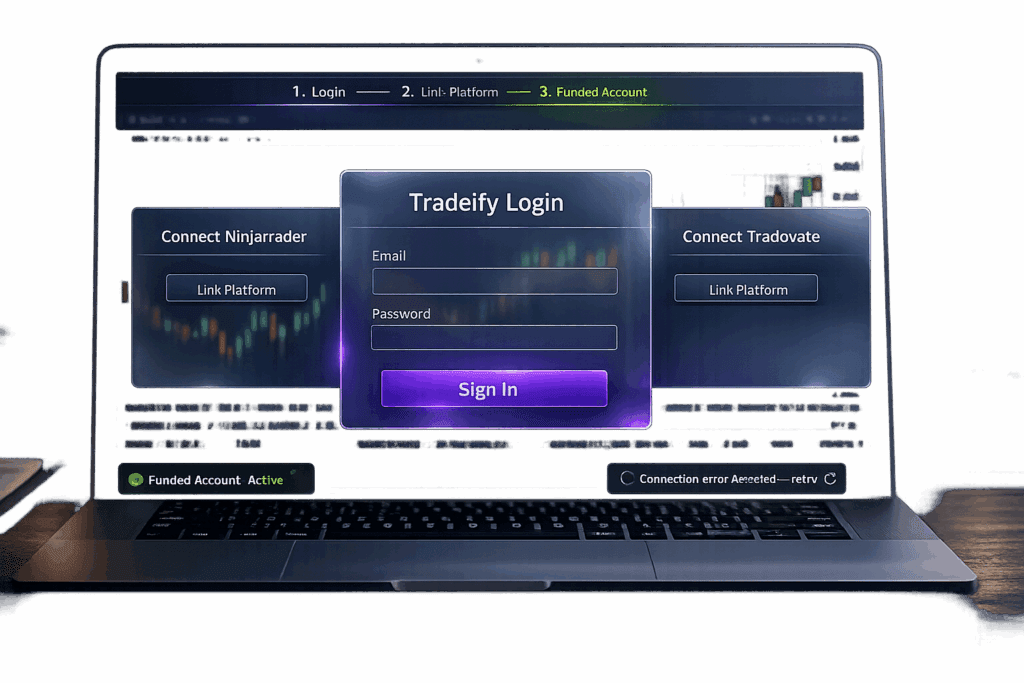
Tradeify makes it easy to log in and start trading, but you need to know the difference between your dashboard credentials (email and password) and your trading platform credentials (TRAD###### username and password). Messing this up is a common headache for new users. This guide walks you through logging in, linking platforms like Tradovate and NinjaTrader, and fixing common login issues. If you’ve been stuck on a login screen or dealing with errors, you’re in the right place. Here’s how to get it done step-by-step.
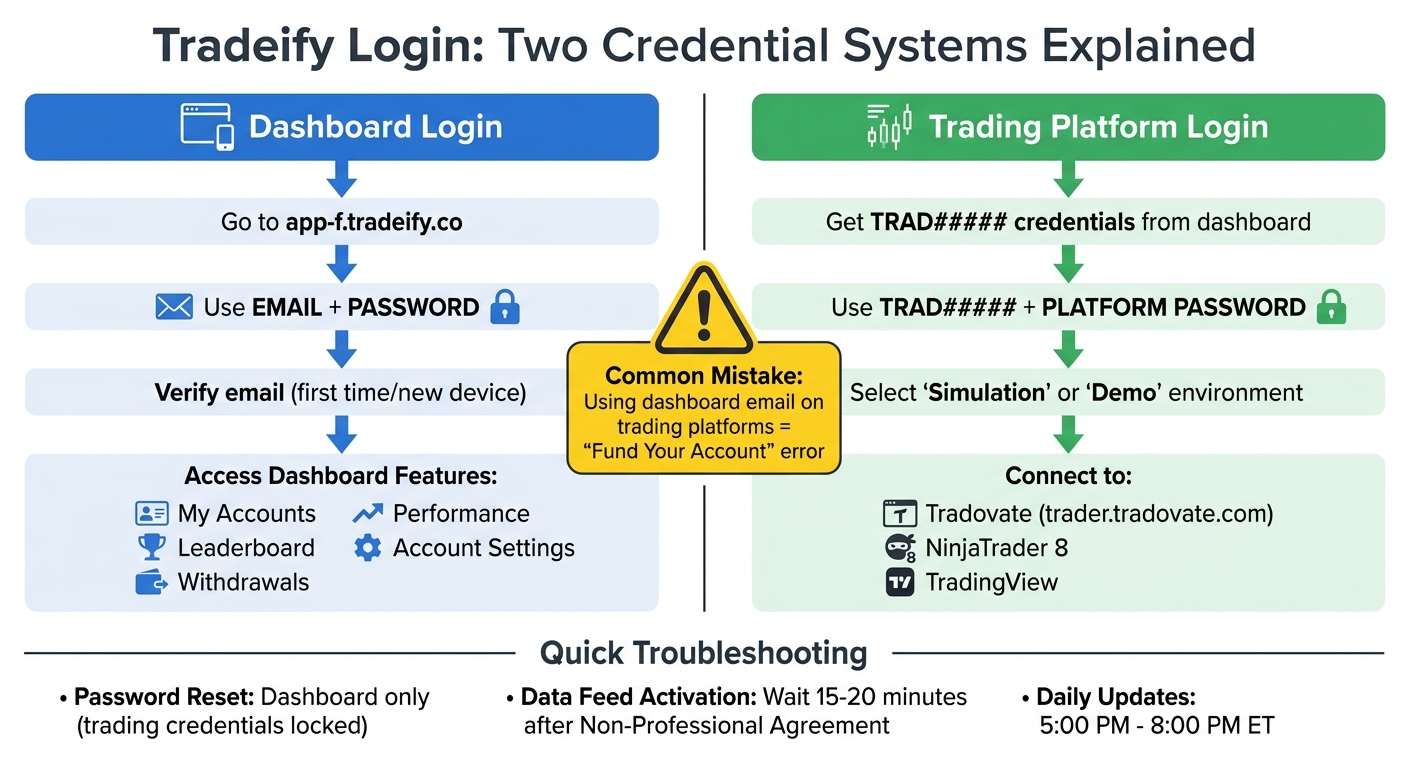
Tradeify Login Process: Dashboard vs Trading Platform Credentials
How to Log Into Your Tradeify Account

Getting into your Tradeify dashboard is simple, but make sure you’re using your dashboard email and password – not the "TRAD######" credentials for trading. Your dashboard login uses the email you registered with and the password you created, while platforms like Tradovate require a "TRAD######" username for executing trades.
Enter Your Email and Password
Head to tradeify.co or app-f.tradeify.co and click "Login". Enter the email address tied to your Tradeify account and the password you set during signup. If you can’t log in, double-check that you’re using the correct dashboard email and password.
Forgot your password? Click the "Forgot Password" link on the login page to reset it. Keep in mind, reset links expire after an hour, so act quickly. Didn’t get the email? Check your spam or junk folder – prop firm emails often end up there.
Once you’ve entered your credentials, you may need to verify your email before accessing your account.
Verify Your Email Address
If it’s your first time logging in or you’re using a new device, Tradeify might ask for email verification. Look for a verification email in your inbox and click the link provided. If you don’t see it after a few minutes, check your spam folder. This step adds an extra layer of security to keep your account safe.
After verifying, you’ll be able to access your dashboard.
Access the Tradeify Dashboard
Once logged in, you’ll land on the home screen. The top navigation bar includes tabs like "My Accounts", "Leaderboard", "Withdrawals", "Performance" (Journal and Sage Score), and "Account Settings." Each of your accounts will appear as a card showing details like the account nickname, type (e.g., Growth $50K), status (Active, Evaluation, Funded, or Failed), and the number of days active.
Before jumping into trading, click "View Details" on your account card to confirm your starting balance and drawdown limits. Remember, you must use your dashboard credentials – not your trading platform username. The Rules Widget on the dashboard helps you track important metrics like your trailing drawdown, daily loss limits, and consistency percentages in real time. Keep in mind, official account balances and performance stats typically update nightly between 5:00 PM and 8:00 PM ET.
sbb-itb-46ae61d
Connect Tradeify to Your Trading Platform
Once you’ve got access to your dashboard, the next step is linking your trading platform to start executing trades. Tradeify works with Tradovate, NinjaTrader 8, and TradingView. Here’s the catch: instead of using your email and dashboard password, you’ll log in with your "TRAD######" username and the password provided on your dashboard.
To get started, log into trader.tradovate.com using your TRAD credentials and complete the Non-Professional Data Agreement. Skipping this step means your data feed won’t activate, and you’ll run into connection issues on other platforms. After signing, give it 15 to 20 minutes for the real-time data feed to kick in before trying to connect NinjaTrader or TradingView.
Log Into Tradovate With Tradeify Credentials
Go to trader.tradovate.com/welcome and log in with your TRAD###### username and password from the Tradeify dashboard. These TRAD credentials are required for all platform logins – your dashboard email won’t work here. Use the copy buttons provided to avoid typos, but double-check that the first letter is uppercase if you run into issues.
When choosing your environment, always select "Simulation" or "Demo." Picking "Live" will give you an Invalid Credentials error because Tradeify accounts aren’t set up for live trading. Once logged in, you’ll see your account balance and can start trading right away. The Tradovate web platform works on Windows, Mac, and Linux, making it a quick and easy option for beginners.
After Tradovate is ready to go, move on to setting up NinjaTrader for a more advanced trading experience.
Set Up NinjaTrader With Tradeify
First, download NinjaTrader 8 from account.ninjatrader.com and install it as an Administrator (make sure it’s version 8.0.23.1 or newer). Once installed, open the app and navigate to Tools > Options > Connections. Click "Add" and choose "NinjaTrader" as the provider type – this uses Tradovate’s infrastructure.
Enter your TRAD###### username and password, and set the environment to "Simulation." You won’t need a personal license key – just use the credentials from Tradeify. Once connected, you can trade on NinjaTrader while keeping Tradovate Web open as a backup to monitor your positions in real time. Keep in mind that NinjaTrader only runs on Windows, so if you’re a Mac user, you’ll need a VPS or software like Parallels to make it work.
Fix Common Login Problems
If you’re having trouble logging in to this futures prop firm, you’re not alone. Many issues come down to mixing up dashboard credentials with your TRAD credentials or running into temporary system hiccups. One of the biggest mistakes is trying to use your dashboard email and password to log into Tradovate. That won’t work. The trading platform requires your TRAD###### username and a password generated by Tradeify. If you’re stuck at a login screen, double-check which credentials are needed for the platform you’re trying to access. These quick fixes can save you time and frustration, keeping your access to your funded account running smoothly.
Resolve "Fund Your Account" Errors
Getting a "Fund Your Account" error on Tradovate? That’s a sign you’ve used the wrong credentials – most likely your dashboard email instead of your TRAD username. Here’s how to fix it:
- Head to app-f.tradeify.co/dashboard.
- Look at the top of the page for your trading credentials.
- Use those credentials at trader.tradovate.com, and make sure you select "Simulation" or "Demo" as the environment.
This should get you back on track.
Reset Your Password
Here’s the deal: you can reset your dashboard password, but your trading credentials are locked in by Tradeify and can’t be changed. To reset your dashboard password:
- Go to app-f.tradeify.co.
- Click "Forgot Password" and enter your registered email.
- Look for the reset link in your inbox – it expires after one hour, so act fast.
If you don’t see the email within 15 minutes, check your spam folder. After multiple failed attempts, wait 15–30 minutes before trying again. For trading platform passwords, you’ll need to log into your dashboard to view them. If you’re locked out of the dashboard, email [email protected] from your registered email address.
If these steps don’t solve the problem, it may be time to troubleshoot your dashboard access.
Fix Dashboard Access Problems
If you can’t get into your dashboard, try these steps:
- Disable any VPNs, ad blockers, or browser extensions.
- Open the site in an incognito window.
Keep in mind that Tradeify runs daily reconciliations from 5:00 PM to 8:00 PM ET, so updates or account activations might be briefly delayed during this time. However, if you see "Account creation in progress" outside of these hours, something’s wrong – reach out to support immediately.
Also, don’t forget that Sim Funded accounts need at least one trade per week to stay active. If you haven’t traded recently, your account might’ve been deleted, which would block your dashboard access entirely. If that’s the case, you’ll need to contact support for further help.
Protect Your Tradeify Account
Keeping your Tradeify account secure is essential for safeguarding your access to capital and maintaining your trading career. While Tradeify uses "bank-grade protection" [1], your account’s security ultimately depends on how you handle your login credentials. Here’s how you can keep your account locked down.
Use a Strong Password
A strong password is your first line of defense. Use a mix of uppercase and lowercase letters, numbers, and special characters, aiming for at least 12 characters. Avoid predictable choices like birthdays, common phrases, or simple patterns like "123456." A password manager can help you create and store a unique password that you don’t reuse for other accounts.
Keep in mind, while you can reset your dashboard password at app-f.tradeify.co, your trading platform credentials are system-generated and can’t be changed. That makes protecting your dashboard login even more critical.
Enable Two-Factor Authentication
As of April 2025, Tradeify hasn’t confirmed whether two-factor authentication (2FA) is available for dashboard logins. If it becomes available, enable it right away for an extra layer of security. Make it a habit to check your dashboard settings occasionally for updates or new security features.
Never Share Your Login Credentials
Sharing your account details is a big no-no. It not only violates Tradeify’s terms of service but also risks your funded status. Your credentials are tied to your identity and trading performance, so letting someone else use them can jeopardize your account. This includes your dashboard email and password, as well as your TRAD###### username and trading platform password.
If you suspect someone else has accessed your account or if you’ve accidentally shared your credentials, act fast. Contact [email protected] from your registered email to secure your account immediately.
Conclusion
To access your Tradeify account, you’ll need two sets of login details: your dashboard email and password for app-f.tradeify.co, and your TRAD###### credentials for connecting with platforms like Tradovate or NinjaTrader.
If you’re still having trouble logging in, double-check the following: ensure you’re using the correct capitalization, the proper credentials for each platform, and that you’re attempting to log in during market hours (6:00 PM ET Sunday to 5:00 PM ET Friday). If issues persist, try clearing your cache or waiting 15–30 minutes after multiple failed login attempts.
Account security is critical. Use a password manager to safely store your credentials and create a strong, unique password for your dashboard. Never share your login details with anyone. Tradeify has processed over $150 million in verified payouts as of early 2026[2], proving its reliability – but keeping your account secure is up to you.
Once you’re logged in, stick to Tradeify’s key rules: respect trade duration requirements, close all positions by 4:59 PM ET, and maintain consistent trading habits. Getting access to your funded account is just the first step. Responsible trading is what ensures long-term success.
FAQs
Where can I find my TRAD###### username and trading password?
When you set up or activate your Tradeify account, you’ll get your TRAD###### username and trading password in the onboarding or activation email. Can’t find it? Use the "Forgot Password" option on the login page to reset it. If you’re still stuck, reach out to Tradeify support through their help center.
Why does Tradovate say “Invalid Credentials” when I log in?
The ‘Invalid Credentials’ error pops up when something’s off with your email, password, or account type. First, make sure you’re using the right login details for your Tradovate account. If you’re trading through Top One Futures, grab the credentials directly from their dashboard.
Check for simple mistakes – typos, wrong capitalization, or having caps lock on. Also, confirm you’re selecting the correct account type when logging in. If you’re still stuck, reset your password or take another look at how your account is set up.
What should I do if my funded account disappears or shows inactive?
If your funded account suddenly disappears or shows as inactive, start by checking for any login or platform connectivity problems. Use the platform’s troubleshooting guide to rule out technical issues. Next, verify your account status in the account management section. If your account has expired, you might need to purchase a new one. Also, double-check that you’ve met all evaluation requirements for activation. If none of these steps solve the problem, reach out to Tradeify support through email or phone for help.