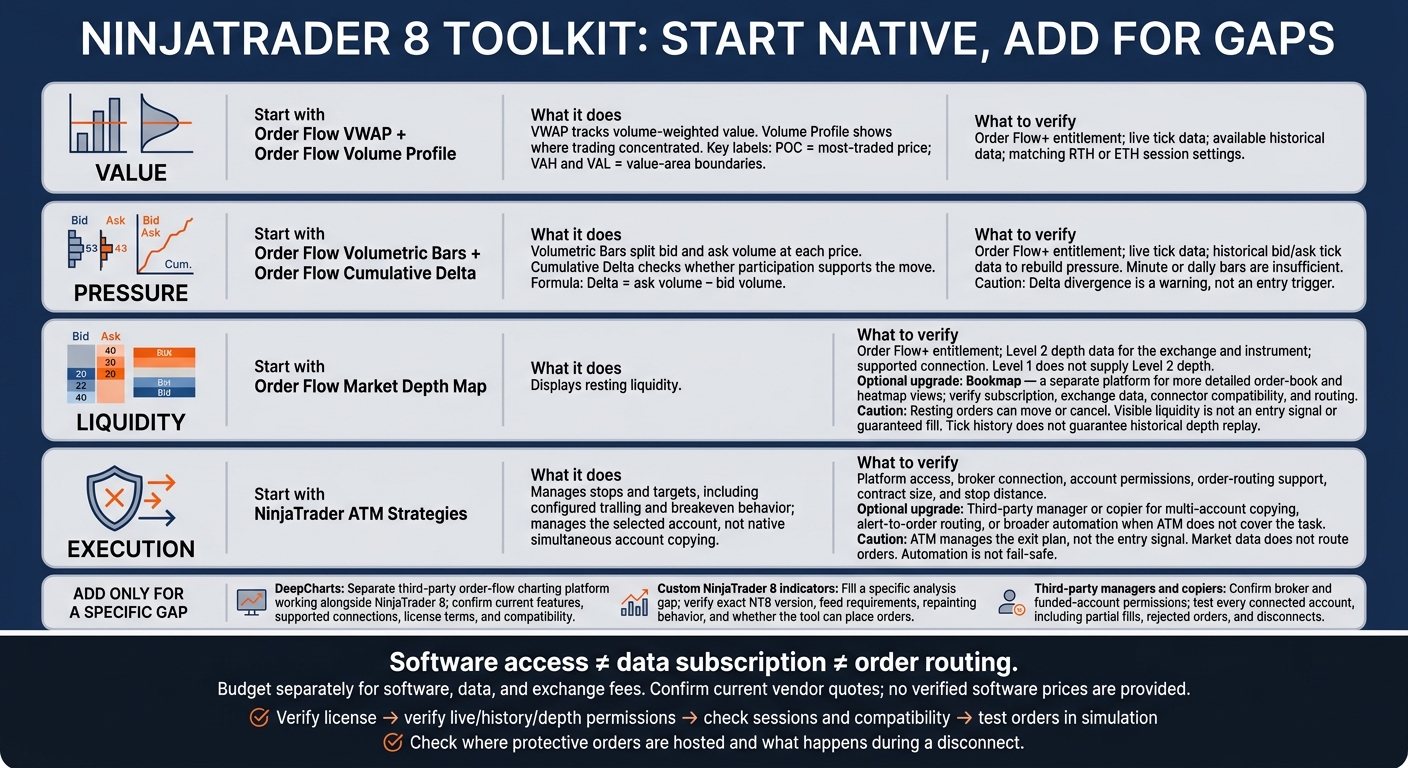
I’d start with NinjaTrader’s native tools, not a pile of paid add-ons. VWAP and Volume Profile map value compared to price action. Footprints and delta show traded pressure. ATM handles stops and targets. Add a heatmap or copier only when you have a specific job the native setup can’t handle.
This guide breaks down what each tool does, which data it needs, and what to check before paying. Software access isn’t a data subscription, and Level 1 data won’t supply Level 2 depth. <u>Check the total cost and order-routing path first.</u> More chart signals won’t fix bad sizing or protect you from a failed connection.
NinjaTrader 8 Tools: Jobs, Data and Execution
1. NinjaTrader Order Flow VWAP
Trading Workflow Fit
Order Flow VWAP weights prices by traded volume across a selected session or range. It shows whether ES is trading above or below value.[2] The indicator resets each session. The drawing tool lets you anchor VWAP to an event, such as a news release or swing high/low.
On an ES pullback to RTH VWAP, wait for a test plus confirmation from Volumetric Bars or Cumulative Delta before entering.
Licensing and Market Data
The native indicator requires Order Flow+ access.[1] For futures, use a tick-based feed such as Rithmic, CQG, or Kinetick to supply VWAP with accurate tick data.[1]
Setup and Execution Controls
For ES regular-session analysis, select CME US Index Futures RTH. This resets the indicator at the 9:30 a.m. Eastern Time open and leaves out overnight data.[2] For the most precise calculation, set Calculate to On each tick or On price change. Add 1-, 2-, and 3-standard-deviation bands to mark extension and reversal zones.
Before entering the confirmed ES pullback, select an ATM template with predefined stops and targets.[1] Add Volume Profile to see where volume concentrated during that session.
sbb-itb-46ae61d
2. NinjaTrader Order Flow Volume Profile
Trading Workflow Fit
VWAP locates value. Volume Profile shows where trading concentrated, giving you a way to judge acceptance or rejection. POC marks the most-traded price, while VAH and VAL frame the value area. High-volume nodes show acceptance; low-volume nodes often let price travel fast. Read acceptance first, then plan your execution.
At the NQ open, watch whether price holds above an overnight high-volume node before VAH. Sustained trade above VAH signals acceptance outside prior value. A brief push above VAH that falls back inside signals rejection.
Licensing and Market Data
Native Volume Profile is part of Order Flow+, so you need that license.[1] Historical volume data supports composite and visible-range profiles. Tick data improves accuracy at each price level. Rithmic and CQG are compatible connections, but check that your broker setup supplies the history you need.
Setup and Execution Controls
Use session profiles for individual sessions, composite profiles for longer periods, and visible-range profiles for the chart window you’re viewing. Keep overnight and regular-session analysis separate. Before comparing levels, check your trading-hours template, loaded history, and calculation settings.
After rejection, put the ATM stop beyond the rejection high and target the POC or next volume cluster. After acceptance, use the next cluster to guide stop and target placement.
To see who’s hitting bids or lifting offers at each price, switch to Volumetric Bars.
3. NinjaTrader Order Flow Volumetric Bars
Trading Workflow Fit
Volume Profile marks the level. Volumetric Bars show the buying and selling at that price. Standard volume bars show total activity; footprints split bid and ask volume at each price. Delta equals ask volume minus bid volume. Stacked imbalances are consecutive price levels where one side dominates.
At an ES prior high, rising ask volume without higher prices can signal absorption. Treat it as context, not confirmation. Watch whether subsequent bars hold above the high or fall back below it before using the footprint to support an entry.
Use that read to judge whether traders are defending the level or breaking through it.
Licensing and Market Data
Volumetric Bars require Order Flow+ and a feed that supports historical bid/ask footprints. Check that support with your provider using NinjaTrader’s Volumetric Bars documentation.
Setup and Execution Controls
Keep your bar size and imbalance threshold consistent during testing. If historical footprints are missing, check the connection’s historical-data support, loaded date range, and trading-hours template before changing display settings.
Use the footprint to guide your entry and the ATM to manage the trade.
4. NinjaTrader Order Flow Cumulative Delta
Trading Workflow Fit
Use Cumulative Delta to check whether participation supports the move. Read volume at price with Volumetric Bars first, then use delta to gauge momentum. In ES and NQ, fading delta as price pushes higher often points to weakening momentum.[2][3] If delta weakens while price holds, check whether liquidity is still stacked below or above the market.
Licensing and Market Data
Native Cumulative Delta requires Order Flow+ and accurate tick data from Rithmic, Kinetick, or CQG.[1]
Setup and Execution Controls
A divergence between delta and price is a warning, not an entry trigger. Use ATM for stops and targets. Keep delta as confirmation only.[1][2]
When delta conflicts with price, check resting liquidity in the Market Depth Map next.
5. NinjaTrader Order Flow Market Depth Map
Trading Workflow Fit
Market Depth Map shows where resting liquidity sits. Check it after the footprint and delta to see whether that liquidity is still blocking price. [1]
In MNQ, an offer that keeps reappearing at the same price can signal reloading or hidden liquidity. It is a clue, not proof of a single iceberg order. Resting orders can also be moved or canceled before price reaches them. [1]
Licensing and Market Data
You need Order Flow+ and Level 2 depth data for the exchange you trade. Confirm that your feed supports depth for your instrument. Level 1 won’t cut it. [1]
Historical depth is separate. Most heatmaps build only while NinjaTrader is connected. [1]
Setup and Execution Controls
Load Market Depth Map and confirm that depth is updating. If the map is blank, check your connection and exchange depth entitlement. [1]
Visible liquidity marks a location, not an entry signal or guaranteed fill. Use Volumetric Bars to check whether that liquidity traded or vanished before timing your entry. [1]
Once you’ve located liquidity with the map, ATM handles the order and risk using predefined stops and targets. [1]
6. NinjaTrader ATM Strategies
Trading Workflow Fit
Use VWAP, profile, footprint, delta, and depth to define your setup. ATM manages the exit plan, not the entry signal. Load a template to attach stop-loss and profit-target orders from the chart or DOM. Start with native ATM. Add a third-party manager only to fill a specific gap, such as copying trades across accounts. [1]
Licensing and Market Data
Before going live, check that your NinjaTrader license, broker connection, and account permissions support ATM order routing. Market data doesn’t route orders. For funded accounts at futures prop firms, confirm that automation and trade copiers are allowed before you trade. [1]
Setup and Execution Controls
Set your contract size and stop distance before entry, then test the ATM in simulation. Check stops, targets, breakeven rules, and trailing stops before going live. Before every entry, verify the account and template. [1]
Automation isn’t fail-safe. It still relies on order routing during live trading. Ask your broker or connection provider what happens to working orders if you disconnect or shut down. A VPS reduces risk tied to your local computer, but it won’t prevent routing failures. [1]
7. Bookmap
Trading Workflow Fit
Bookmap is a separate liquidity heatmap that gives you more detailed order-book views than NinjaTrader’s native tools. Use it when the native Market Depth Map feels too limited. Displayed liquidity gives you context, not confirmation. [1]
Licensing and Market Data
Budget for subscription, exchange data, and routing fees. Before subscribing, check the current plan requirements and broker-connection requirements. Supported futures connections include Rithmic, CQG, dxFeed, IQFeed, and Kinetick. [1]
Setup and Execution Controls
Treat Bookmap as a separate platform. Check data-feed compatibility, routing limits, and whether your funded trading accounts permit external platforms.
If you use NinjaTrader ATM for stops and targets, confirm that orders placed through Bookmap still route into your exit workflow. Check setup and order routing before going live. [1]
8. DeepCharts
Trading Workflow Fit
Like Bookmap, DeepCharts runs outside NinjaTrader’s native tools. DeepCharts is a third-party order-flow charting platform that works alongside NinjaTrader 8 and can share data connections. [1] Use it when native charts don’t give you the layout or data view you need, not to add another execution workflow. Check its current features before relying on it for futures analysis.
Licensing and Market Data
Before subscribing, get written confirmation of supported connections, license terms, and the total cost in USD.
Setup and Execution Controls
Get up-to-date compatibility docs and support details for your charting setup. If DeepCharts routes orders, test it in simulation before going live.
For similar flexibility inside NinjaTrader, compare custom indicators next.
9. Custom NinjaTrader 8 Indicators
Trading Workflow Fit
Use custom indicators to fill a specific gap, not to clutter your chart. If native Order Flow tools don’t cover what you need, custom trend labels, supply/demand zones, and market-structure overlays can help frame your futures trading decisions. [1]
QuantVue is an example of a NinjaTrader-focused toolkit offering trend labels, supply/demand zones, and market-structure overlays. [1]
Test signals in simulation. Log when they appear or disappear, then compare them with historical charts to catch repainting. [1]
Licensing and Market Data
Compare pricing, trial terms, support, and the total cost, including required data and exchange fees. Check whether the tool needs historical ticks, live market depth, or a specific connection such as Rithmic or CQG. Don’t assume your current data package covers it. Each tool has its own requirements. [1]
Setup and Execution Controls
Check cost and data requirements first, then compatibility. Before you subscribe or install, confirm that the tool supports your exact NinjaTrader 8 version, broker connection, and data feed. [1]
Check whether it only displays signals or can also place orders. Test any order-capable features in simulation before going live. Funded accounts may also restrict automation and copying. [1]
If you need the tool to manage orders too, the next step is a dedicated third-party trade manager.
10. Third-Party NinjaTrader 8 Trade Managers
Trading Workflow Fit
Add a third-party manager only when ATM doesn’t cover the job: multi-account copying, alert-to-order routing, or broader automation. Pick the tool for the task you need it to handle. [1]
Replikanto and Affordable Indicators offer multi-account copying; QuantLynk connects alerts to cash and prop accounts. [1]
Get your broker, platform, and data feed in place first. These tools should cut manual work, not create rule violations. Confirm your funded account provider allows copying or automation before turning either on. [1]
Licensing and Market Data
Before buying, check that the tool works with your broker, data feed, and existing NinjaTrader setup. Compare pricing, account limits, and any extra copier or automation fees. [1]
Setup and Execution Controls
Test copying in simulation across every connected account before using it in funded accounts. Check entries, exits, partial fills, rejected orders, and disconnects. Verify what happens to protective orders if the copier stops, and make sure the workflow holds up under pressure. [1]
Match the tool to your trading plan and your provider’s rules. Set contract size before entry and keep position sizing fixed. [1]
Licenses, Costs, and Market Data Requirements
Match each tool to its job: value, pressure, liquidity, or execution. Software access and data subscriptions are separate. Native NinjaTrader order-flow tools require Order Flow+, so check your account entitlement before paying for data. [1]
The table separates licenses, feed requirements, and history needs. Software pricing is unverified; confirm current vendor quotes. Blank cost cells don’t mean the tool is free. Connection support varies by tool, plan, and account setup. [1]
| Tool | Entitlement or license | Added software cost (USD) | Connection to confirm | Historical-data needs | Live-data needs |
|---|---|---|---|---|---|
| Order Flow VWAP | Order Flow+ entitlement | Kinetick, Rithmic, or CQG | Depends on feed history | Live tick data | |
| Order Flow Volume Profile | Order Flow+ entitlement | Kinetick, Rithmic, or CQG | Depends on feed history | Live tick data | |
| Order Flow Volumetric Bars | Order Flow+ entitlement | Feed supporting historical bid/ask tick data | Historical bid/ask tick data | Live tick data | |
| Order Flow Cumulative Delta | Order Flow+ entitlement | Feed supporting historical bid/ask tick data | Historical bid/ask tick data | Live tick data | |
| Order Flow Market Depth Map | Order Flow+ entitlement | Rithmic or CQG | Live only; no historical depth replay | Full Level II depth | |
| Bookmap | Third-party subscription | Rithmic, dxFeed, or IQFeed | Historical depth (limited) | Full Level II depth | |
| DeepCharts | Verify vendor license and deployment | Vendor confirmation required | Depends on selected features | Depends on selected features | |
| Custom NinjaTrader 8 indicators | Verify vendor license and deployment | Confirm indicator/feed compatibility | Depends on the indicator | Depends on the indicator | |
| Third-party NinjaTrader 8 trade managers | Verify vendor license and deployment | Confirm broker, routing, and account support | Confirm testing requirements | Supported execution connection |
Bid/ask ticks show traded pressure. Level II depth shows resting liquidity. Volumetric Bars and Cumulative Delta need historical bid/ask tick data to rebuild buying and selling pressure. Minute or daily bars won’t do the job. Market Depth Map and Bookmap need Level II depth to display resting liquidity. Tick history doesn’t guarantee depth replay, and providers can limit depth history. [1]
Budget separately for software, data, and exchange fees. Match the feed to the task: Rithmic for execution speed, Kinetick or IQFeed for tick history, and CQG for routing and data. [1]
Once you’ve confirmed the license and feed, check setup, compatibility, and order controls.
Setup, Compatibility, and Order Controls
Before trading live, test your chart tools’ session templates, data feed compatibility, and order-routing path in simulation. [1]
| Job and tools | Installation burden | Key compatibility checks | Main trading risk |
|---|---|---|---|
| Value tracking: VWAP and Volume Profile | Low; built in | Match RTH or ETH session boundaries. Check the template’s time zone against the platform’s display zone. | Inconsistent value levels. |
| Pressure reading: Volumetric Bars and Cumulative Delta | Low; requires configuration | Check bid/ask classification, bar period, ticks per price level, and applicable imbalance thresholds. | Distorted pressure signals. |
| Liquidity viewing: Market Depth Map | Low; requires feed configuration | Confirm Level II depth entitlement, connection support, and available depth levels. | Missing depth can look like thin liquidity. |
| Liquidity viewing: Bookmap | Separate application and license | Check connector support and permission to run simultaneous connections. | Extra platform and connection load. |
| Custom analysis and order management: indicators and trade managers | Moderate to high; imports and dependencies | Check the exact NT8 build, vendor license, feed and routing support, and compatibility with updates. | Interrupted signals or order management. |
Keep footprint settings fixed during evaluation and save them with your workspace. Changing settings between sessions can distort your signals. [1]
Chart settings affect signal quality. Order controls determine whether you can trade those signals safely.
| Capability | Native NinjaTrader ATM | Third-party manager or copier |
|---|---|---|
| Stop/target automation | Templates submit protective orders after entry fills | Check documented bracket behavior. Copying alone isn’t stop management. |
| Multiple accounts | Manages the selected account; no native simultaneous copying | Products such as Replikanto and Apex Trade Copier specialize in copying. |
| Scaling out | Supports target quantities within a template | Varies by product; check quantity synchronization. |
| Trailing and breakeven | Built-in Auto Trail and Auto Breakeven settings | Triggers and dependencies vary by product. |
| Licensing | Confirm platform access separately from Order Flow+ | A separate vendor license may apply. |
| Complexity | Lower; configure the template | Higher; check leader/follower mapping and rejected-order handling. |
Confirm broker and funded-account permissions before enabling a third-party manager or copier. [1]
Check the instrument’s tick size before building your ATM template or estimating slippage. Set your stop and target distances, then test partial fills, target quantities, stop reductions, and breakeven behavior in simulation. [1]
Local platform logic adds execution risk to stops and targets. Some ATM orders may remain broker-side, depending on your connection. Check NinjaTrader’s connection documentation to confirm where orders are hosted and how OCO behavior works. A disconnect can stop adjustments and leave your exposure unprotected. [1]
Final Verdict: Choose Only the Tools You Need
Keep the tools that fit your workflow for tracking value, pressure, liquidity, and execution [1]. Start with your broker, platform, and data feed. Then add a tool only when it solves a trading problem you have now [1].
| Your need | Best starting point |
|---|---|
| Track session value | Order Flow VWAP and Volume Profile |
| Read buying and selling pressure | Volumetric Bars with Cumulative Delta |
| View resting liquidity | Market Depth Map; Bookmap for more detailed heatmap views of resting liquidity |
| Manage stops and targets | ATM Strategies |
Feature count isn’t the deciding factor. Cost, data access, and setup work matter more. Native tools keep more of your workflow inside NinjaTrader, but you still need to account for Order Flow+ and exchange-data costs. Add Bookmap only if you need more heatmap detail. Use a third-party manager or copier only for multi-account execution. Count software licenses, subscriptions, and data connections before you buy [1].
Before going live, check your NT8 version, Order Flow+ entitlement, live and historical data permissions, and Level II access for depth tools. Verify your session template, time zone, CME specs, and add-on compatibility with your broker and account type. Test entries, stops, targets, and order behavior in simulation [1].
FAQs
Which NinjaTrader tools should I learn first?
Start with NinjaTrader 8’s charting tools, Depth of Market (DOM) for order execution, and order flow analysis tools. Use them to track market activity and manage your trades.
Before adding third-party indicators or automation, learn to configure your data feed. Check that your tools work with your broker and follow your funded account rules. Use the official NinjaTrader documentation for setup and integration guidance.
How can I tell if an add-on is worth paying for?
Check whether the add-on makes trading easier without adding extra risk. It needs to work with your broker, platform, and data feed without hidden costs or compliance problems.
Before you buy, check your funded account’s restrictions on automation and indicators. Look for extra data fees, and confirm the tool won’t slow order execution. Indicators help you make decisions. They don’t guarantee results. Weigh the cost against what the tool actually adds to your trading workflow.
How do I test ATM behavior during a disconnect?
The provided search results don’t cover how to test ATM strategy behavior during a disconnect in NinjaTrader 8. Check the official NinjaTrader documentation for platform-specific instructions.
Test your automated setup thoroughly in simulation before using it on a live account. Confirm that it follows both your broker’s rules and your funding provider’s rules.