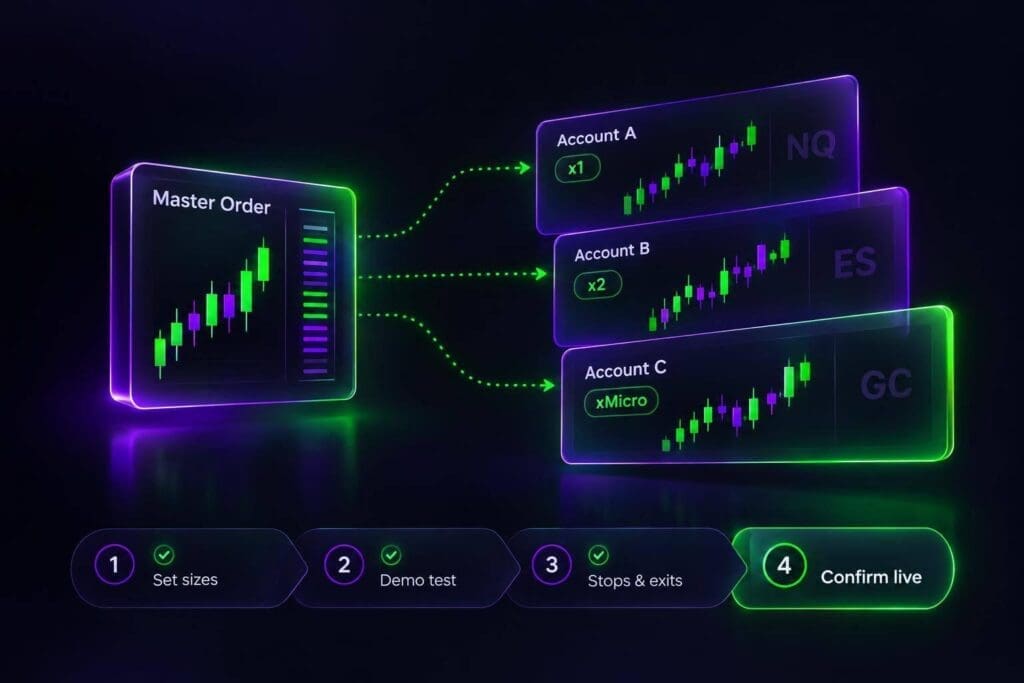
Use Tradovate Group Trade on Web or Desktop for manual orders across accounts, or a compatible copier for automated leader–follower trading. Group Trade isn’t available in the mobile app.
I’ll walk you through account access, contract sizing, and the checks to make before going live. The big trap: a copied entry doesn’t prove your stops, targets, or cancellations will follow.
Size each account separately to manage risk across multiple funded profiles. With the same stop distance, 2 MNQ contracts carry twice the dollar risk of 1, regardless of how the orders get there.
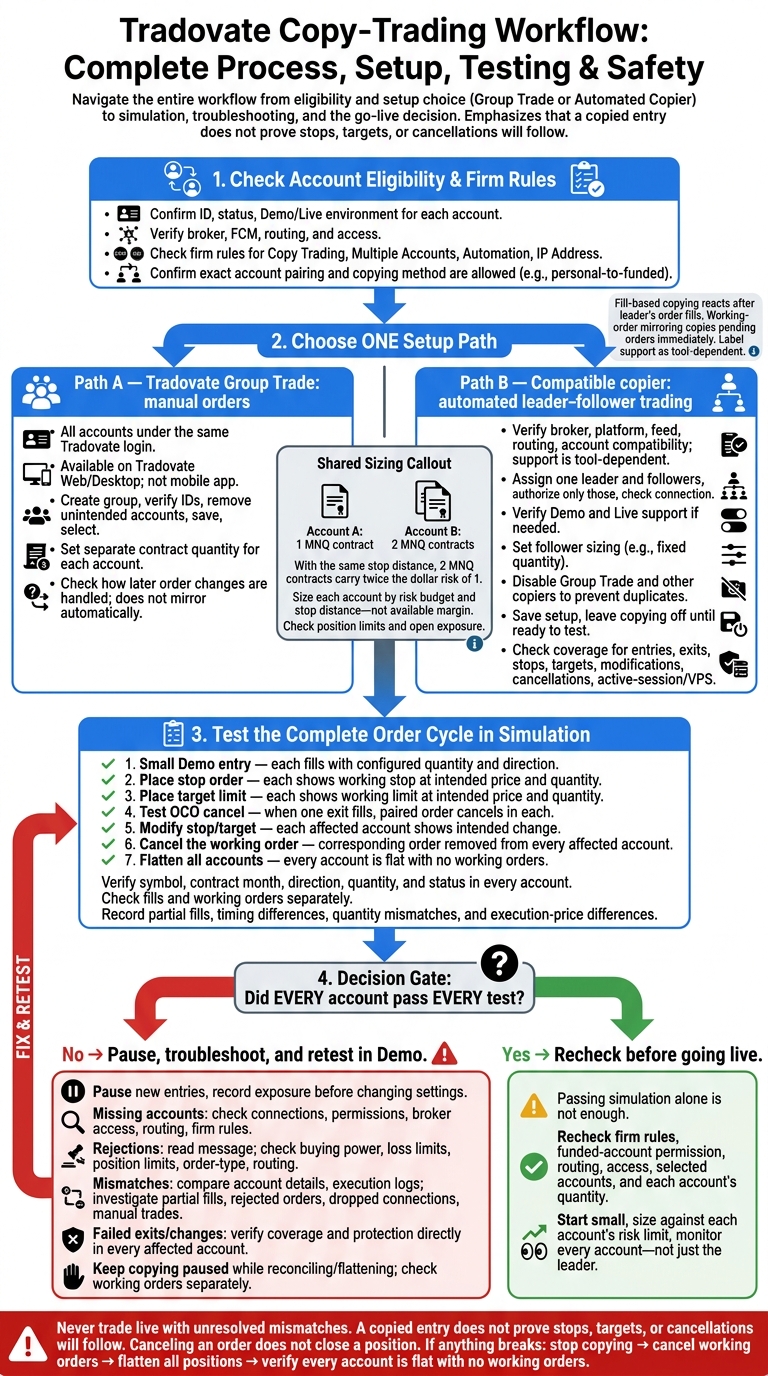
My rule: test the whole order cycle, not just the entry. Check your firm’s copying rules first, then verify positions and working orders in every account. <u>Don’t trade live with unresolved mismatches.</u>
How to Copy Trade on Tradovate: Setup and Safety Checks
Step 1: Check Account Eligibility and Copy-Trading Rules
Check each account’s ID, status, and Demo or Live environment before copying trades. In Tradovate’s account selector, confirm that the broker, FCM, and routing setup match the account. Seeing an account in Tradovate doesn’t mean it’s enabled for copying.
Group Trade requires all participating accounts to be accessible under the same Tradovate login. With a copier, check that the connection can access every account you want to use and supports its routing. Fix missing access before moving on.
Find your firm’s review through DamnPropFirms’ Best Futures Prop Firms rankings page, then check the firm’s current help-center rules as needed. Look for Copy Trading, Multiple Accounts, Automation, and IP Address. Confirm that your exact setup is allowed, especially personal-to-funded or evaluation-to-funded copying. Permission to copy your own trades doesn’t automatically allow external automation or guarantee that every action will be accepted. Verify the account list before choosing Group Trade or a copier.
Choose Group Trade or a Trade Copier
Choose based on account access and the actions you need. Group Trade lets you submit manual orders across accounts. A compatible copier automates supported leader–follower actions. Before paying, check Tradovate’s support documentation, the copier’s connection requirements, and its order coverage.
| Check | Tradovate Group Trade | Compatible trade copier |
|---|---|---|
| Setup | Create a group of accessible accounts within Tradovate. | Connect supported accounts through external software, a plugin, or an API. |
| Automation | Submit orders manually to the selected group. | Automatically copy supported leader actions. |
| Order coverage | Orders submitted to the group; check how later changes are handled. | Depends on the vendor; check entries, exits, stops, modifications, and cancellations separately. |
| Platform availability | Tradovate Web or Desktop. | Depends on the tool; some require NinjaTrader or a webhook connection. |
| Best fit | Manual trading across eligible accounts under one login. | Leader–follower copying where the required connections and firm rules allow it. |
Use only confirmed accounts in Step 2.
sbb-itb-46ae61d
Step 2: Set Up Tradovate Group Trade
Once you’ve confirmed account eligibility, create a Tradovate group with the accounts you want to copy. Match every account ID to Step 1 and remove any accounts you didn’t mean to include. Save and select the group before your first test order, then set each account’s contract size.
Set Each Account’s Contract Quantity
Set a separate contract quantity for each account.
Example: 1 MNQ contract in Account A and 2 in Account B.
Base each account’s size on its risk budget and stop distance, not just available margin. Before testing, check each account’s position limit and open exposure.
Step 3: Set Up a Copier for Automated Trading
Choose a copier that supports automated leader-to-follower copying across Tradovate accounts. Tradovate and NinjaTrader support alone isn’t enough. Check compatibility with your broker, platform, and feed, then confirm that your accounts are accessible through that setup. Assign the leader and followers inside the copier. [1]
Select one leader and the follower accounts, authorize only those accounts, and check each account’s connection status. If you need both Demo and Live, verify that the copier supports both. Then set follower sizing using a supported option, such as fixed quantity. [1]
Disable Group Trade and any other copier connected to the same accounts. You don’t want duplicate orders. Save the setup, but leave copying off until you’re ready to test. [1]
Check Which Actions the Copier Supports
Fill-based copying reacts after the leader’s order fills. Working-order mirroring copies pending orders immediately. Check support for entries, exits, stops, targets, modifications, and cancellations. A copied entry doesn’t mean the rest will mirror. Also confirm whether the copier requires an active platform session or a VPS. [1]
With the setup saved, test fills, exits, and cancellations in simulation next.
Step 4: Test Entries, Exits, and Cancellations in Simulation
Place one small Demo order through your group trade or copier. Check the symbol, contract month, direction, quantity, and status in every account. Each account’s quantity must match its configured size.[1]
If any account doesn’t match, go to Step 5 before trading live.
Run these tests in order.
| Test Action | Expected Result | Observed Result | Pass/Fail |
|---|---|---|---|
| Small Demo entry | Each account fills with its configured quantity and the correct direction. | ||
| Place stop order | Each account shows a working stop at the intended price and configured quantity. | ||
| Place target limit | Each account shows a working limit order at the intended price and configured quantity. | ||
| Test OCO cancel | When one exit fills, its paired order cancels in each account. | ||
| Modify stop/target | Each affected account shows the intended change. | ||
| Cancel the working order | The corresponding order is removed from every affected account. | ||
| Flatten all accounts | Every account is flat with no working orders. |
Check Positions and Orders Before Going Live
Check fills and working orders separately in each account. Record partial fills, timing differences, quantity mismatches, and execution-price differences.[1]
An entry that works isn’t enough to pass. If an account misses an exit or leaves a working order, fix the issue in Step 5 and retest in Demo.[1]
Step 5: Troubleshoot Account and Copying Errors
If Step 4 showed a mismatch, find the cause before retesting. Pause new entries and record your current exposure before changing settings.[1]
Missing Accounts and Rejected Orders
Missing account: Check connection status, permissions, broker access, and routing. Confirm your firm allows this copying method.[1]
Rejected order: Read the rejection message first. Then check buying power, loss limits, position limits, and order-type support. Make sure execution routing is active. A working market data feed isn’t enough.[1]
Fix access issues and order rejections before troubleshooting size mismatches.
Quantity and Position Mismatches
Compare symbols, contract months, direction, quantity, fill status, fill prices, and execution logs. Check for partial fills, rejected orders, dropped connections, or manual trades in follower accounts.[1]
Keep copying paused while you reconcile or flatten affected accounts. Check working orders separately. Fixing a position doesn’t necessarily remove a leftover stop or target.[1]
If sizes still differ after you’ve matched the logs, check order types and exit copying next.
Stops, Modifications, and Cancellations That Do Not Copy
If protection orders or exit changes fail, check what your setup copies: entries after fill, working orders, or both. Review how it handles stops, targets, modifications, cancellations, and disconnections.[1]
If an exit action failed, verify protection directly in every affected account. Canceling an order does not close the position. Once you’ve fixed the cause, rerun the affected Step 4 tests in simulation.[1]
Go Live Only After Every Account Passes
Passing simulation isn’t enough on its own. Don’t send live orders until every account passes the full test set and the setup checks out.
Before going live, recheck firm rules, routing, and account access. Confirm that trade copying in futures prop trading is allowed, the right accounts are selected, and each account has the correct contract quantity.
Start small. Size trades against each account’s risk limit, not its max buying power. Watch every account, not just the lead.
If anything breaks, stop copying, cancel working orders, flatten all positions, and verify that every account is flat. Every account must match the test results before you trade live.
FAQs
Will copied trades fill at the same price?
No. Copied trades don’t guarantee the same fill price across every account. A trade copier replicates entries and exits, but execution speed, network latency, and market liquidity can lead to different fills on your leader and follower accounts.
Before trading live, check copied entries, exits, and cancellations in simulation. See how your setup handles execution differences before putting money on the line.
What happens if my copier disconnects mid-trade?
If your trade copier disconnects mid-trade, position closes and stop-loss or take-profit changes won’t copy to follower accounts while it’s disconnected.
Check your account status and open positions directly in Tradovate right away. Manually close or adjust open positions on each account according to your risk management plan. Don’t leave positions exposed because you assume the copier handled them.
Can I copy trades between different prop firms?
Yes, if each firm’s rules allow it and your trading platform supports it. Many funded accounts restrict automated trade copiers. Check each firm’s official help documentation before linking accounts.
Your copier must also support the brokers, platforms, and data feeds used by every account you’re connecting.