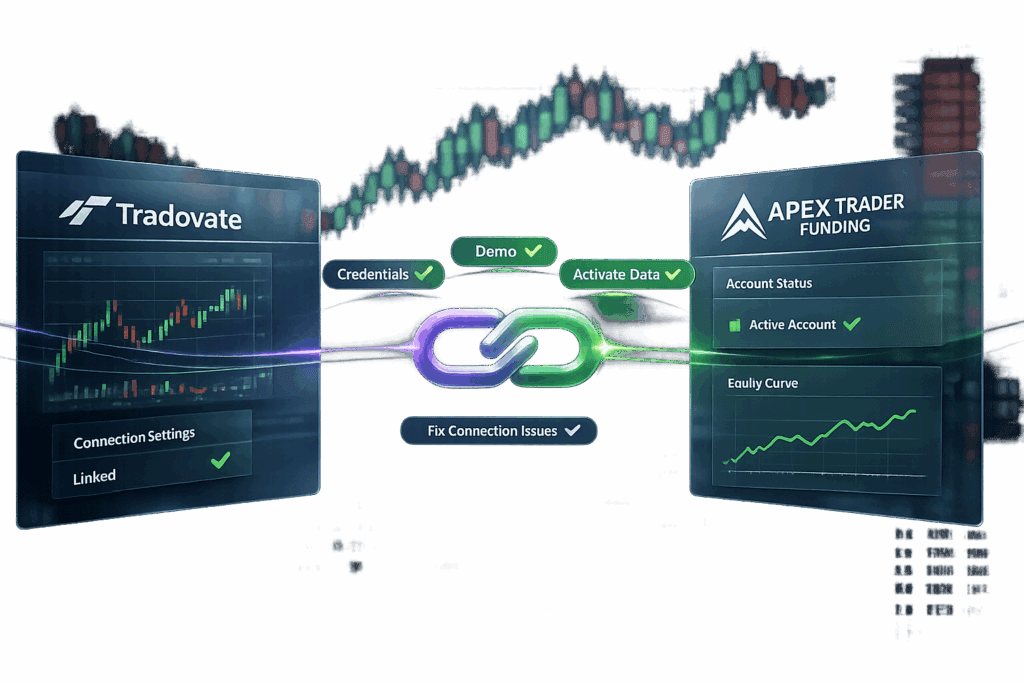
If you’re trading with Apex Trader Funding, Tradovate is one of the easiest platforms to get started with. Unlike other setups that require messing with Rithmic or external data feeds, Tradovate connects directly to Apex in just a few minutes. Plus, it’s cloud-based, so you can trade on any device without downloads. Whether you’re using TradingView, NinjaTrader, or Tradovate’s own web platform, this guide will show you exactly how to set it up. Let’s get straight to it.
How to Connect Tradovate with Apex Trader Funding: Step-by-Step Setup Guide
Tradovate Launch Apex Trader Funding Important Information
sbb-itb-46ae61d
Requirements Before Connecting
Before linking Tradovate, make sure you’ve got everything in order. Here’s what you need to know:
Account Verification
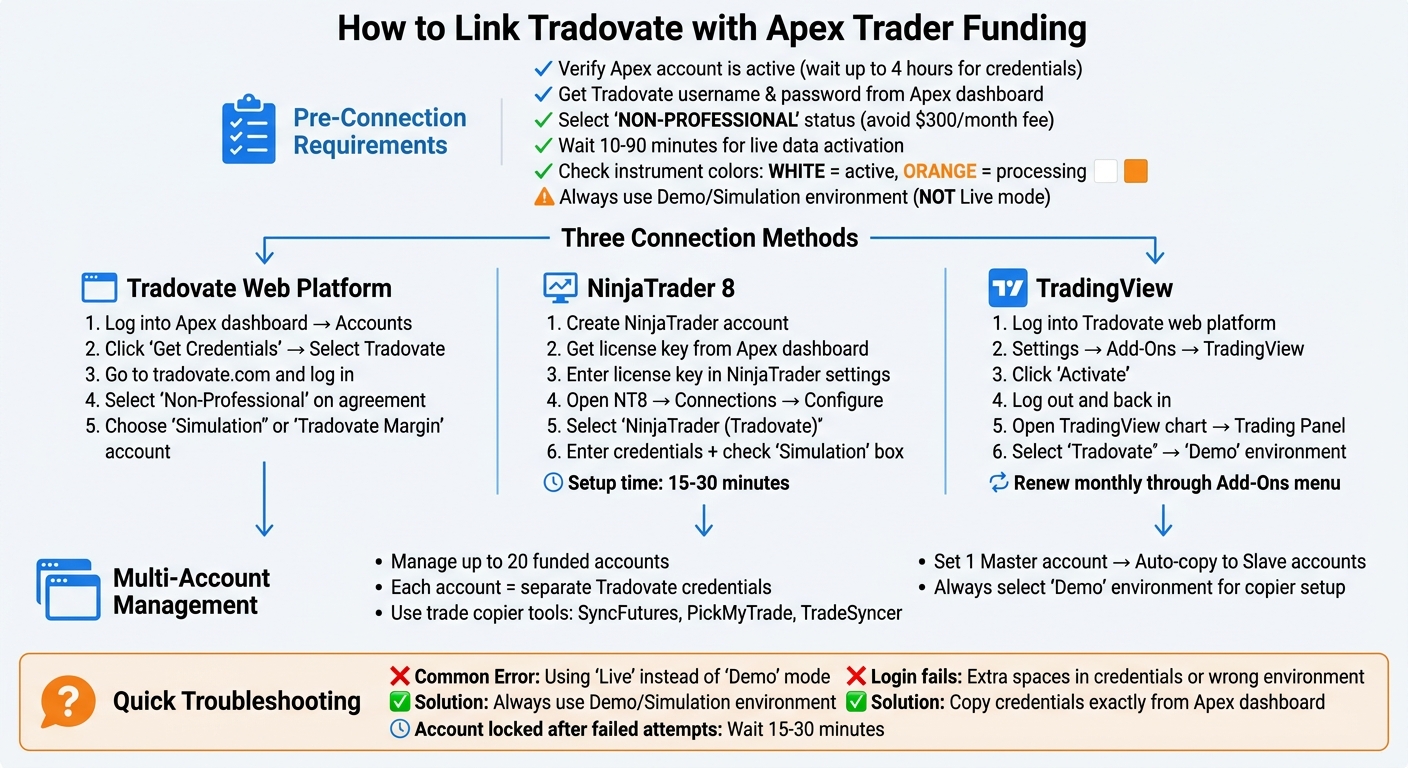
Start by confirming your Apex Trader Funding account is active. If you’ve recently purchased an evaluation or Performance Account, perhaps using an Apex 80% OFF code, it could take up to 4 hours for your Tradovate credentials to appear in your dashboard [5]. If you’re unsure about your account status – whether you’re in an evaluation or have a payout hold – double-check with Apex Trader Funding FAQs [4].
Required Credentials
Once your account is verified, you’ll find your Tradovate login details in your Apex dashboard. These include a username and password specifically for Tradovate. When entering these into Tradovate, be careful not to include any extra spaces. Also, when signing the digital data agreements, make sure you select "NON-PROFESSIONAL" status – this avoids a hefty $300/month data fee [1]. After signing, live data should activate within 10 to 90 minutes [1]. To confirm, check the instrument names in Tradovate: if they’re white, live data is good to go; if they’re orange, the data agreements are still processing [5].
Simulation vs Live Trading
Always log in using the Demo/Simulation environment in Tradovate. If you try to use the Live mode, you’ll run into authentication errors [6][2]. This rule applies whether you’re in an evaluation or using a Performance Account.
Once you’ve got these steps covered, you’re ready to connect Tradovate to your Apex account.
How to Connect Tradovate with Apex Trader Funding
Getting Tradovate linked to your Apex account is pretty simple. Once you’ve got your credentials verified and the necessary setup in place, just follow these steps. You can connect through the Tradovate Web Platform, NinjaTrader 8, or TradingView.
Connecting via Tradovate Web Platform
- Log into your Apex dashboard and go to the Accounts section.
- Click "Get Credentials", pick Tradovate, and grab your unique username and password.
- Head to tradovate.com and log in using those credentials.
- When asked, select "Non-Professional" on the subscriber agreement (you should’ve seen this mentioned earlier under Requirements).
- From the dashboard, choose either the "Simulation" or "Tradovate Margin" account, depending on what you need.
Once you’re in, check the instrument colors to confirm live data is active.
Want more advanced charting tools? Check out the NinjaTrader 8 setup below. If you are exploring other options, TradeDay Prop Firm also offers robust NinjaTrader integration.
Linking Tradovate to NinjaTrader 8
- Start by creating a NinjaTrader account at account.ninjatrader.com.
- Go to your Apex dashboard and find the "NinjaTrader Setup and License Key" tab to grab your Tradovate license key.
- Plug that license key into NinjaTrader’s settings.
- Open NinjaTrader 8 (NT8), go to Connections → Configure, and select "NinjaTrader (Tradovate)" as your connection type.
- Enter your Apex credentials and make sure the "Simulation" box is checked.
This process usually takes 15–30 minutes. Once set up, you can use NinjaTrader’s SuperDOM and other marketplace indicators [1].
Prefer a chart-heavy trading experience? Let’s talk about TradingView.
Using TradingView with Tradovate

- Log into the Tradovate web platform and click the Settings (gear) icon.
- Go to Add-Ons → TradingView and click "Activate".
- Log out and back in to finish activating TradingView.
- Open a chart on TradingView, go to the "Trading Panel", and select "Tradovate".
- Choose the "Demo" environment and log in with your Apex credentials.
You should see the Tradovate icon and your account balance in TradingView’s panel. If the add-on doesn’t activate right away, give it up to 4 hours. Keep in mind, the TradingView connection needs to be renewed manually every month through the Tradovate Add-Ons menu [1][4].
Managing Multiple Apex Accounts in Tradovate
Setting Up Multi-Account Management
Apex Trader Funding allows traders to manage up to 20 funded accounts, making it a solid option for scaling your trading operation [1][3]. However, Tradovate doesn’t make multi-account management easy under one login. Each Apex account comes with its own set of Tradovate credentials, so you’ll need to juggle multiple browser tabs or app instances to handle them all.
If you’re managing several accounts, this setup can get frustrating fast. Instead of constantly switching tabs and manually entering the same trades, consider using one of the best trade copying platforms like SyncFutures, PickMyTrade, or TradeSyncer. These tools let you set up one account as the "Master" and automatically copy trades to your "Slave" accounts in milliseconds. When configuring the copier, make sure to select the "Demo" environment – even for funded accounts – since Tradovate treats prop firm connections as simulation-based. Most modern copiers use OAuth for security, so you’ll log in through Tradovate and issue a token instead of sharing your password [6]. This approach makes managing multiple accounts far more efficient.
Trade Mirroring Across Accounts
With a trade copier, every trade you place on your Master account is instantly mirrored across all Slave accounts. This eliminates the risk of missing entries or having inconsistent fills. Before trading live, always test the setup. Place a one-contract trade on your Master account and confirm that all Slave accounts mirror both the entry and exit as expected.
You can also adjust position sizes using quantity multipliers. For example, if your Master account has $100,000 and a Slave account has $50,000, you could apply a 0.5× multiplier to keep the risk proportional. To avoid confusion, use clear naming conventions like "Apex 50K Account 1" or "Master 150K."
That said, be aware of potential hiccups. While most trades replicate in milliseconds, small fill price differences can occur in fast-moving markets. Additionally, Tradovate’s web platform may lag by 1–2 seconds during high-impact news events like NFP, CPI, or FOMC releases. For better performance during volatile market conditions, consider using Tradovate’s desktop app instead.
Fixing Connection Problems
Credential and Login Errors
One of the most common reasons for connection issues is selecting the wrong environment. Apex accounts, including funded Performance Accounts, must always use the Demo environment instead of the Live environment. As SyncFutures explains:
More Tradovate connections fail because of environment selection errors than any other reason. If you’re trading a funded account from Apex… you’re almost certainly trading on Tradovate’s demo environment [SyncFutures].
If you’re having trouble logging in, double-check that you’re using the credentials provided in your Apex dashboard – not your personal Tradovate account. To find these, log into Apex, go to "Accounts", and click "Get Credentials." Be sure to copy the username and password exactly as they appear (watch out for extra spaces or case mismatches). Keep in mind that multiple failed login attempts can temporarily lock your account for 15–30 minutes.
Still stuck? Move on to checking your connection status.
Connection Status Problems
When Tradovate shows a disconnected or inactive status, it’s usually tied to data activation. After signing the required data agreements, live data might take anywhere from 10 to 90 minutes to activate. You can check your data status by looking at the instrument color in Tradovate:
- White means live data is active.
- Orange means you still need to complete the Non-Professional data agreements. (Selecting Professional could hit you with a $300/month data fee and delay activation.)
During busy times, account provisioning can take up to six hours. If your live data or credentials don’t show up after that, submit a help desk ticket to Apex or check for system-wide issues at trader.tradovate.com/service-status.
If you’re using the TradingView add-on and it isn’t working, make sure it’s enabled under "Add-Ons" in Tradovate’s Application Settings. Then log out and back in to finalize the setup.
Still having environment issues? Let’s talk about mode selection.
Switching Between Simulation and Live Modes
Apex accounts always operate in Demo mode. Trying to use Live mode will result in authentication errors. Also, keep in mind that as of the Apex 4.0 update (March 1, 2026), your platform choice is locked at the time of purchase. That means you can’t switch from Tradovate to Rithmic – or vice versa – later on.
FAQs
Why does Apex require Tradovate Demo mode?
Apex requires you to use Tradovate’s demo mode so you can test your setup without putting your own money on the line. Demo mode lets you confirm that your connection, data feeds, and platform features are all working as they should. It’s a smart way to avoid headaches and make the switch to live trading much smoother.
How do I know when my live data is active?
After connecting Tradovate to Apex Trader Funding, you’ll know your live data is ready when you can log into your Tradovate account and see real-time market updates. Make sure you’ve completed all the setup steps, including signing the necessary data agreements. Activation usually takes anywhere from 10 to 90 minutes. Once it’s live, your charts and market data will update in real time, confirming that the data feed is working.
Can I trade multiple Apex accounts in Tradovate?
Yes, you can trade multiple Apex accounts on Tradovate, but there are a few things to keep in mind. Rithmic and Tradovate accounts are entirely separate – there’s no way to transfer or convert accounts between the two platforms. Each account stays independent. That said, Tradovate is a favorite among traders for its user-friendly interface and fast setup with Apex Trader Funding accounts, which makes it a solid option if you’re juggling multiple accounts.