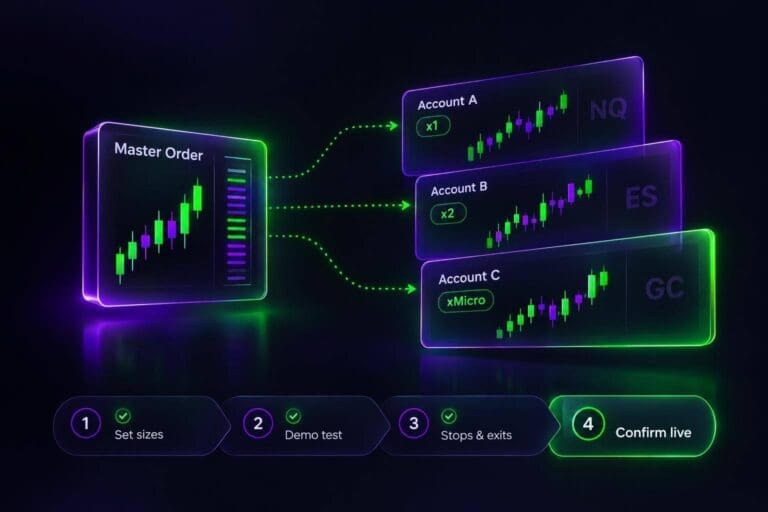
NinjaTrader can automate your futures trades, but a profitable backtest isn’t permission to go live. I’ll walk you through NinjaScript rules, Strategy Analyzer settings, and the checks that separate a working script from a setup ready for live orders.
We’ll use an SMA crossover as a coding example, not a claimed edge. You’ll see how contract size, stops, commissions, and slippage affect the numbers. On MNQ, a 40-tick stop puts $20 per contract at risk before costs.
My rule: <u>judge the strategy against your drawdown limit, not your headline account size</u>. Test untouched data, verify orders in simulation, and confirm your prop firm allows automation before enabling it.
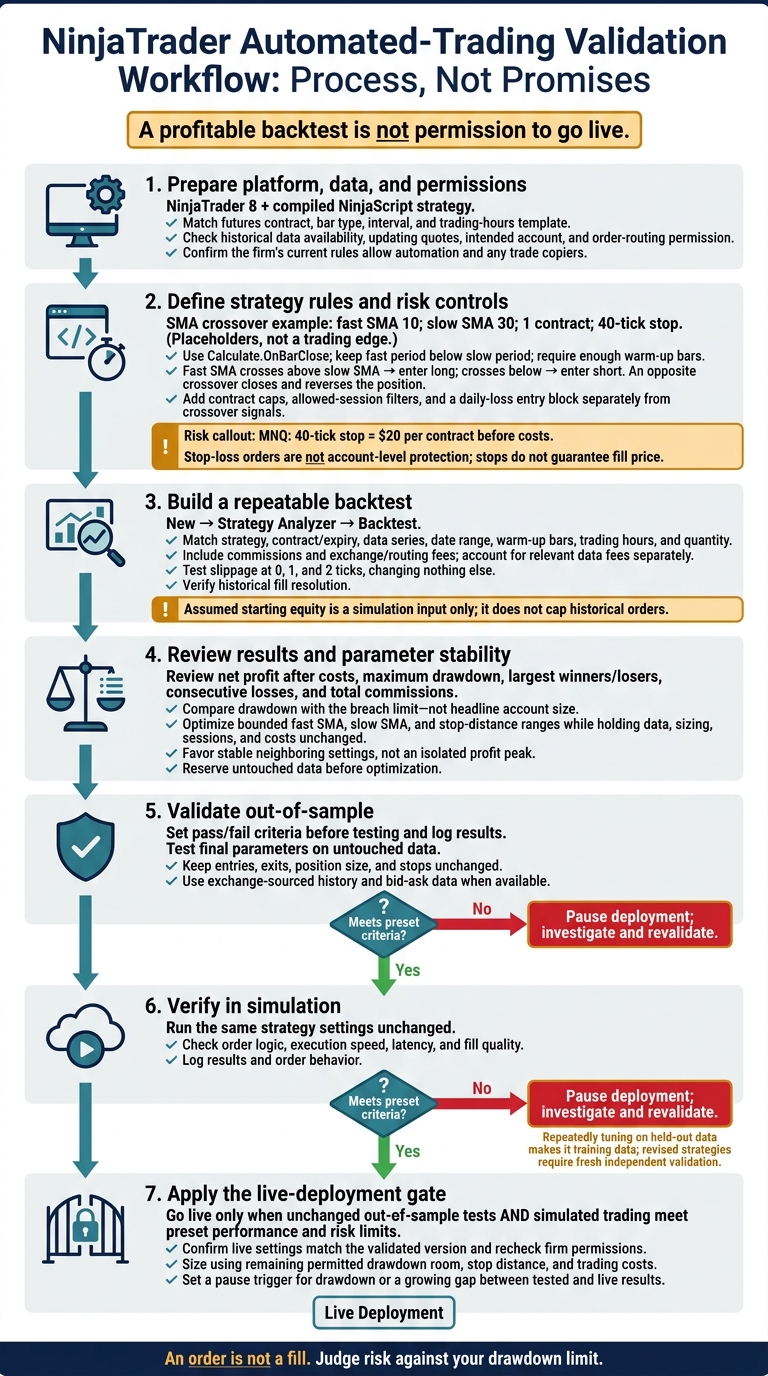
NinjaTrader Automation: From NinjaScript to Live Validation
What You Need to Automate Futures Trading in NinjaTrader
Start with NinjaTrader 8, a compiled NinjaScript strategy, a supported futures instrument, and a matching data series. Match the contract, bar type, interval, and trading-hours template.[1] These inputs let NinjaScript read bars and submit orders automatically. Set your historical date range, then check that your provider supplies the historical data you need.
Your strategy checks its rules inside OnBarUpdate(). When conditions match, methods such as EnterLong() and ExitLong() submit entry and exit orders. An order isn’t a fill. Execution still depends on routing and market conditions. The SMA example uses bar data to trigger entries and exits, so keep that distinction clear.
Use Calculate.OnBarClose for an SMA crossover. Switch to intrabar modes only when you need faster, more complex execution.
Before going live, confirm that quotes update, the intended account appears, and you have permission to route orders. For funded accounts, visit the Best Futures Prop Firms rankings page for links to firm-specific restrictions. Then check the firm’s current rules for permission to run automated strategies and any copiers.[1] Once the platform, data, and routing are ready, code the SMA crossover rules.
Build an SMA Crossover NinjaScript Strategy
Use four inputs: fast SMA period, slow SMA period, contract quantity, and stop ticks. The defaults are placeholders, not a trading edge.
Define Entry, Exit, and Reversal Rules
Add a minimum-bars check so both SMAs have enough history before trading starts. An opposite crossover closes the current position and reverses it.
[NinjaScriptProperty] [System.ComponentModel.DataAnnotations.Range(1, int.MaxValue)] public int FastPeriod { get; set; } [NinjaScriptProperty] [System.ComponentModel.DataAnnotations.Range(2, int.MaxValue)] public int SlowPeriod { get; set; } [NinjaScriptProperty] [System.ComponentModel.DataAnnotations.Range(1, int.MaxValue)] public int Contracts { get; set; } [NinjaScriptProperty] [System.ComponentModel.DataAnnotations.Range(1, int.MaxValue)] public int StopTicks { get; set; } protected override void OnStateChange() { if (State == State.SetDefaults) { Name = "SimpleSmaCross"; Calculate = Calculate.OnBarClose; EntriesPerDirection = 1; EntryHandling = EntryHandling.AllEntries; FastPeriod = 10; SlowPeriod = 30; Contracts = 1; StopTicks = 40; } else if (State == State.Configure) { SetStopLoss("LongSMA", CalculationMode.Ticks, StopTicks, false); SetStopLoss("ShortSMA", CalculationMode.Ticks, StopTicks, false); } } protected override void OnBarUpdate() { if (FastPeriod >= SlowPeriod || CurrentBar < Math.Max(FastPeriod, SlowPeriod)) return; if (CrossAbove(SMA(FastPeriod), SMA(SlowPeriod), 1) && Position.MarketPosition != MarketPosition.Long) { EnterLong(Contracts, "LongSMA"); } else if (CrossBelow(SMA(FastPeriod), SMA(SlowPeriod), 1) && Position.MarketPosition != MarketPosition.Short) { EnterShort(Contracts, "ShortSMA"); } }
The stop-loss provides the protective exit. When the fast SMA crosses above the slow SMA, the strategy enters long. When it crosses below, it enters short. Keep the fast period below the slow period. The bars check blocks signals until enough history is available.
Use the same strategy inputs to set contract quantity and stop distance.
Set Contract Quantity and Stop-Loss Orders
For MNQ, a 40-tick stop equals $20 per contract before costs.[1]
Use a position size calculator to check that your contract count fits your risk limit.
Set Account Risk Limits
Stop-loss orders aren’t account-level protection. Before allowing entries, add a risk filter that caps contracts, blocks trades outside allowed sessions, and stops new entries after the daily-loss limit.
Stops don’t guarantee your fill price. Leave a buffer within your prop account’s limits.[1] Keep risk controls separate from the crossover signal so they can block entries or flatten positions.
With those rules in place, test the strategy in Strategy Analyzer.
Set Up a Strategy Analyzer Backtest
Open New → Strategy Analyzer, select Backtest, and load your SMA crossover strategy. You’re building a repeatable baseline, not proving an edge. Use these checks to test the crossover rules consistently:
| Check | Setting | What to verify |
|---|---|---|
| ☐ | Test type and strategy | Backtest; your SMA crossover strategy. |
| ☐ | Instrument | Your intended futures contract and expiry month. |
| ☐ | Data series | Price data, bar type, and interval. |
| ☐ | Date range | Start and End dates in MM/DD/YYYY format; note warm-up bars. |
| ☐ | Trading hours | Your intended regular-hours or extended-hours template. |
| ☐ | Order quantity | Match the Analyzer quantity to the strategy’s sizing input. |
| ☐ | Execution costs | Include commissions, exchange/routing fees, and slippage; verify fill resolution. |
Assumed starting equity is a simulation input only. It doesn’t cap historical orders. Include realistic costs before comparing results with funded-account risk limits. This run gives you the baseline for reviewing net profit, maximum drawdown, and trade statistics next.
Select Historical Data, Contracts, and Sessions
Use contract-month data to test one unadjusted contract. Use continuous history only for longer samples. Record rollover adjustments, check for gaps, and leave enough warm-up bars.
Match your trading-hours template to the exchange schedule. Verify holidays and roll dates against CME’s trading-hours calendar and the contract’s rollover schedule[1].
Keep regular-hours and extended-hours tests as separate configurations. Your contract month, session template, and fill assumptions should match how you intend to trade live.
Account for Commissions, Slippage, and Historical Fills
Enable Include commission. Check that the applied commission template includes commissions and exchange/routing fees so the test reflects total trade costs[1]. Account for relevant data fees separately.
Run the same settings at 0, 1, and 2 ticks of slippage. Change nothing else. That lets you see how sensitive the results are to execution costs.
Historical fill resolution controls how NinjaTrader simulates intrabar fills. High resolution with tick data models the price path more closely. Check NinjaTrader’s documentation for supported settings and limitations.
sbb-itb-46ae61d
Review Results and Optimize Parameters
Judge the strategy against your breach limit, not the headline account size.[1] Use the metrics below to check whether it stays within that limit after costs.
Read Net Profit, Drawdown, and Trade Statistics
Net profit shows performance after costs. Maximum drawdown shows the worst equity decline. Trade statistics tell you whether returns come from consistent results or a few outliers. Review the SMA crossover results using the same costs and stop settings used in the test.
Check the largest winners and losers, consecutive losses, and total commissions. One big winner shouldn’t carry the whole result. Review slippage, fill prices, and micro-contract commissions, too.[1]
If the results pass those checks, test nearby parameter values.
Test Parameter Ranges for Stable Results
Use NinjaTrader’s Optimization mode to search bounded ranges for the fast SMA, slow SMA, and stop distance. Start with larger increments, then narrow the search around promising ranges. Keep the fast period below the slow period. Leave data, sizing, sessions, and cost assumptions unchanged so you’re comparing settings on equal terms.
Favor a stable parameter range over the highest-profit setting. Nearby SMA periods and stop distances should produce consistent results after costs, with drawdowns inside your breach limit. An isolated profit peak signals overfitting.[1] Set aside untouched data before optimizing. Repeated tuning on that data turns it into more training data.
Backtesting evaluates fixed rules. Optimization compares parameter ranges. Out-of-sample testing checks whether those results hold on data you haven’t used to tune the strategy.
If the best settings stay stable in-sample, test them unchanged on out-of-sample data. Then verify order behavior in simulation before going live.
Validate the Strategy Before Live Trading
Set your pass/fail criteria before testing, then log the results.[1]
Test Unchanged Rules on Out-of-Sample Data
After optimization, test the final SMA crossover parameters on untouched out-of-sample data. Keep entries, exits, position size, and stops unchanged. Use exchange-sourced history and bid-ask data when available. If the results meet your criteria, move those same settings into simulation.[2]
Check Order Behavior in Simulated Trading
Run the strategy unchanged in NinjaTrader simulation. Check order logic, execution speed, latency, and fill quality. Use the results to confirm the setup before taking it live.[1]
Complete a Live Deployment Checklist
Before trading live, confirm that your live settings match the validated version. Check the firm’s current rules to verify that automation and trade copiers are allowed.[1]
Bottom Line: Require Independent Validation Before Going Live
After backtesting, optimization, and simulation, apply one final gate: a strong Strategy Analyzer report alone doesn’t justify live orders.[1][4]
Go live only when out-of-sample tests run without changes and simulated trading both meet your preset performance and risk limits. Keep a separate log of results and order behavior.[1][3]
Size contracts using the remaining drawdown room allowed under your prop firm’s rules, factoring in stop distance and trading costs. Before enabling automation, use that same buffer to set a pause trigger for drawdown or a growing gap between tested and live results.[1][3]
FAQs
What happens to my NinjaScript strategy if I lose connection?
The search results don’t confirm whether a NinjaScript strategy closes positions, pauses, or stops sending orders after a connection drops. Check NinjaTrader’s support documentation on connection loss and strategy order behavior, plus any automation rules that apply to your prop account.
How much out-of-sample data should I test?
The provided information doesn’t specify how much out-of-sample data a NinjaScript strategy needs. A common approach is to use most of your historical data for development and optimization, then set aside a period the strategy hasn’t seen for final validation.
That separate test helps assess statistical significance and guard against overfitting. Before taking the strategy live, validate it with out-of-sample testing and simulated trading.
How can I enforce a trailing drawdown limit in NinjaScript?
NinjaTrader doesn’t have a single-line command for this. Use a custom strategy variable to track peak account equity and update it each time equity hits a new high. If current equity drops below that peak by your set threshold, close all open positions and block new entries.
Check the logic in Strategy Analyzer using historical data, commissions, and slippage. Use the official NinjaTrader documentation to confirm the methods for accessing account data.