A Rithmic or CQG connection doesn’t mean your prop firm lets you trade through MultiCharts. I’d get written approval for your exact account stage before spending money on a license. A working chart isn’t proof that you can place orders. This is a common hurdle when switching from TradingView prop firms to more complex platforms like MultiCharts.
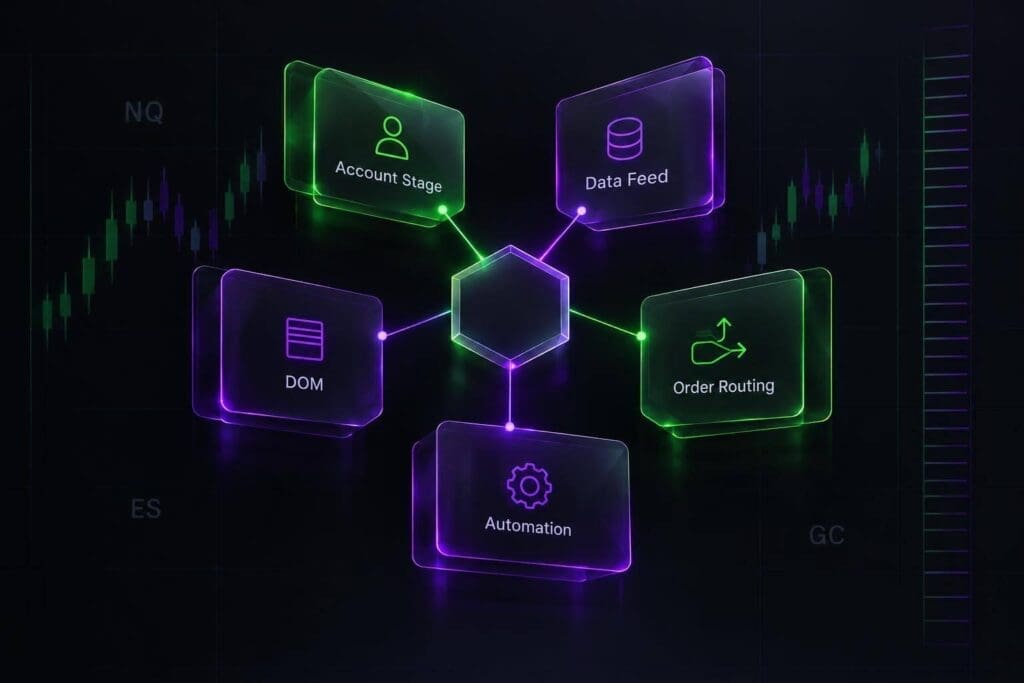
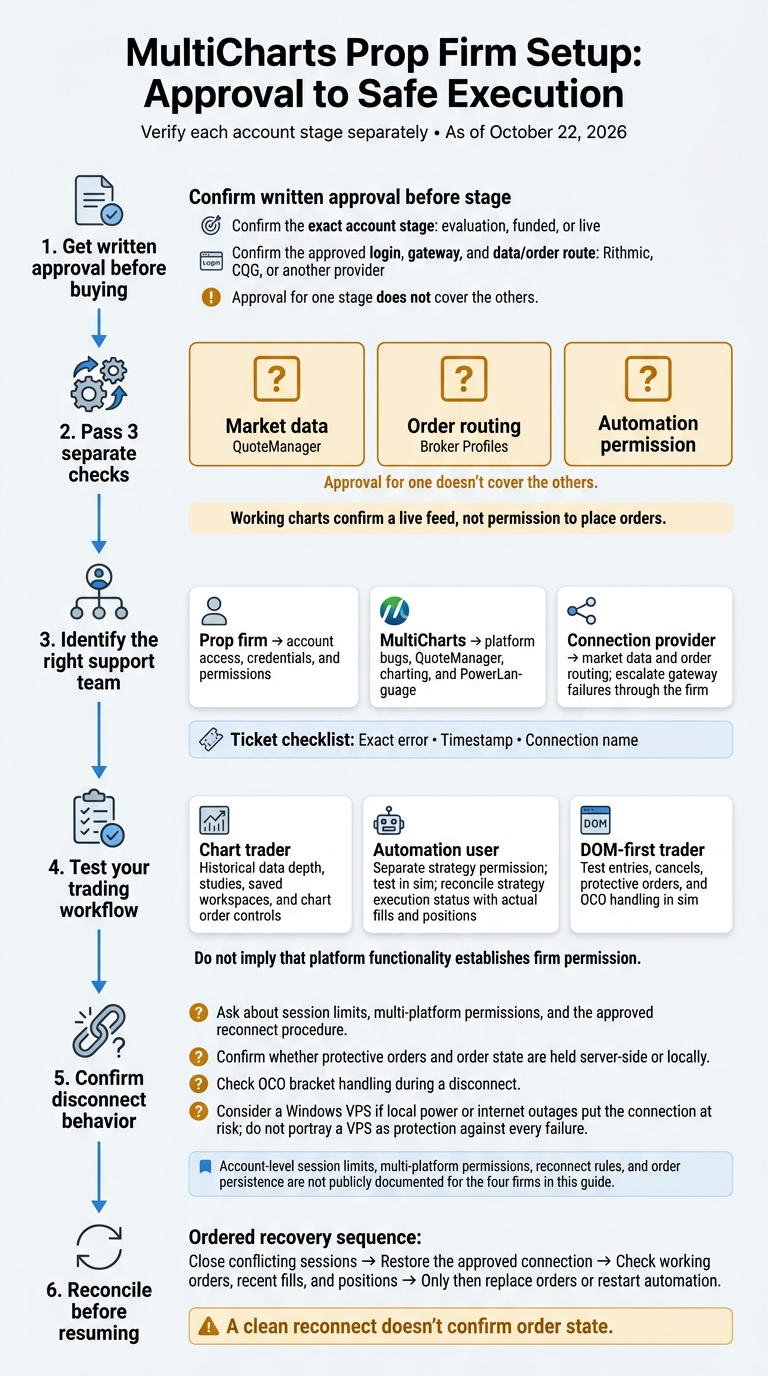
This guide to futures prop firms separates platform access from trading permission, explains who handles connection problems, and shows what to check for chart trading, automation, and DOM execution. My checklist covers 3 separate checks: market data, order routing, and automation permission. Approval for one doesn’t cover the others.
As of October 22, 2026, <u>check each account stage separately</u>. Then confirm what happens to working orders after a disconnect. Reconnected doesn’t mean your positions and protective orders are correct.
MultiCharts Prop Firm Setup: Approval to Safe Execution
1. Apex Trader Funding
Permitted Connection Routes
MultiCharts access at Apex is account-specific. Confirm which credentials are approved for your Evaluation or Funded account before buying a license. Where supported, MultiCharts connects through Apex’s data/order route, usually Rithmic, not the web dashboard or alternative trading platforms. [3]
Technical Support Coverage
Apex handles account access and permissions. MultiCharts handles platform bugs and PowerLanguage. The connection provider handles data and order routing.
Include the exact error, timestamp, and connection name in every ticket. Knowing which layer failed helps you reach the right support team when you need to reconnect fast. [1][3]
Connection Reliability
You can install MultiCharts on multiple computers, but you can run only one active account/session at a time. Check your reconnect plan before using it for live trading. For automation or volatile sessions, use a VPS to keep local power or internet problems from taking the platform offline. [1][3]
Chart Trading and DOM Fit
MultiCharts suits chart traders and system traders better than traders who want a DOM-only setup. It supports chart execution, drag-and-drop order edits, OCO brackets, and one-click DOM trading. The controls center on charts, with ladder execution available for DOM-first traders.
Before automating, check Apex’s algo policy and test the workflow in sim. [3][2]
sbb-itb-46ae61d
2. Topstep
Permitted Connection Routes
Don’t buy a MultiCharts license until Topstep confirms access for your current account stage. Verify your login credentials, real-time data access, and whether MultiCharts can route simulated or live orders. Check the Topstep review for current firm context. [3][4]
Technical Support Coverage
Contact Topstep for account access, permissions, and credentials. Once access is confirmed, send charting, PowerLanguage, and DOM setup issues to MultiCharts. Data or order-routing problems go to the connection provider. Knowing which desk handles the issue saves time when you need to reconnect. [1][3]
Connection Reliability
Confirm Topstep’s approved reconnect procedure before you need it. Know how to verify your orders and positions after a disconnect, too. A restored connection isn’t the same as a checked position. [1][3]
Chart Trading and DOM Fit
Test MultiCharts against your chart-trading or DOM-first workflow under Topstep’s rules. Its DOM offers 10 price levels, one-click trading, and entry/exit automation. Check order-entry behavior first, and confirm Topstep’s permission for automation separately. Platform connectivity alone doesn’t mean automation is allowed. [3]
3. Take Profit Trader
With Take Profit Trader, confirm access before sorting out your MultiCharts license. Permissions come first.
Permitted Connection Routes
Treat MultiCharts access as unconfirmed until Take Profit Trader approves your exact stage, login, gateway, and data route. Check the Take Profit Trader review for current firm context. [3]
Technical Support Coverage
Send account permission questions to Take Profit Trader, charting and PowerLanguage issues to MultiCharts, and feed or order-routing problems to your connection provider. [1][3]
Connection Reliability
Confirm session limits, reconnect steps, and where working orders sit if you disconnect. Ask whether the platform or server holds the order state and how to check your positions after reconnecting. Use a VPS if local outages put your connection at risk. [1][3]
Once those rules are clear, test live-order handling and chart controls.
Chart Trading and DOM Fit
MultiCharts is a better fit for chart traders, with drag-and-drop order edits as its main advantage. If you trade from the DOM, test entries, cancels, and protective orders in sim before going live. [2][3]
4. Lucid Trading
Lucid explicitly lists MultiCharts support through Rithmic, making the connection route clear. [4][3]
Permitted Connection Routes
Lucid supports MultiCharts through Rithmic. Before connecting, confirm your account stage, login method, market data permissions, and whether you’re trading in a simulated or live setup. See the Lucid Trading review. [4][3]
That stated connection route also helps clarify who handles each type of support request.
Technical Support Coverage
Send account and permission issues to Lucid, feed and routing issues to Rithmic, and platform bugs or questions about indicators and studies to MultiCharts. [3][4][1]
Connection Reliability
MultiCharts runs on Windows desktop, with only one session allowed at a time. Log out on one machine before opening a session on another. For automation or a steadier connection, use a Windows VPS or a cloud-based tool like Tradesyncer. [1][6][3]
Chart Trading and DOM Fit
MultiCharts suits chart traders and system builders, with drag-and-drop order edits, PowerLanguage automation, and chart execution. DOM traders get a 10-level ladder, one-click trading, automated entries and exits, and OCO brackets. [3][5]
Connection Setup and Support Roles
An approved gateway doesn’t mean MultiCharts is allowed at every account stage. The table separates verified routes from gaps in the documentation. [3][4]
Setup comes down to three checks: what’s verified, who approves access, and who handles the fix.
As of October 2026, Not verified means missing evidence, not confirmed incompatibility.
| Firm | Evaluation route | Funded route | Live route |
|---|---|---|---|
| Apex Trader Funding | Rithmic | Rithmic | Not verified |
| Topstep | Rithmic | Rithmic | Not verified |
| Take Profit Trader | Not verified | Not verified | Not verified |
| Lucid Trading | Rithmic | Not verified | Not verified |
Confirm Access for Each Account Stage
Before you buy a license, confirm the approved route: Rithmic, CQG, or another provider. Get written approval for evaluation, funded, and live access separately. Don’t treat approval for one stage as permission for all three. [3][4]
Check Data Feeds and Order Routing Separately
QuoteManager handles market data. Broker Profiles handle execution. Working charts confirm a live feed, not permission to place orders. Check both before trading. [1][3]
Find the Right Support Contact
Send credential and permission issues to the prop firm. Take QuoteManager, platform, and PowerLanguage issues to MultiCharts. For gateway failures, escalate through the firm. [1][3]
Once access is confirmed, test whether the connection stays up and the workflow fits how you trade, especially with algo-friendly firms like Tradeify.
Connection Limits and Trading Workflows
Once you’ve confirmed access, check how sessions behave and how orders recover after a disconnect.
As of October 2026, account-level session limits, multi-platform permissions, reconnect rules, and order persistence aren’t publicly documented for Apex, Topstep, Take Profit Trader, and Lucid Trading. [3][4]
| Trader type | Workflow risk to check at each account stage |
|---|---|
| Chart trader | Historical data depth for studies and charts [3] |
| Automation user | Strategy execution status versus actual fills and positions after reconnecting [1][3][5] |
| DOM-first trader | Whether protective orders stay active during a disconnect [3][5] |
Start with disconnects and duplicate sessions. Both can disrupt your workflow.
Session Limits and Reconnect Procedures
Overlapping Rithmic sessions can disconnect MultiCharts. Close the conflicting session, then restore the approved connection. Check working orders, recent fills, and positions before replacing orders or restarting automation. A clean reconnect doesn’t confirm order state. [3][1]
Charting Tools and Strategy Automation
Live data doesn’t guarantee enough historical data for your strategy. Check that your custom studies and saved workspaces have the depth they need. Strategy Orders Monitor shows execution status, but you still need to reconcile broker fills and positions. [3][1][5]
For ladder traders, check whether protective orders stay active when the connection drops.
DOM Controls and Protective Orders
Server-side protective orders are more reliable during a disconnect than local-only orders. Confirm that your protective orders stay server-side when you lose the connection, and check how OCO brackets are handled. [3][5]
Conclusion: Confirm Access Before Choosing a Setup
Once you’ve checked access, support, and reconnect rules, check workflow fit. MultiCharts needs an approved route for your evaluation or funded stage, clear execution and automation permissions, and a named team responsible for support. [1][3][4]
Chart traders need workspace depth and clean data. Automation users need clear reconnect rules and confirmed strategy permissions. DOM traders need order controls and server-side protective orders. [3][5]
Check the Damn Prop Firms review pages for firm context, then confirm current permissions in the firm’s help center and platform docs. [3]
FAQs
What should written MultiCharts approval include?
Get written approval for MultiCharts confirming that the firm’s connection method supports both authentication and order routing. It should also spell out any required plugins or routing tools, such as R|Trader Pro routing. Connection reliability depends on the broker/data feed and a compatible login route.
Keep support coverage separate: the prop firm’s help desk isn’t the same as MultiCharts support. MultiCharts’ own options include a help center/knowledgebase, live chat, phone, email, and remote support.
How can I test disconnect recovery safely?
Before testing disconnect recovery in MultiCharts, check your firm’s latest FAQ to confirm which connections it supports and whether it allows automation. Using Rithmic? Make sure plugins are enabled in R|Trader Pro and your credentials are correct.
These are setup checks, not a disconnect-recovery test procedure. For technical help, MultiCharts offers phone support, live chat, and a community forum.
How do I verify my brackets are server-side?
Check your prop firm’s current platform list and data-routing rules for your MultiCharts connection, typically Rithmic. Compatibility doesn’t confirm that your brackets are server-side.
To confirm, contact MultiCharts support through its Help Center, forum, or at +1 888 340 6572. Ask whether brackets are server-side for your specific connection.