R|Trader Pro handles your Rithmic account login and setup, but it doesn’t always need to stay open while you trade. The deciding factor is your futures prop firm’s connection mode: direct or plugin. Get that wrong, and your platform won’t connect as expected.
I’ll break down those 2 connection modes, what to check before opening NinjaTrader or Quantower, and how to separate a login problem from missing account access or market data. No guessing server settings. No treating a successful login as proof you’re ready to place orders. <u>Check the account and connection mode first. This is a critical step in understanding how futures prop firms work before you start trading.</u> That’s the setup work to finish before putting a trade on.
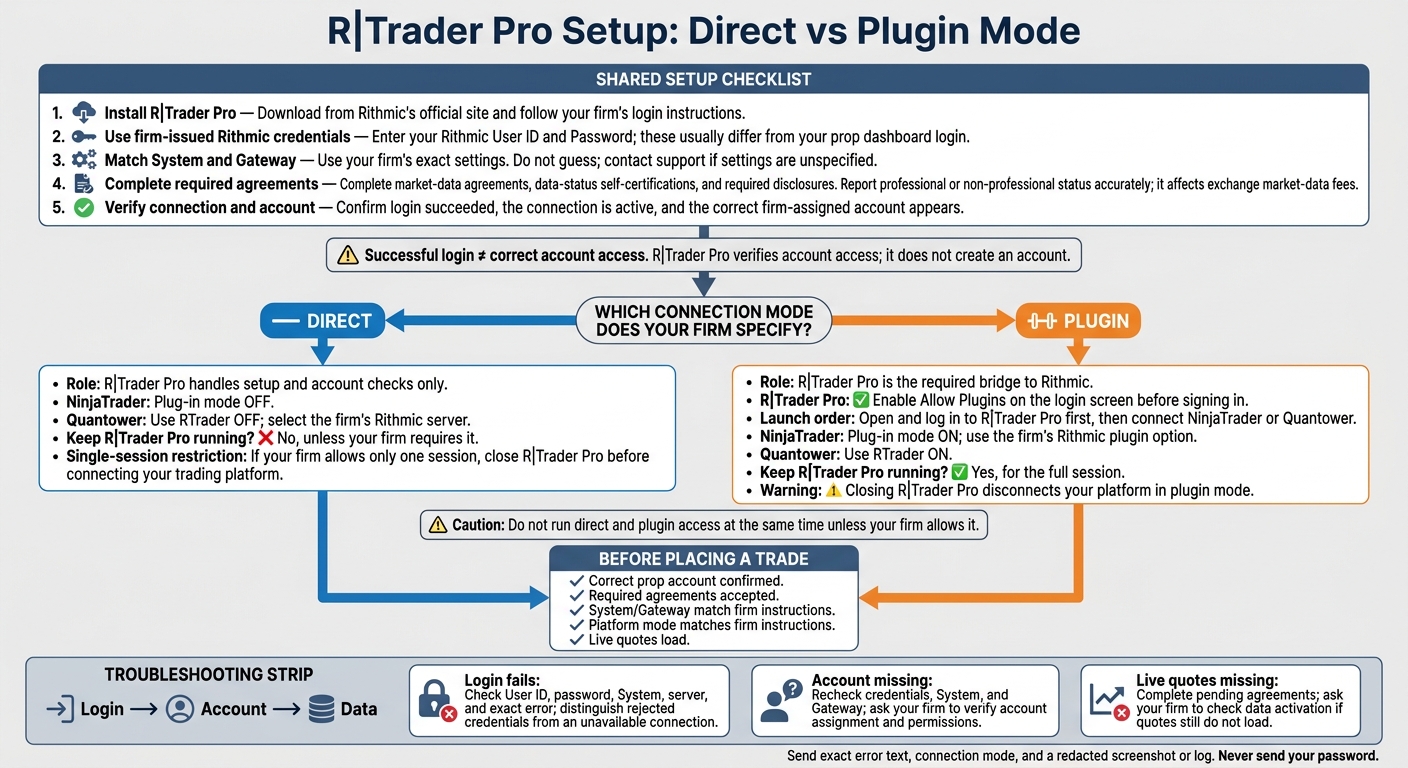
R|Trader Pro Setup: Direct vs Plugin Mode
How to Set Up Tradesea Rithmic (Lucid Trading & Tradeify) | Full RTrader Pro + Copy Trading Guide
sbb-itb-46ae61d
Why your prop firm requires R|Trader Pro
Your firm requires R|Trader Pro for four main reasons: login verification, agreement completion, account confirmation, and plugin access. It uses the app to confirm your Rithmic login, account access, and required agreements before you start trading.[1]
Sign in with the Rithmic credentials your firm provided. Before opening your trading platform, complete all market-data agreements and data-status self-certifications in R|Trader Pro. Report your professional or non-professional status accurately. That status affects your exchange market-data fees.[1]
Check that your firm-assigned account appears. R|Trader Pro verifies access to that account; it doesn’t create one. If the account is missing, get account access sorted out before trading.[1]
If your firm allows plugin access and you use plugin mode, R|Trader Pro must stay open. NinjaTrader or Quantower connects through it.[1]
When R|Trader Pro must stay open
After setup and account checks, your Apex Trader Funding or other firm’s connection mode determines whether R|Trader Pro must stay open.
| Connection | What R|Trader Pro does | Platform setting | Keep it running? |
|---|---|---|---|
| Direct | Setup and account checks only | NinjaTrader: Plug-in mode off. Quantower: Use RTrader off; select the firm’s Rithmic server. |
No, unless your firm requires it |
| Plugin | Required bridge to Rithmic | NinjaTrader: Plug-in mode on. Quantower: Use RTrader on. |
Yes, for the full session |
For plugin access, open R|Trader Pro and log in before launching NinjaTrader or Quantower. Leave it running for the full session.
For direct access, finish setup in R|Trader Pro. If your firm allows only one session, close it before connecting your platform.
Use the mode your firm specifies. Don’t run direct and plugin access at the same time unless the firm allows it.
Next, match your Rithmic credentials and platform settings to the connection mode your firm allows.
Set up your first R|Trader Pro login
Download R|Trader Pro from Rithmic’s official site, install it, and follow your firm’s login instructions exactly. Your first login checks your credentials, account access, and required permissions.
Enter your firm-issued Rithmic User ID and Password. These usually differ from your prop dashboard login. Match the System and Gateway fields exactly to your firm’s instructions, and keep your account ID handy to verify after login. Don’t guess settings from labels like “funded” or “live.” If a setting isn’t specified, contact support. [1]
Complete any required agreements or disclosures during login before moving on. [1]
Before opening NinjaTrader or Quantower, check that login succeeded, the connection is active, and the correct account appears. A successful login doesn’t prove you’re connected to the right trading account. If your account is missing, recheck your credentials, System, and Gateway, then send support your account ID and the exact error. [1]
Once login works and the correct account appears, open NinjaTrader or Quantower and match its connection mode to your firm’s instructions.
Connect NinjaTrader or Quantower
Once you can log in to R|Trader Pro and see your account, connect your platform using the mode your firm specifies.
NinjaTrader Desktop: choose direct or plugin access
Select your firm’s Rithmic connection in NinjaTrader, then enter the credentials and server it provides. For direct access, leave Plug-in mode off.
For plugin access, enable Allow Plugins on the R|Trader Pro login screen before signing in. Then connect through your firm’s Rithmic plugin option in NinjaTrader.
If the plugin won’t load, restart both applications. Log in to R|Trader Pro first.
Quantower: set the Rithmic server and Use RTrader option
Select Rithmic in Quantower and enter your firm’s server and credentials. For direct access, disable Use RTrader.
For plugin access, enable Use RTrader in Quantower and Allow Plugins in R|Trader Pro before signing in.
In plugin mode, log in to R|Trader Pro first, then connect NinjaTrader or Quantower using the platform’s plugin setting. Confirm the correct account with one of the best futures prop firms before trading.
Keep R|Trader Pro running throughout the session. Closing it disconnects your platform in plugin mode.
Fix common account and connection problems
If login or the platform connection fails after setup, check login, account, then data, in that order. Logging in doesn’t mean everything’s ready. Confirm that your expected account appears and live quotes load.
Match the error to what failed, not just the platform name.
| Problem | What to check | What to do |
|---|---|---|
| Rejected credentials | Rithmic login error and selected System | Check whether the error means your credentials were rejected or the connection is unavailable. If rejection continues, confirm your credentials with your firm. |
| Missing account after login | Firm-assigned account access | Ask your firm’s support team to check account assignment and permissions. |
| Incomplete agreements or missing live quotes | Pending agreements and data entitlement | Log into R|Trader Pro and complete pending agreements. If quotes still don’t load, ask your firm to check data activation. |
| Platform set to the wrong mode | Firm-approved direct or plugin connection | Set the correct platform mode. Plugin access requires Allow Plugins enabled and R|Trader Pro running. |
| Another session is already open | Other terminals, mobile apps, or direct connections using the same ID | Log out of other sessions, then retry the firm-approved connection. |
Before contacting support, check your User ID, password, server, and connection mode. Send the exact error text, your connection mode, and a redacted screenshot or log. Never send your password.
If the problem is inside R|Trader Pro, sort out account or permission issues with your firm first. If it happens only in Tradovate, NinjaTrader, or Quantower, check the platform mode.
Bottom line: follow your firm’s connection instructions
Once you’re connected, check these settings before placing a trade.
Direct mode: Close R|Trader Pro after NinjaTrader or Quantower connects, unless your firm says otherwise. Plugin mode: Keep R|Trader Pro open and signed in with Allow Plugins enabled.
- Correct account: Your expected prop account appears in R|Trader Pro.
- Agreements accepted: You’ve accepted all required Rithmic and exchange agreements.
- Correct System/Gateway: Both settings match your firm’s instructions.
- Correct mode: NinjaTrader uses the direct or plugin mode your firm requires. In Quantower, Use RTrader matches that choice.
FAQs
Can I trade directly in R|Trader Pro?
Yes. R|Trader Pro is Rithmic’s trading application, so you can place trades directly in it. With a futures prop firm, though, it often acts as the gateway for account authentication, accepting agreements, and managing your data feed.
Follow your firm’s connection instructions. You might only need R|Trader Pro for initial setup and enabling plugin access, then place your trades through NinjaTrader, Quantower, or your preferred platform.
What happens to open trades if R|Trader Pro disconnects?
Your open trades stay active because Rithmic handles order execution and risk management on its servers, not through R|Trader Pro on your computer. But until you reconnect, you can’t use R|Trader Pro to monitor positions or manage orders.
Check that your primary trading platform is set up to handle disconnects under your prop firm’s risk management rules.
Do I need to repeat setup for each prop firm?
Yes, you’ll generally need to repeat the setup for each prop firm. Firms can use different brokers, platforms, or data feeds, so check each firm’s compatibility and connection requirements.
Using the same trading platform doesn’t remove that step. Each account typically needs its own credentials and connection settings in R|Trader Pro for account access and data delivery. Follow each firm’s setup instructions.