
A green spreadsheet cell isn’t a payout approval. I’d use Google Sheets to track what’s missing before submitting a request, not to treat account profit as cash ready to withdraw.
Here, I’ll show you how to track profit shortfalls, qualifying days, and request status, with a phone-friendly view for quick checks. If your threshold is $1,500 and your net profit is $1,250, the sheet shows a $250 gap. Meeting that threshold still doesn’t clear every account restriction.
The goal is simple: keep the math separate from the workflow. Eligible means check the remaining consistency requirements. <u>Paid means you’ve confirmed receipt.</u> Keep those labels straight, and your tracker won’t confuse money requested with money received. This separation is a core part of scaling funded accounts safely.
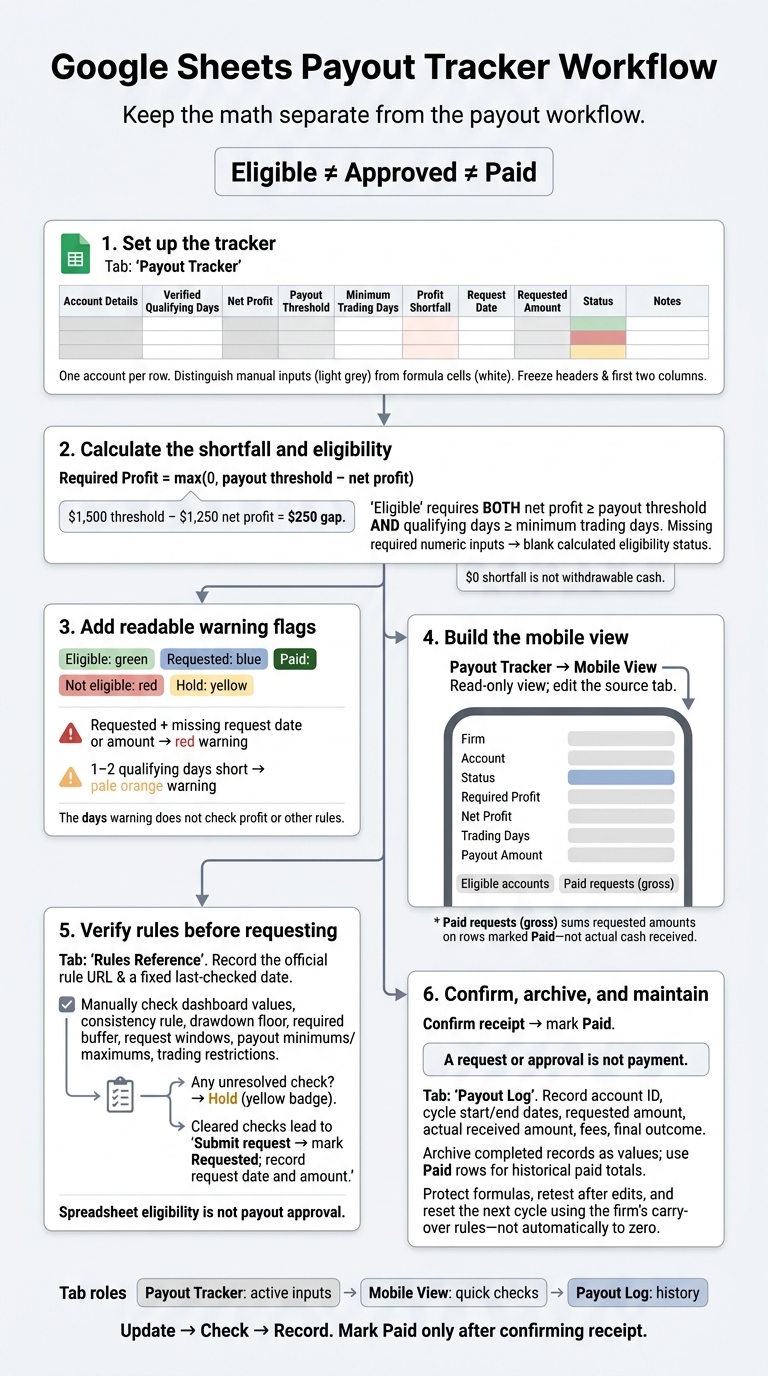
Google Sheets Payout Tracker Workflow
Step 1 – Set Up the Payout Tracker Tab
Create a Google Sheets tab named Payout Tracker. Add headers in row 1, then use one account per row, starting in row 2. Keep the column order below. Step 2 formulas rely on it.
Add Account and Payout Columns
Use these columns to check each account’s cycle against its payout threshold.
| Column | Header | What belongs here |
|---|---|---|
| A | Firm | Futures prop firm name |
| B | Account | Account ID or one-of-a-kind nickname |
| C | Account Size | Starting account size |
| D | Start Date | Cycle start date |
| E | Trading Days | Verified qualifying days completed, not calendar days |
| F | Net Profit | Net profit for the cycle |
| G | Profit Target | Payout threshold |
| H | Minimum Trading Days | Qualifying days required |
| I | Required Profit | Calculated shortfall |
| J | Payout Request Date | Submission date |
| K | Payout Amount | Amount requested |
| L | Status | Dropdown: Planned, Requested, Approved, Paid, Rejected, Hold |
| M | Notes | Rule notes and account details |
Profit Target means the payout threshold, not the evaluation target. Use the same commission basis for Net Profit as the firm dashboard. If you need to verify your math, use a futures trading profit calculator to ensure your manual entries are accurate. Required Profit shows the remaining shortfall. It’s not withdrawable cash.
Format Inputs and Freeze Headers
Format C, F, G, I, and K as USD currency and D and J as MM/DD/YYYY. Set B to plain text so account IDs stay intact. Give manual inputs one fill color and formula cells another. Skip merged cells; they break sorting and filtering.
Under Data → Data validation, require numeric entries in money columns C, F, G, and K. Require nonnegative whole numbers in E and H. Set validation to reject invalid entries.
Choose View → Freeze → 1 row, then View → Freeze → 2 columns. This keeps the headers, Firm, and Account visible as you scroll. Select the tracker range across A–M, then choose Data → Create a filter.
sbb-itb-46ae61d
Step 2 – Calculate Profit Needed and Eligibility
Add Profit Shortfall and Status Formulas
Enter qualifying days in E, net profit in F, payout threshold in G, and minimum days in H.
Enter this formula in I2:
=IF(COUNT(F2:G2)<2,"",MAX(0,G2-F2)) Enter this in L2, then copy both formulas down:
=IF(COUNT(E2:H2)<4,"",IF(AND(E2>=H2,F2>=G2),"Eligible","Not eligible")) COUNT leaves results blank until the required numeric inputs are filled in. Enter 0 when zero is the correct value. MAX keeps the profit shortfall from going negative.
IF with AND returns Eligible only when both thresholds pass. That’s a math check (like the Alpha Futures consistency rule), not confirmation of payout approval.
Test the Formulas With Sample Data
Use these inputs to check your formulas:
Scenario Net Profit (F2) Threshold (G2) Qualifying Days (E2) Minimum Days (H2) Profit Shortfall (I2) Status (L2) Below thresholds $1,250 $1,500 6 8 $250 Not eligible At threshold $1,500 $1,500 8 8 $0 Eligible Above thresholds $2,000 $1,500 10 8 $0 Eligible Missing data $1,500 $1,500 (blank) 8 $0 (blank)
Delete any one of the four required values. The status cell should go blank, showing that COUNT is working. In the above-threshold row, the shortfall stays at $0 because MAX prevents a negative result.
For exceptions that need a manual status, add an override column next.
Add a Workflow Override
Add optional N: Workflow Override, with a dropdown containing Requested, Paid, Hold. Replace L2 with this formula, then copy it down. Any value in N takes priority over the calculated status.
=IF(N2<>"",N2,IF(COUNT(E2:H2)<4,"",IF(AND(E2>=H2,F2>=G2),"Eligible","Not eligible"))) Select Requested only after submitting the payout request. Enter the request date in J and the amount in K. Use Hold while you sort out a rule question.
Select Paid manually only after confirming receipt. A request or approval isn’t payment. Keep the override for workflow states; don’t use it to replace the math.
Step 3 – Add Color Flags
With the formulas in place, add colors so you can scan the tracker faster.
Color Statuses and Flag Missing Request Details
Select L2:L, then open Format → Conditional formatting in Google Sheets. Add a Text is exactly rule for each status:
- Eligible: Green
- Requested: Blue
- Paid: Dark green with white text
- Not eligible: Red
- Hold: Yellow
Keep the status text visible. Color should help you read the tracker, not replace the labels.
To flag missing request details, apply this custom formula to J2:K with a red fill:
=AND($L2="Requested",OR($J2="",$K2="")) This flags a blank request date or amount only when the status is Requested. Place this warning above the status colors in the conditional formatting list so it stays visible.
Flag Accounts Within 2 Qualifying Days
Apply this custom formula to E2:E with a pale orange fill and dark text:
=AND(ISNUMBER($E2),ISNUMBER($H2),$E2<$H2,$E2>=$H2-2) This flags accounts 1–2 days short of the minimum qualifying days. It’s an early warning, not a qualification check. The flag disappears once E reaches H.
Keep this warning above row shading. It checks qualifying days only, not profit or other payout rules.
Step 4 – Build a Mobile View and Summary
Create a separate Mobile View tab. Keep Payout Tracker as your source tab. Once the color flags are set, this gives you a clean phone layout: a compact summary at the top and the account list below.
Use short headers, narrow columns, and frozen top rows to keep payout status readable on your phone.
Show Key Account Details
Enter these headers across A5:G5: Firm, Account, Status, Required Profit, Net Profit, Trading Days, Payout Amount.
Paste this formula into A6. It matches three fields by header name, so those headers in Payout Tracker must match exactly. If you rename Required Profit, Net Profit, or Trading Days in the source tab, update the corresponding MATCH labels.
=IFNA(FILTER( { 'Payout Tracker'!A2:B, 'Payout Tracker'!L2:L, INDEX('Payout Tracker'!A2:L,0,MATCH("Required Profit",'Payout Tracker'!A1:L1,0)), INDEX('Payout Tracker'!A2:L,0,MATCH("Net Profit",'Payout Tracker'!A1:L1,0)), INDEX('Payout Tracker'!A2:L,0,MATCH("Trading Days",'Payout Tracker'!A1:L1,0)), 'Payout Tracker'!K2:K }, 'Payout Tracker'!A2:A<>"" ),"") Leave A6:G empty except for the formula in A6. FILTER needs that space to spill its results. Keep Mobile View read-only and make all edits in Payout Tracker.
For a tighter layout, shorten the visible headers to Acct, Req. Profit, Net P&L, Days, and Payout $. Format the financial columns as dollars.
Count Eligible Accounts and Total Paid Requests
Add two summary metrics above the account list so you can scan the numbers without scrolling.
Enter Eligible accounts in A1, then paste this formula into B1 to count rows marked Eligible:
=COUNTIF('Payout Tracker'!L2:L,"Eligible") Enter Paid requests (gross) in A2, then paste this formula into B2 and format the cell as currency:
=SUMIF('Payout Tracker'!L2:L,"Paid",'Payout Tracker'!K2:K) This adds the amounts in column K for rows marked Paid. It tracks gross requested payouts, not cash received.
Step 5 – Check Rules Before Requesting a Payout
Eligible is a spreadsheet flag, not payout approval. Before requesting a payout, check the account against the current rules and firm guides. Use Hold for any unresolved checks.
Record Rule Sources and Check Dates
Create a Rules Reference tab with these headers across A1:G1: Firm, Account/Plan Type, Official Rule Source (URL), Last-Checked Date, Qualifying-Day Requirement, Profit Threshold/Buffer, Payout Timing Notes.
Add a separate row whenever the plan, purchase date, add-ons, or payout cycle changes which rules apply. Copy the matching rule set into each account row.
Use the firm’s help center or payout policy page and save the exact URL. Enter a fixed last-checked date, not =TODAY(). Label quoted rules with the verification month:
as of October 2026
Review Requirements the Formulas Do Not Check
A clean spreadsheet result doesn’t check everything. Manually verify the dashboard values, consistency rule, drawdown floor, required buffer, request windows, payout minimums and maximums, and any trading restrictions.
In Payout Timing Notes, record whether a payout resets the cycle or changes the next request window.
Check your requested amount against the balance you must leave after withdrawal. The tracker doesn’t catch every rule or calculate how much you can withdraw. Keep the account on Hold until you’ve cleared anything the sheet can’t verify.
Step 6 – Fix Errors and Maintain the Tracker
Once your tracker is live, check it after each payout cycle to keep the numbers accurate.
Check Inputs and Protect Formulas
Blank required cells should return blank, not Eligible. Check for numbers stored as text, missing inputs, and status labels outside the dropdown. Stick to these statuses: Planned, Requested, Approved, Paid, Rejected, and Hold. Retest blank cells after every edit.
Use relative references when copying formulas. Save absolute references like $B$2 for settings that must stay fixed. In Google Sheets, open Data → Protect sheets and ranges to lock formula columns while keeping input cells editable. After adding rows or moving columns, retest formulas, dropdowns, and conditional-formatting ranges.
Archive Completed Payout Cycles
Move approved or paid payouts into the archive rather than leaving them in the active sheet.
Before closing a cycle, match balances, qualifying days, and request details against the firm’s dashboard. Check the received amount against your bank or processor record. If the numbers don’t match, check for missing commissions or mismatched cycle dates.
Create a Payout Log with the account ID, cycle start and end dates, requested amount, actual received amount, fees, and final outcome. Paste completed records as values so later formula edits can’t change your history. Use this log for historical paid totals, and sum only Paid rows.[2][4]
Once you’ve checked the archive, clear the active row’s overrides and request details. Reset profit and qualifying days using the firm’s carry-over rules. Don’t default to zero. Recheck any requirements that have changed.
Summary – Update, Check, and Record
Once the sheet is built, follow the same routine: update, check, record. Enter verified net P&L and qualifying days, then check the status flags for rows that need review.[5][1] Eligible means the row needs manual review. It’s not approval. Confirm the firm’s current payout rules before each request.[3]
Use Payout Tracker for active inputs, Mobile View for quick checks, and Payout Log for history.[2][4] Mark funds Paid only after you confirm receipt.
FAQs
How do I keep eligibility separate from payout status?
Keep “Payout Eligible?” in its own column. Eligibility is a rule check, not a payout status. Track daily P&L since your last request or payout window, count trading days and any required winning days, and check profit requirements and any consistency cap.
Use an AND formula to return “ELIGIBLE” only when every required condition passes. Otherwise, return “NOT ELIGIBLE.”
Can I track multiple payouts per account?
Yes. In Google Sheets, log each payout with the firm name and account number so you can track repeat payouts from the same account. Keep winning days, cumulative net profit, and payout eligibility alongside those entries.
Use the firm’s official help center or FAQ to check current eligibility rules. Reconcile your records monthly and keep a log of support conversations.
How do I account for payout fees and profit splits?
Confirm payout fees and profit splits in your firm’s official help center, then add them to your Google Sheets payout tracker. Keep fees and splits separate from eligibility checks for trading days, cumulative profit, and any daily profit concentration limit.
Check the firm’s documentation regularly. Rules can change every 3–6 months.