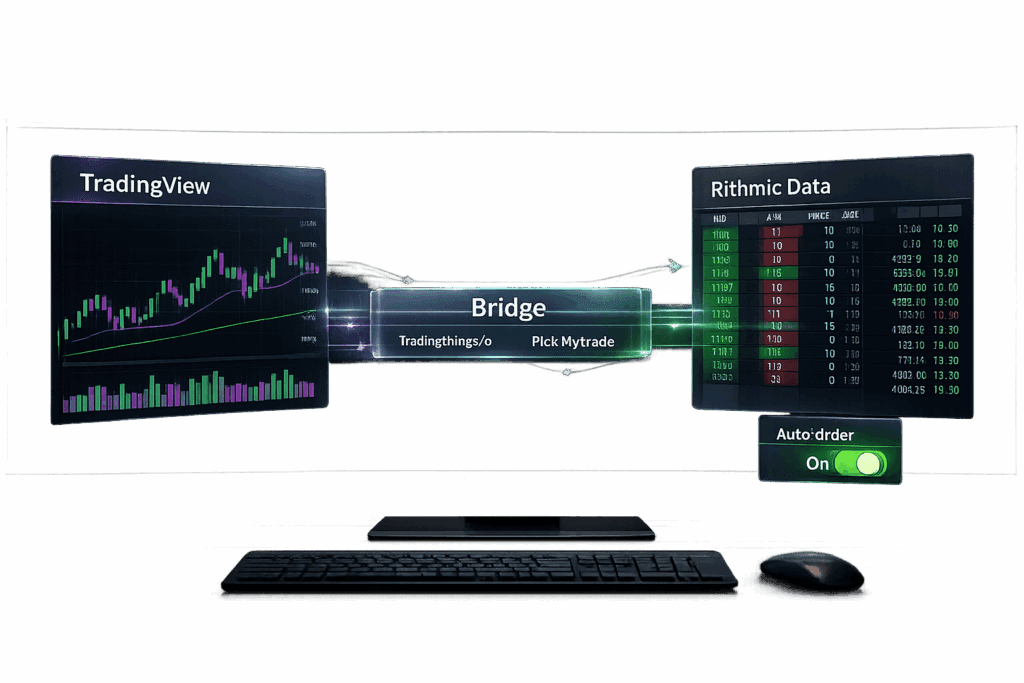
If you’re trading futures with a prop firm like Apex, Topstep, or Bulenox, you’ve probably noticed their platforms aren’t great for charting. The good news? You can connect TradingView to your Rithmic data feed for real-time data and fast execution. It’s not a native feature, so you’ll need a third-party bridge like tradingthings.io for manual trades or PickMyTrade for automation. This setup lets you use TradingView’s tools while keeping Rithmic’s low-latency data – perfect for scalpers or anyone managing multiple accounts. Here’s how to get started and avoid common issues.
Step-by-Step Guide to Connecting TradingView with Rithmic Data
What You Need Before Starting
To connect TradingView with Rithmic, you’ll need three things: a Rithmic data subscription, a paid TradingView plan, and access to a compatible broker or prop firm. Here’s a breakdown of each.
Rithmic Data Subscription
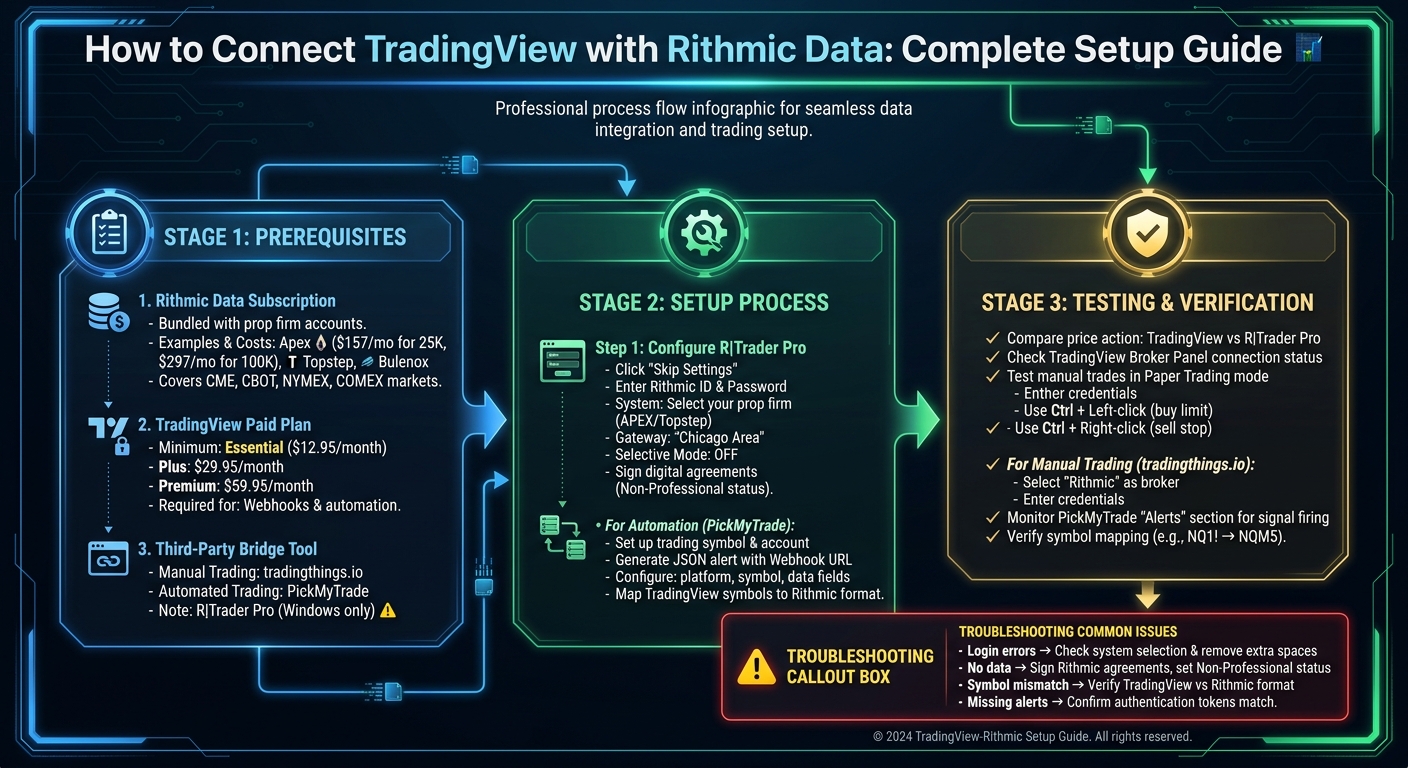
You can’t get Rithmic data directly through TradingView or Rithmic itself. Instead, it comes bundled with your account at a futures prop firm like Apex Trader Funding, Topstep, or Bulenox, or through a broker that supports Rithmic. These firms rely on Rithmic’s infrastructure for their platforms, and the data subscription is included in their fees. For instance, Apex charges $157/month for a 25K account and $297/month for a 100K account. These fees cover your Rithmic data feed for U.S. futures markets like CME, CBOT, NYMEX, and COMEX [3].
To activate your data feed, you’ll need to download R|Trader Pro and complete two required exchange agreements. Log into R|Trader Pro to handle this step. Make sure to select "Non-Professional" status to comply with prop firm rules and standard data pricing. Also, turn "Selective Mode" OFF to avoid connection issues. If you’re using Apex, set the "System" to APEX and the "Gateway" to Chicago Area for the best performance.
TradingView Account Requirements
The free Basic TradingView plan won’t cut it for this setup. You’ll need at least the Essential plan ($12.95/month when billed annually) to unlock features like webhook notifications and pro-level market data [5]. Webhooks are crucial if you’re automating TradingView alerts through a tool like PickMyTrade to send orders to Rithmic. Without a paid plan, you can’t send JSON payloads or automate orders.
For manual trading with charting tools and a bridge like tradingthings.io, the Essential plan works fine. But if you’re juggling multiple automated strategies or managing several prop firm accounts, you might want to upgrade to the Plus ($29.95/month) or Premium ($59.95/month) plans for more alerts and indicators [5].
Compatible Brokers and Platforms
Since TradingView doesn’t directly support Rithmic, you’ll need a third-party bridge to link the two. For manual trading, tradingthings.io is a solid choice, offering 1-click execution directly from TradingView charts. It supports firms like Apex, Topstep, and Bulenox. If automation is your focus, PickMyTrade is better. It allows you to send TradingView strategy alerts to Rithmic using JSON configurations, including details like symbol, quantity, and risk percentage.
To check if your prop firm is supported, look at the "System" or "Broker Selection" menu in your bridge tool. Apex, Topstep, and Bulenox are confirmed to work. Keep in mind, R|Trader Pro is Windows-only, so Mac and Linux users will need a workaround like Parallels, Boot Camp, or a cloud PC to complete the initial setup and sign those agreements. Once that’s done, you can run everything through your bridge tool and TradingView.
Once you’ve got all this in place, you’ll be ready to connect TradingView to your Rithmic feed in the next steps.
sbb-itb-46ae61d
How to Connect TradingView with Rithmic
Ready to connect TradingView to Rithmic? Here’s how to get everything set up for a smooth, low-latency trading experience.
Setting Up R|Trader Pro
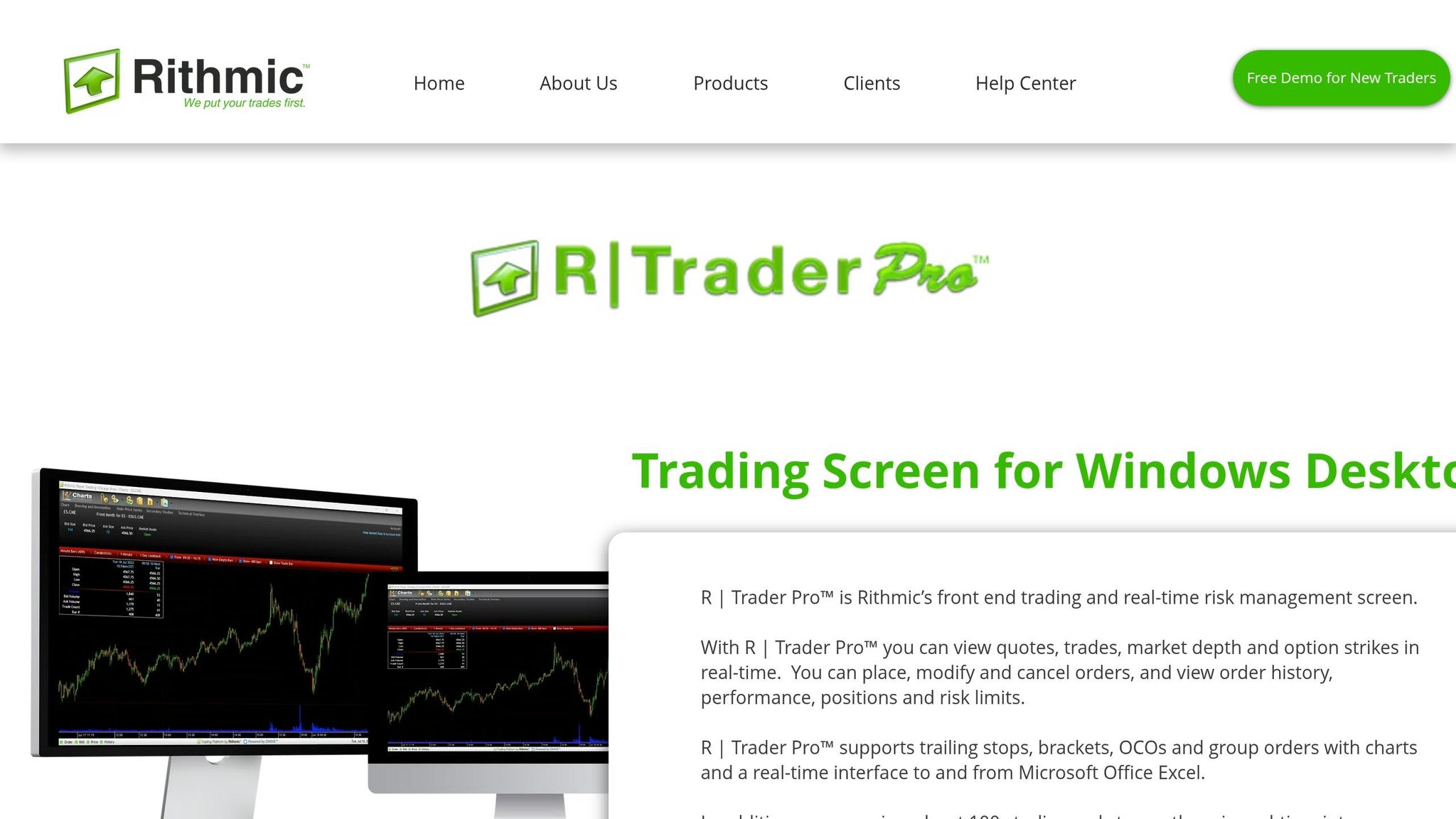
First, download R|Trader Pro from your prop firm’s resources page. When launching it, click "Skip Settings" to go straight to the login screen. Enter your Rithmic ID and password exactly as provided. Under the "System" dropdown, select your prop firm (e.g., APEX for Apex Trader Funding or Topstep for Topstep). For the gateway, pick "Chicago Area". Make sure to turn "Selective Mode" OFF.
You’ll also need to sign the required digital agreements. Choose "Non-Professional" status to activate your data feed. If you’re just starting and using a simulation account (common for new Apex accounts), leave "Market Data" set to OFF.
Using Third-Party Integration Tools
With R|Trader Pro configured, you’ll need a tool to bridge Rithmic and TradingView.
- For manual trading: Use tradingthings.io. Log in, select "Rithmic" as your broker, choose your system, and enter your Rithmic credentials. You can then place trades directly from TradingView using shortcuts like Ctrl + Left-click for buy limit orders and Ctrl + Right-click for sell stop orders.
- For automated strategies: Use PickMyTrade.io. Start by setting up your trading symbol and account in its dashboard. Generate a JSON alert with a unique Webhook URL, and paste this into TradingView’s alerts. The JSON should include keys such as
"platform": "RITHMIC","symbol"(e.g., NQM5 for Nasdaq futures), and"data"(buy, sell, or{{strategy.market_position}}). If there’s a mismatch between TradingView and Rithmic symbols, you’ll need to manually map them in PickMyTrade for automation to work. After setup, test everything to ensure it’s synced.
Testing Your Connection
Now it’s time to make sure everything is working. Compare TradingView’s price action with R|Trader Pro to confirm they’re in sync. In TradingView, check the Broker Panel to see if the connection is active. For manual trades, test in Paper Trading mode. If you’re using PickMyTrade, monitor its "Alerts" section to ensure signals are firing as expected.
Fixing Common Connection Problems
Even with a solid setup, connection hiccups are almost inevitable. Here’s how to tackle the most common issues when linking TradingView with Rithmic.
Login and Authentication Errors
Struggling with login credentials? Remember, TradingView needs a third-party bridge for Rithmic connections. Double-check you’ve selected the right system in your integration tool, like APEX or Topstep [4]. And when copying credentials from your prop firm dashboard, watch out for those sneaky extra spaces – they can easily mess things up [3].
For automated strategies using PickMyTrade, authentication problems often stem from the JSON setup. The "token" and "account_id" in your alert message must match exactly what’s in your PickMyTrade dashboard. Double-check for typos or extra spaces in your credentials [1][2]. Once that’s sorted, confirm your data feed is up and running.
Data Feed Display Issues
Seeing blank charts or a "No Data" message? It might be because you haven’t signed the required Rithmic agreements yet. Log into R|Trader Pro, complete the mandatory agreements, and select "Non-Professional" status to activate your data feed. Also, make sure Selective Mode is turned OFF to avoid connection problems [3].
Symbol mismatches can also cause headaches. For example, TradingView might use NQ1!, but Rithmic could expect NQM5. If your prices aren’t syncing, check that the "symbol" field in your JSON matches Rithmic’s format exactly [1]. If the issue persists, it’s worth revisiting the settings in your bridge tool.
Third-Party Tool Problems
If tools like tradingthings.io or PickMyTrade aren’t connecting, make sure you’ve clicked "Skip Settings" in R|Trader Pro, set the Gateway to "Chicago Area", and selected the correct system (e.g., APEX for Apex Trader Funding) [3].
For PickMyTrade, if alerts aren’t firing, head to the "Alerts" section in its dashboard to confirm signals are being received. Missing or incorrect authentication tokens can cause silent failures – no error messages, just a dead connection [1]. Double-check those tokens to get things back on track.
Using This Setup with Futures Prop Firms
TradingView and Rithmic integration can be a game-changer for prop firm evaluations. Let’s break down the key points you need to know, especially when it comes to data accuracy and compatibility with major firms.
Data Accuracy for Evaluations
Rithmic delivers tick-by-tick, low-latency data through CME co-located routing. This setup drastically reduces slippage and ghost orders, which is a big deal when you’re trying to stick to tight drawdown rules [3]. If you’re using a third-party tool like tradingthings.io, you also get automatic video recording and journaling for every trade. These features can save your skin if you ever need to challenge a rule violation with your prop firm [4].
Compatibility with Apex, Topstep, and Other Firms
Most big futures prop firms – like Apex Trader Funding, Topstep, and Bulenox – are Rithmic-friendly when paired with third-party tools [4]. To get started, you’ll need your Rithmic ID and the correct firm-specific settings (e.g., select "APEX" and "Chicago Area" for Apex setups) [3].
If you’re running multiple evaluations, like a 50K and a 100K account at Apex, unrealized trailing drawdown rules apply, integration tools can send orders to several Rithmic accounts simultaneously. Just make sure "Selective Mode" is turned off in R|Trader Pro to avoid any headaches [1] [3].
Damn Prop Firms Resources
Tech setups are only part of the equation. Picking the right prop firm with solid resources matters just as much. For in-depth reviews, updated rules, fee breakdowns, and exclusive discount codes, check out our Damn Prop Firms reviews and tools pages. Want to connect with other traders? Join our free DGT Discord, where over 3,000 futures traders share tips, setups, and strategies.
Final Thoughts
Once you’ve ironed out the connection issues and dialed in your setup, it’s time to think about the bigger picture. Connecting TradingView with Rithmic data can completely change the game for futures prop firm traders. You’re combining TradingView’s intuitive charting and Pine Script automation with Rithmic’s lightning-fast execution. That’s the kind of edge you need when trading under tight drawdown rules during those chaotic market swings.
One of the standout perks? You can set up a single TradingView alert to trigger trades across multiple Rithmic accounts. That means fewer manual mistakes and automated risk management, like position sizing and stop losses. Pairing fast execution with top-notch analysis tools creates a streamlined trading process that just works.
Abdou from tradingthings.io sums it up perfectly:
"The integration works the same way for all Rithmic accounts, giving you access to TradingView’s advanced analysis tools while maintaining the same execution reliability you’re used to from a direct Rithmic connection" [4].
This kind of reliability is crucial, especially when you’re managing evaluations at firms like Apex, Topstep, or Bulenox.
Yes, the initial setup can feel like a grind – mapping symbols, formatting JSON alerts, and testing everything in paper mode. But once you’ve got it locked in, you’re working with a pro-level system that scales effortlessly as you take on more funded accounts.
If you’re serious about prop trading and want the best of both worlds – TradingView’s charts and Rithmic’s speed – this integration is absolutely worth the upfront effort.
FAQs
Can I use TradingView with Rithmic without a third-party bridge?
No, TradingView doesn’t directly support Rithmic. If you want to connect the two, you’ll need a third-party tool, like an automation platform or a webhook service. These act as middlemen, letting you use TradingView alerts to execute trades on Rithmic. It’s not a seamless integration, but it gets the job done.
Why are my TradingView prices different from my Rithmic feed?
TradingView prices can sometimes differ from your Rithmic feed because they pull data from different sources and may have varying configurations. Rithmic delivers real-time, exchange-sourced data specifically for futures trading, while TradingView might rely on delayed or alternative feeds. To minimize these differences, double-check that your TradingView is properly linked to your Rithmic account and ensure both platforms are set to the same exchange and data settings.
How do I send one TradingView alert to multiple Rithmic accounts?
To send one TradingView alert to multiple Rithmic accounts, you’ll need an automation tool like PickMyTrade.io. This platform simplifies managing multiple accounts and distributes alerts automatically using API integration. Here’s how it works: set up webhook alerts in TradingView, connect your Rithmic accounts to PickMyTrade.io, and configure the system to route orders to all linked accounts. Double-check that your API connections and account permissions are set up properly to avoid any hiccups.