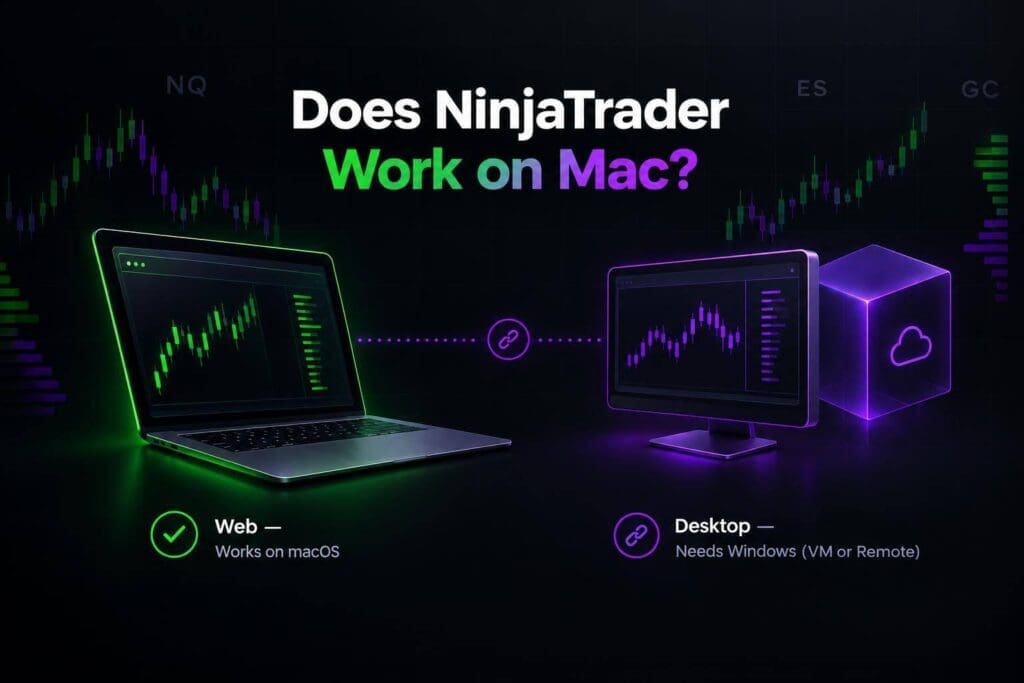
NinjaTrader Web works on Mac. NinjaTrader Desktop doesn’t run natively on macOS. My advice: start with Web if your account supports it, and add Windows only when your tools demand it.
I’ll break down the 3 access options: browser, local Windows virtual machine, and remote Windows computer. You’ll see where custom indicators, NinjaScript, and backtesting force the Desktop choice, plus what to check before using an Apple Silicon Mac.
The catch is account access. <u>A working platform isn’t the same as an approved connection.</u> Confirm your firm’s Web or Desktop support first, then test order entry, bracket behavior, and backup access before putting a funded account at risk.
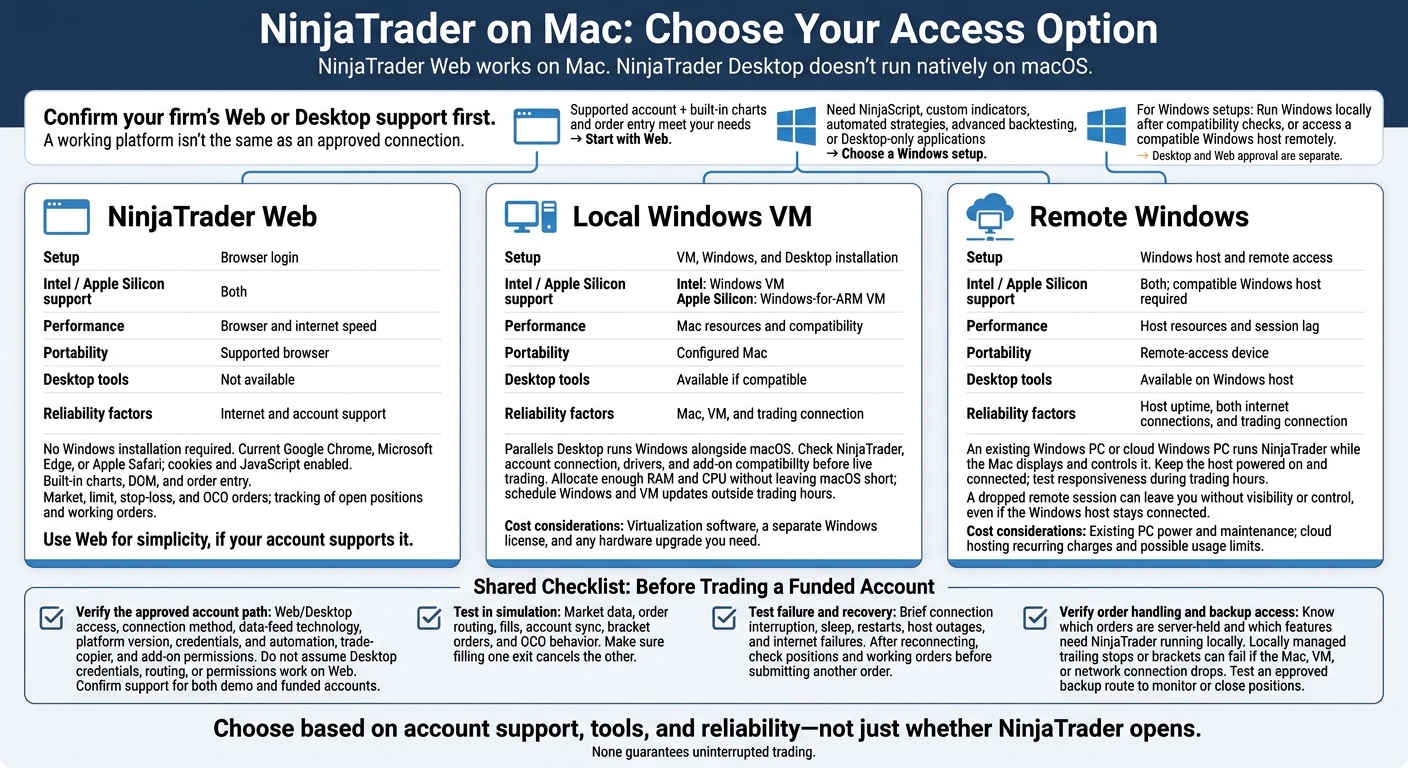
NinjaTrader on Mac: Choose Your Access Option
NinjaTrader Web Features and Requirements on Mac
Charts, Orders, and Account Management
NinjaTrader Web gives Mac users real-time charts, DOM, and order entry directly in a browser. You can place market, limit, stop-loss, and OCO orders, and track open positions and working orders.[1]
No Windows installation required.[1][3] That means less upkeep, but you don’t get the full Desktop toolset. NinjaScript, advanced backtesting, and some Desktop-specific third-party add-ons still require Windows.[1][3]
Supported Browsers and Internet Requirements
Use a current version of Google Chrome, Microsoft Edge, or Apple Safari, with cookies and JavaScript enabled. Browser access works on both Intel and Apple Silicon Macs.[3]
You need a stable internet connection for live chart updates and order management. If charts lag or disconnect, check your connection and account status before placing another trade.
Your futures prop firm must also support web access for your specific account connection. Confirm that support before you trade.[1] For advanced automation or deeper testing, use the Desktop version on Windows.[1][3]
sbb-itb-46ae61d
NinjaTrader Web vs. NinjaTrader Desktop
Web works on a Mac through your browser. Desktop is Windows-only and gives you more control. Desktop relies on Microsoft’s .NET environment, so it doesn’t run natively on macOS. Check the official installation guide and system requirements.
Web and Desktop Feature Comparison
This isn’t just about where you log in. Use Web for straightforward trading. Choose Desktop when you need tools Web doesn’t offer.
| Feature | NinjaTrader Web | NinjaTrader Desktop |
|---|---|---|
| Operating system | Browser access on macOS | Windows; no native macOS application |
| Installation | No local platform installation | Requires installation in a Windows environment |
| Charting | Built-in charts and indicators | More customization and custom indicators |
| Order entry | Browser-based order entry | Desktop order-entry tools, advanced DOM, and ATM controls |
| Automation and scripting | Limited | NinjaScript strategies, custom indicators, and automation |
| Backtesting | Limited | Advanced historical strategy testing |
| Add-ons | Very limited | Supports compatible third-party applications |
When You Need Desktop Tools
Run Windows if your workflow requires NinjaScript, custom indicators, automated strategies, advanced backtesting, or Desktop-only applications. Multi-monitor chart layouts and advanced ATM features can also justify the extra setup. If built-in charts and order entry cover your needs, stick with Web and skip the Windows maintenance.
Check the best futures prop firms for their required connection and platform setup before committing. Desktop compatibility doesn’t mean prop-firm approval. Confirm that your account connection, routing, and automation tools are supported before trading a funded account.
If you need Desktop, the next step is choosing how to run Windows on your Mac.
Ways to Access NinjaTrader Desktop From a Mac
If NinjaTrader Web doesn’t cover your needs, you have two ways to run NinjaTrader Desktop from a Mac: run Windows locally or connect to a separate Windows machine. Both add setup work, compatibility checks, and reliability tradeoffs.[2]
Run Windows in a Virtual Machine
Parallels Desktop runs Windows alongside macOS.[2] Intel Macs can use a Windows VM; Apple Silicon Macs need a Windows-for-ARM VM.[2] Check compatibility before trading live, including NinjaTrader, your account connection, drivers, and add-ons.
Give Windows, NinjaTrader, and your charts enough RAM and CPU without leaving macOS short. Test your workspace and data connection in simulation. Schedule Windows and VM updates outside trading hours.
Budget for virtualization software, a separate Windows license, and any hardware upgrade you need.
Access a Windows Computer Remotely
An existing Windows PC or cloud Windows PC runs NinjaTrader while your Mac displays and controls it. A dropped remote session can leave you without visibility or control, even if the Windows host stays connected.[3]
Test responsiveness during trading hours. Session lag can delay order entry. Keep the host powered on and connected, and set up a backup way to manage orders if your account supports one.
Compare 3 Mac Access Options
Compare setup cost, speed, and reliability against how you trade.
| Factor | NinjaTrader Web | Local Windows VM | Remote Windows |
|---|---|---|---|
| Setup | Browser login | VM, Windows, and Desktop installation | Windows host and remote access |
| Intel / Apple Silicon support | Both | Intel: Windows VM; Apple Silicon: Windows-for-ARM VM | Both; compatible Windows host required |
| Performance | Browser and internet speed | Mac resources and compatibility | Host resources and session lag |
| Portability | Supported browser | Configured Mac | Remote-access device |
| Desktop tools | Not available | Available if compatible | Available on Windows host |
| Reliability factors | Internet and account support | Mac, VM, and trading connection | Host uptime, both internet connections, and trading connection |
Favor the option with the lowest setup costs and fewest failure points for your trading style. A VM adds licensing costs and hardware demands. An existing PC needs power and maintenance. Cloud hosting adds recurring charges and possible usage limits. None guarantees uninterrupted trading.
Use Web for simplicity. If you need Desktop features, check VM compatibility or use a compatible Windows host, then test connection reliability. Before committing, verify that your prop firm’s specific account connection works with your chosen setup.
Choose a Mac Setup for Futures Prop Trading
Choose Based on Your Trading Needs
Getting NinjaTrader to launch on your Mac is only the first step. Your setup also needs to hold up while you trade.
Choose based on account support, tools, and reliability, not just whether NinjaTrader opens. Use Web for supported accounts and basic execution. Use a VM only if you need Desktop features and have confirmed compatibility with your Mac/Windows setup and required add-ons. For Desktop without putting the workload on your Mac, use remote access or a dedicated Windows PC.
Before moving forward, consult futures prop firm reviews to confirm that your firm supports that exact connection path.
Check Your Firm’s Account Connection
Verify Web/Desktop access, the connection method, data-feed technology, platform version, and credentials. Don’t assume Desktop credentials, routing, or permissions also work on Web. Check the firm’s current help-center documentation for automation, trade-copier, and add-on permissions.
Confirm an approved backup route to monitor or close positions if your main setup fails. Once the firm confirms support, test the full workflow before risking a funded account. This preparation is vital to pass prop firm challenges and maintain consistency.
Test Before Trading a Funded Account
Test the approved account path in sim before going live. Check market data, order routing, fills, account sync, bracket orders, and OCO behavior. Make sure filling one exit cancels the other.
During simulation, test a brief connection interruption. After reconnecting, check positions and working orders before submitting another order.
Know which orders are server-held and which features need NinjaTrader running locally. Locally managed trailing stops or brackets can fail if your Mac, VM, or network connection drops. Test recovery from sleep, restarts, host outages, and internet failures. Test your approved backup access, too.
Bottom Line: Check Account Support Before Choosing Web or Desktop
For Mac users choosing between Web and Windows-only Desktop, account support and reliability come first. NinjaTrader Web is the simplest option if your prop firm supports your account connection and data feed.
If Web doesn’t cover your needs, run Windows in a local VM or access a Windows computer remotely. Getting Windows running isn’t enough: your setup must also follow your platform and funded-account rules.
Ask your firm which platform and data feed your account can use. Confirm that the same setup works for both your demo and funded account, then choose your Mac setup around that connection. Desktop and Web approval are separate. Check Damn Prop Firms’ Best Futures Prop Firms rankings for context, and verify current connection details in the firm’s help center.
Before trading a funded account, test that you can place orders and close positions reliably.
FAQs
How can I verify Desktop compatibility on my Apple Silicon Mac?
NinjaTrader Desktop is Windows-only. It doesn’t run natively on Apple Silicon Macs. To use it on your Mac, run Windows through virtualization software such as Parallels Desktop, or use a cloud-based Windows desktop streamed to your browser.
Check your prop firm’s support before committing. Confirm that it supports both your setup and account connection. Account routing and data feed compatibility vary by firm.
Can I switch from Desktop to Web during an outage?
Yes, you can often switch to NinjaTrader Web during a desktop outage, as long as both platforms support your account connection. Desktop and Web use separate interfaces but connect to the same underlying account data.
Some funded accounts only allow specific connection methods. Check your prop firm’s or broker’s help docs to confirm your account type supports Web before you rely on it as a backup.
Will my stop-loss stay active if my Mac disconnects?
Your existing stop-loss stays active because NinjaTrader Desktop orders are held by the exchange and your broker’s infrastructure, not your Mac. While disconnected, you can’t manually adjust or cancel those orders from your Mac.
Check your broker’s or prop firm’s documentation to confirm how your specific account connection handles orders during a disconnection.