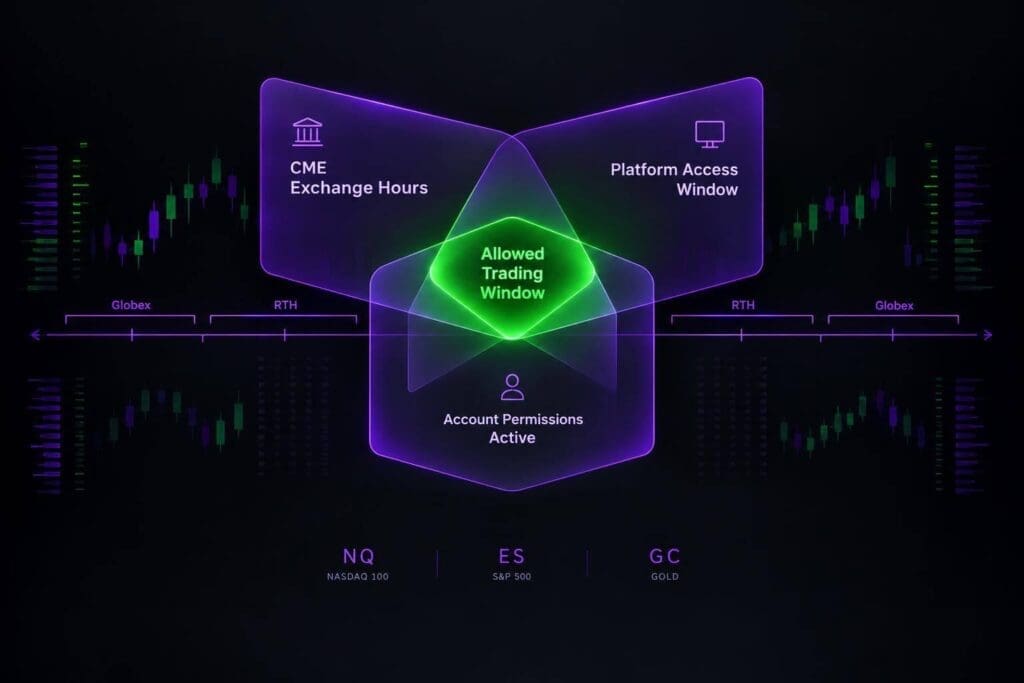
An open CME market doesn’t mean your account is cleared to trade. I use three checks to define an allowed window: the contract is matching orders, the platform is connected, and account rules permit entry.
Many CME futures follow a 5:00 PM–4:00 PM CT session, but contract breaks, holidays, and forced-flat deadlines can cut that window short. If your account requires you flat at 3:50 PM CT, a 4:00 PM exchange close doesn’t buy you another 10 minutes.
Here’s how I’d map those limits, separate chart reference hours from trading permission, and handle delayed reopens. <u>Your account deadline comes first.</u> Don’t let the exchange clock talk you into a rule violation.
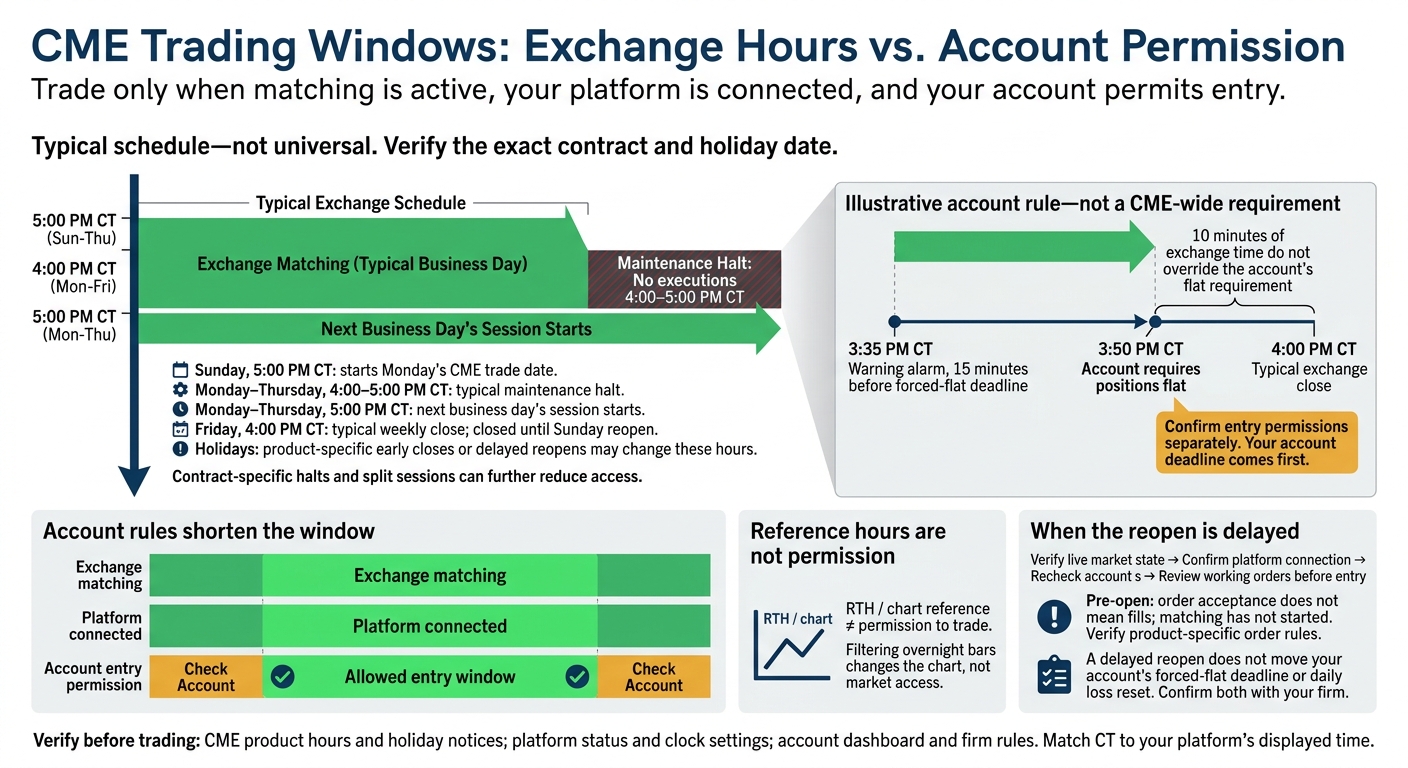
CME Trading Windows: Exchange Hours vs. Account Permission
🔴 Sunday Funday: Trading the Futures Market Open LIVE From Bangkok
sbb-itb-46ae61d
H2: When Is CME Trading Allowed?
You can trade only when exchange hours, platform access, and account permissions line up.[1][2]
H3: Exchange Hours vs. Account Restrictions
An open exchange doesn’t guarantee you can place a trade. Your platform must be connected, and your account rules for futures prop firms must allow entry.
| Schedule layer | What it controls | Where to verify it |
|---|---|---|
| CME Globex hours | Exchange sessions and session states | CME Group trading hours |
| Contract schedule | Product-specific hours, breaks, and holidays | CME product specifications and holiday calendar |
| RTH window | Chart and analysis reference, not permission to trade | Contract documentation and chart settings |
| Platform access | Connection and order controls | Platform status and connection indicators |
| Account restrictions | Entry times, position limits, and holding deadlines | Account dashboard and prop firm reviews and rules pages |
Pre-open order acceptance doesn’t mean fills. The market can accept orders before matching starts. Entering or changing an order during pre-open isn’t a fill.[3] Once matching starts, your account still has to allow entry. Positions remain subject to flattening deadlines and overnight or weekend holding restrictions.[1][2]
Before sending an order, check the contract’s session state, your connection, and your account’s allowed trading window. Confirm your flattening deadline before the session opens. Review working orders before carrying a position into a break.[1][2]
H3: Use Central Time for Session Planning
Use CT on your worksheet and match it to your platform’s clock. Check whether the platform displays exchange, local, or custom time so session reopens and account deadlines line up.[1][2] A clock mismatch can mean a missed reopen or a mistimed entry.
H2: CME Weekly Trading Schedule
Use this as your default CME week, then confirm your contract’s hours and holiday exceptions through CME trading hours and holiday schedules.[1][3] For prop accounts, an open market doesn’t mean you’re allowed to enter trades. Check the best futures prop firms for their specific entry windows, too.
| Session phase | Typical CT timing | Check | Why it matters |
|---|---|---|---|
| Sunday open | Sunday, 5:00 PM | Contract hours and holiday schedule | Starts Monday’s trade date |
| Maintenance halt | Monday–Thursday, 4:00–5:00 PM | Contract break and account restrictions | No executions during the halt |
| Evening reopen | Monday–Thursday, 5:00 PM | Market status and entry permissions | Starts the next business day’s session |
| Friday close | Friday, 4:00 PM | Contract close and weekend carry rules | Closed until Sunday reopen |
| Holiday schedule | Product-specific | Official close and reopen times | Early closes or delayed reopens shift your trading window |
H3: Sunday Opens, Daily Reopens, and Trade Dates
Sunday evening trading belongs to Monday’s CME trade date. Under this schedule, the exchange day ends at 4:00 PM CT, and the next session opens at 5:00 PM CT.[1][2] The calendar date and CME trade date aren’t the same thing. Check how your firm handles that rollover within its allowed trading window, especially for Sunday-night entries.
H3: Friday Closes and Holiday Changes
Most contracts following this schedule close Friday at 4:00 PM CT and stay closed until Sunday’s reopen.[1][2] Check your account’s carry permissions before holding overnight or through the weekend. If your firm requires you to be flat the same day, use its cutoff, not the exchange close.
Holidays can bring early closes and delayed reopens. Check the official product schedule two weeks ahead, then check again before the affected session. Adjust your entry and flattening times to match.[1][3]
H2: Daily Maintenance Break
The maintenance break changes order state and reopen timing. The exact rules vary by contract.[1][3] A delayed reopen also shifts your allowed entry window. Check your contract’s states in CME’s trading hours and holiday schedules.[1][3]
H3: Order Rules During Close, Pre-Open, and Reopen
The exchange state controls whether you can send, change, or cancel orders during the break. Check the product schedule before taking action; don’t assume every contract follows the same rules.[3][4]
| Exchange state | Can execute? | Entry, modification, and cancellation | Where to verify |
|---|---|---|---|
| Closed | No | Orders are generally frozen; day and expiring GTD orders are eliminated at the final close | CME session-state rules and contract schedule |
| Pre-open | No | Entry, modification, and cancellation allowed | CME product schedule; platform documentation |
| No-cancel phase, where applicable | No continuous matching | Entry allowed; modification and cancellation prohibited | CME state rules for the product |
| Reopen / open | Yes | Entry, modification, and cancellation allowed | CME market status; platform and account documentation |
H3: Checklist Before the Session Reopens
- Confirm your flat deadline. Your account’s deadline to be flat can come before CME’s reopen. Set that alert first.[1][2]
- Check working orders. GTC orders may survive the break. Confirm what’s still working before you resubmit anything.[3][4]
- Verify reopen status. Check your connection, session template, and trade date before trading resumes. Send orders only when both the market and your account window are open. Check the spread before enabling automation; spreads can widen fast at the reopen.[1][2]
Next, map these break rules to each contract’s RTH and reference session.
H2: RTH and Reference Sessions by Contract
Plan entries around the contract’s schedule, not its asset class. Reference windows help you set up charts; they don’t grant order access.[2] Check the product specs and holiday calendar for the date you’re trading.
Standard Globex schedule: Sunday–Friday, 5:00 PM–4:00 PM CT, with a daily break from 4:00–5:00 PM CT between sessions.
| Product group | Exact reference contract | Normal Globex access (CT) | RTH or daytime reference | Liquidity considerations | Official CME specifications |
|---|---|---|---|---|---|
| Equity indexes | E-mini S&P 500 (ES) | Standard schedule, plus the halt shown at right | 8:30 AM–3:00 PM CT cash session; ES and NQ halt from 3:15–3:30 PM CT | Watch the cash open and close; overnight liquidity can drop fast | ES specifications |
| Treasuries | 10-Year T-Note (ZN) | Standard schedule | U.S. morning and London/U.S. overlap | Economic releases can change depth and execution fast | ZN specifications |
| Energy | WTI Crude Oil (CL) | Standard schedule | U.S. pit hours and Wednesday EIA report window | Inventory announcements can bring volume and sharp price moves | CL specifications |
| Metals | Gold (GC) | Standard schedule | London/U.S. morning overlap | The London/U.S. overlap doesn’t guarantee tight spreads | GC specifications |
| Agriculture | Corn (ZC) | Split overnight and daytime sessions | 8:30 AM–1:20 PM CT day session | The split session affects order and position timing | ZC specifications |
The exceptions below matter when you’re timing orders.
H3: Equity Index Futures vs. Cash Stock Hours
The ES/NQ afternoon halt stops matching before the daily maintenance break.[1][2] Settlement is usually set at the cash close, not at the 4:00 PM CT maintenance break.[2] Holiday sessions can override normal hours.[3]
Filtering out overnight bars changes your chart, not your market access. Don’t carry the equity index schedule over to every other market.
H3: Treasury, Energy, Metals, and Agriculture Hours
Grain contracts have split sessions. Don’t treat the trading day as one unbroken block.[1][3]
For CL, mark the Wednesday EIA petroleum inventory release on your calendar. Heavy volume doesn’t guarantee good fills.[1][2] If a contract opens late, use the delayed reopen as the actual start of the window.
H2: What to Do When a Session Opens Late
A delayed open changes your trading window, not just the clock. Check the market state first, your platform connection second, and account permissions third.[1][2]
H3: Recheck Entries, Risk Limits, and Deadlines
If the reopen gets pushed back, disable scheduled entries. Check working orders, stops, and brackets before turning automation back on.[3]
The delay doesn’t move your flatten deadline or daily loss reset. Confirm both in your account dashboard and firm rules. After the market reopens, check the spread and depth. If liquidity is thin, cut your size or wait.[2][3]
H3: Verify Market Status Before Sending Orders
Check CME hours and holiday notices and the live market state before sending orders.[3] Confirm whether the opening is delayed or the market is open, then check for platform or account blocks.
| Observed state | Verification source | Next action |
|---|---|---|
| Opening delayed | Official CME notices and market-state updates | Pause automated entries. Wait for OPEN, then check existing orders before submitting replacements. |
| Market open, thin liquidity | Confirmed OPEN state, live time and sales, and the order book | Check the spread and depth. Reduce size or wait. |
| Platform unavailable | Platform status page and local connection checks | Find out whether the problem is local or provider-wide. Use your mobile backup if available. |
| Connected, orders rejected | Rejection message, account dashboard, and firm help center | Check account permissions and risk restrictions. Don’t keep resubmitting. |
Match your working orders and positions against what’s shown in the platform before sending anything else.[3]
H2: Plan Your Allowed Trading Windows
Turn the session rules into a day trading schedule you can follow.
Keep your regular schedule separate from a dated exception log for holidays, delayed opens, and contract changes. Apply each exception only to the affected sessions. Don’t overwrite your normal hours.
H3: Match Contract Hours to Account Permissions
Record the exact contract’s Globex hours, maintenance breaks, and RTH reference separately from your account’s entry permissions, holding restrictions, and forced-flat deadlines. Trade only where exchange hours and account permission overlap. RTH is a reference, not permission to trade.
Put CT and your platform’s time side by side, and check both before trading. Set a separate warning alarm 15 minutes before your account’s forced-flat deadline.[1]
Use the overlap to plan when you can enter and when you must flatten.
H3: Keep a Dated Session Worksheet
Keep one worksheet per contract, with dated rows for exceptions. Save the CME hours source and your account rule source with it.
| Worksheet field | What to record |
|---|---|
| Contract/date | Exact symbol and contract month; CME trade date, separate from calendar date |
| Exchange schedule | Sunday open, daily halt or maintenance break, weekly close |
| RTH reference window | Contract-specific reference window, labeled separately from permitted hours |
| Account permissions | Entry window, holding restrictions, forced-flat deadline |
| Time conversion | CT schedule and your platform’s displayed time |
| Exceptions | Affected date, revised close or reopen, and contract change |
| Source check | Source links and last-checked date and time |
Recheck before every Sunday open and any known exception.[3] If the open is delayed, update only that session’s record. Never assume your forced-flat deadline moved with it. Use that record for your quick check before the next open.
H2: Final Check: Hours, Access, and Permission
Before placing an order, confirm the exact contract hours in CME Group’s current schedule.[3] Then check your account’s entry permissions and forced-flat deadline.[1][2]
After a holiday schedule change or delayed open, follow the live market state, not the clock. During pre-open, you can enter, modify, or cancel orders, but they can’t match. An accepted order does not mean trading has started.[3] Once the market switches to OPEN, recheck your orders before entry.
Check how your platform handles working orders and cancellations during trading breaks. Sort out any mismatch before your next order, not after a rejection or forced liquidation.
FAQs
How does daylight saving time affect my trading window?
Use the stated Eastern Time (ET) hours during daylight saving time. CME Globex’s standard trading week runs from Sunday at 6:00 PM to Friday at 5:00 PM, with a maintenance halt from 5:00–6:00 PM Monday through Thursday.
Your firm’s mandatory flatten window, often 4:45–4:59 PM ET, is your effective close. Check your firm’s requirements. Exchange hours alone won’t tell you when you need to be flat.
What if a halt prevents me from meeting my flat deadline?
Your firm’s flattening rules come first. Check its review page on Damn Prop Firms for the exact deadline and risk-engine requirements.
CME Globex’s daily maintenance break runs Monday through Thursday from 5:00 PM to 6:00 PM ET. No order matching occurs during that hour, so plan to flatten before the break if your deadline falls within it.
Can my stop orders trigger immediately after a reopen?
Stop orders can trigger after trading reopens only if they’re still active. CME Globex pauses order matching during its daily maintenance halt from 5:00 PM to 6:00 PM ET. Day orders expire during that break.
If you trade funded futures, your firm’s flattening rules take priority over exchange hours. Check your firm’s latest policies.