NinjaTrader 8 is a powerful trading platform widely used by futures traders, especially those working with prop firms. Setting it up correctly is crucial for accessing accounts, managing data feeds, and ensuring smooth trading operations. Here’s a quick breakdown of what you need to know:
- System Requirements: For serious trading, use at least 16GB of RAM, a multi-core processor, and a fast internet connection (100+ Mbps).
- Multi-Provider Mode: Enable this feature to connect external data feeds like Rithmic or Tradovate.
- Account Setup: Each futures prop firm (Apex Trader Funding, Tradeify, etc.) has specific steps for activating accounts and signing data agreements.
- Connection Types: Rithmic allows one active connection at a time, while Tradovate supports multiple simultaneous connections.
- Troubleshooting: Common issues include incorrect credentials, missing entitlements, or incomplete data activation.
Proper configuration ensures your platform is ready for live trading. Follow the detailed steps in the article to connect to your prop firm accounts, validate your setup, and troubleshoot any issues.
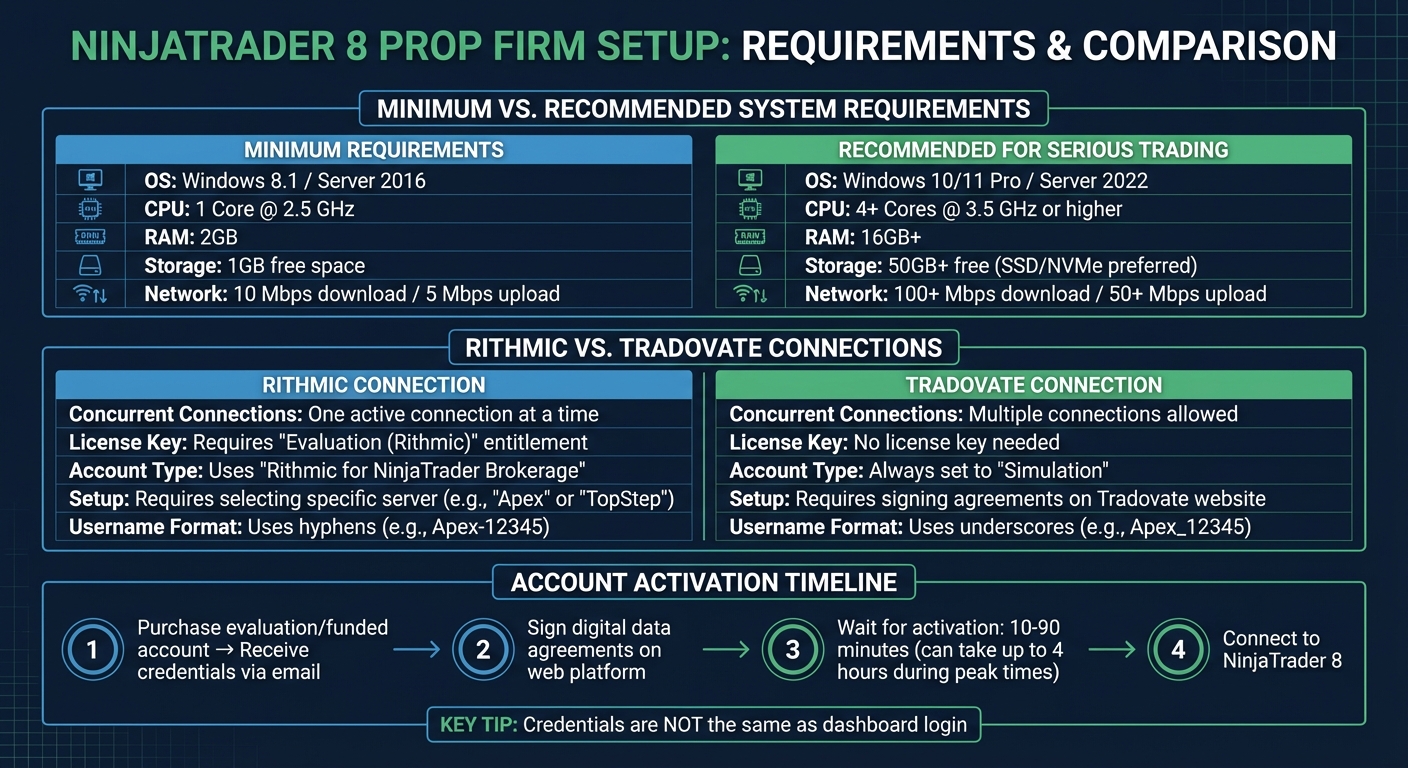
NinjaTrader 8 System Requirements and Connection Types Comparison for Prop Firms
System Requirements and Preparation
Minimum System Requirements
Although NinjaTrader 8 can technically operate with 2GB of RAM and a single-core processor, these specs just won’t cut it for prop firm trading [9]. Managing multiple charts, indicators, and real-time data feeds from firms like Apex Trader Funding or Take Profit Trader demands hardware that can handle the workload efficiently.
| Component | Minimum Requirements | Recommended (Serious Trading) |
|---|---|---|
| OS | Windows 8.1 / Server 2016 | Windows 10/11 Pro / Server 2022 |
| CPU | 1 Core @ 2.5 GHz | 4+ Cores @ 3.5 GHz or higher |
| RAM | 2GB [9] | 16GB+ [9] |
| Storage | 1GB free space | 50GB+ free (SSD/NVMe preferred) |
| Network | 10 Mbps download / 5 Mbps upload | 100+ Mbps download / 50+ Mbps upload |
If you’re loading historical tick data or using complex indicator DLLs, you’ll notice RAM usage jump significantly [9]. Network speed is another critical factor – while 10 Mbps is the bare minimum, aiming for at least 100 Mbps ensures a stable connection [9]. For optimal performance, traders often target latency between 0.5ms and 1ms to the CME Aurora datacenter [9].
Before diving into your trading setup, make sure your hardware meets these requirements. This is crucial for smooth operations, especially when working with prop firm accounts.
Prop Firm Account Setup
To connect NinjaTrader to your prop firm, you first need an active account. After purchasing an evaluation or securing funded trading accounts, you’ll receive credentials via email. Remember, these credentials are not the same as your dashboard login.
Tradovate-Based Firms
For firms using Tradovate, like Apex Trader Funding, Tradeify, or Lucid Trading, you need to initialize your account through the Tradovate web platform at trader.tradovate.com. Use a desktop browser to log in, sign the digital data agreements, and select "NON-PROFESSIONAL" to avoid the higher professional data fees [6][3]. Data activation can take anywhere from 10 minutes to 4 hours [6][3]. Be meticulous when copying usernames and passwords from emails – leading or trailing spaces can cause login errors [6].
Rithmic-Based Firms
If your firm uses Rithmic, you’ll need to log in to RTrader Pro first to accept Rithmic’s terms and conditions. This step activates the data feed, allowing you to connect it to NinjaTrader [3].
Multi-Provider Mode Activation
By default, NinjaTrader 8 doesn’t support third-party prop firm connections. You’ll need to enable Multi-Provider Mode manually to configure accounts for Rithmic or Tradovate [2][7]. Here’s how:
- Open the Control Center in NinjaTrader.
- Go to Tools > Settings > General.
- Check the box labeled "Multi-provider" and click OK [2][8].
"Multi-provider must be enabled to connect to any supported third-party broker accounts, data providers, or evaluation accounts on the NinjaTrader Desktop app." – QuantVPS [2]
After enabling this setting, restart NinjaTrader. When you reopen the Control Center and navigate to the Connections tab, you should see the "Configure" option at the bottom of the list. This confirms that Multi-Provider Mode is now active [2].
sbb-itb-46ae61d
Configuring NinjaTrader 8 for Prop Firms
General Configuration Steps
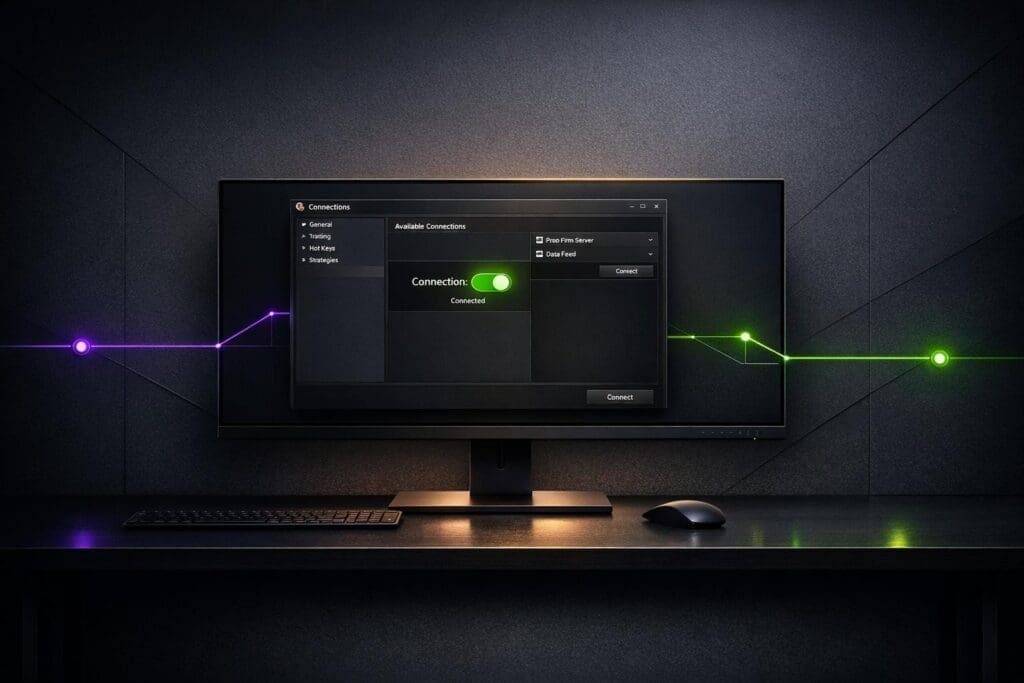
Once Multi-Provider Mode is enabled, head to the Control Center and find the Connections tab. From the dropdown menu, select Configure at the bottom. This opens a window showing the available connection providers.
For firms using Tradovate, such as Apex Trader Funding, Tradeify, or Lucid Trading, choose the NinjaTrader option. If your firm uses Rithmic, select Rithmic for NinjaTrader Brokerage instead. Be sure to enter your credentials exactly as provided by the prop firm.
For Tradovate connections, always set the Account Type to "Simulation", regardless of whether you’re in a funded or evaluation status. After entering your credentials, confirm the setup, return to the Connections tab, and select your newly created connection to establish the link.
Once your connection is ready, it’s important to understand the differences between Rithmic and Tradovate connections.
Connection Types: Rithmic vs. Tradovate
The connection type used by your prop firm determines how you manage your NinjaTrader setup. Rithmic and Tradovate connections each come with unique features, particularly when handling multiple accounts.
One key difference lies in concurrent connections. NinjaTrader 8 supports only one active Rithmic connection at a time [4]. For example, if you’re trading with multiple Rithmic-based firms like Apex Trader Funding and Take Profit Trader, you’ll need to disconnect from one before connecting to another. On the other hand, Tradovate connections allow multiple sessions to run simultaneously.
| Feature | Rithmic Connection | Tradovate Connection |
|---|---|---|
| Concurrent Connections | One active connection at a time [4] | Multiple connections allowed |
| License Key Requirement | Requires "Evaluation (Rithmic)" entitlement | No license key needed |
| Account Type Setting | Uses "Rithmic for NinjaTrader Brokerage" | Always set to "Simulation" |
| Setup Requirement | Requires selecting a specific server (e.g., "Apex" or "TopStep") | Requires signing agreements on the Tradovate website |
For Rithmic accounts, you’ll need an "Evaluation (Rithmic)" entitlement, which usually comes with your license key. To verify this, go to Help > About in the Control Center and check the Entitlements section. Tradovate accounts skip this step, making their setup process a bit simpler. A quick tip: Rithmic usernames often include hyphens (e.g., Apex-12345), while Tradovate usernames use underscores (e.g., Apex_12345).
NinjaTrader: The Ultimate Guide for Prop Trading Firms 2025
Prop Firm-Specific Setup Instructions
After completing the general configuration, here’s how to handle the specific setup requirements for each prop firm.
Apex Trader Funding
Apex Trader Funding uses two connection types based on your username format. Check the "Connection Types" section for details on how usernames determine the setup process.
For Rithmic connections, choose "Rithmic for NinjaTrader Brokerage" in the Connections configuration. Set the "System" dropdown to Apex and leave "Plug-in Mode" unchecked unless you’re using RTrader Pro. If RTrader Pro is part of your setup, log in using the Chicago Area gateway and ensure the exchange agreements are signed with Market Data turned OFF. The connection may take up to 30 seconds to show a green status light.
For Tradovate connections, select "NinjaTrader" as the connection type and set "Account Type" to Simulation. Follow the instructions in the Prop Firm Account Setup section to complete digital agreements at trader.tradovate.com. Data activation can take anywhere from 10 to 90 minutes after signing. When copying credentials from the Apex dashboard, double-check that there are no extra spaces.
Once Apex is configured, proceed to the Take Profit Trader setup.
Take Profit Trader

Take Profit Trader accounts require additional steps depending on the data feed. They support both CQG and Rithmic connections.
For CQG accounts, select "NinjaTrader" as the connection type. For Rithmic accounts, choose "Rithmic for NinjaTrader Brokerage" and set the system to "Rithmic Paper Trading (Chicago)".
If you’re using RTrader Pro, enable "Plug-in Mode" in NinjaTrader and activate "Allow Plugins" in RTrader Pro. Switching between different Rithmic-based firms? Disconnect the current connection, close NinjaTrader, and reconnect to the new firm. Always log into RTrader Pro first to handle data agreements before connecting through NinjaTrader.
Tradeify

Tradeify uses Tradovate connections exclusively. In the Connections configuration, select "NinjaTrader", enter your Tradovate credentials, and set "Account Type" to Simulation during the evaluation phase.
Refer to the Prop Firm Account Setup section to sign digital agreements at trader.tradovate.com. The activation process usually takes about 15 minutes. Unlike Rithmic-based setups, Tradovate allows multiple simultaneous connections, so you can connect Tradeify and other Tradovate-based accounts at the same time.
Lucid Trading
Lucid Trading also uses Tradovate connections, following a process similar to Tradeify’s. In the Connections menu, select "NinjaTrader", set "Account Type" to Simulation, and enter the Tradovate credentials provided by Lucid Trading.
For account activation, sign digital agreements at trader.tradovate.com. Data activation may take between 10 and 90 minutes. If you encounter logon issues, synchronize your Windows clock by navigating to Settings > Time & language > Date & time > Sync now. Direct-to-funded accounts are typically ready for trading within 5–15 minutes after purchase, while passed evaluations may take 5–30 minutes to activate.
Validating Connections and License Requirements
Connection Validation
In the Control Center, the bottom-left corner displays a color-coded connection indicator to show your platform’s status. Here’s what the colors mean:
- Green circle: You’re connected and ready to trade.
- Yellow circle: The platform is trying to connect or facing a temporary issue.
- Red circle: The connection failed – check your credentials and internet connection.
- No indicator: There’s no connection at all.
To double-check, go to the Accounts tab and confirm your prop firm account is listed with the correct buying power and instruments. For Rithmic accounts, you’ll also need to verify the "Evaluation (Rithmic)" entitlement by navigating to Help > About. If the connection shows green but no account appears, this entitlement might be inactive.
"The Evaluation Key is needed for a Rithmic-Based Evaluation account to show within NinjaTrader. If the user doesn’t have this, the connection would still establish, but they wouldn’t see the account in the platform." – Joel Wyse, Affordable Indicators [4]
Once your connection is confirmed, move on to checking the licensing details to ensure everything is set up for full functionality.
NinjaTrader Licensing Details
After verifying your connection, the next step is to confirm your licensing status. If you’re using NinjaTrader 8.1 or later, most prop firm accounts don’t require a license key. The free tier provides access to charting, market analysis, and simulation trading – everything you need for evaluations. This applies to Tradovate-based accounts from firms like Apex Trader Funding, Tradeify, and Lucid Trading, which work without any key entry.
For Rithmic-based accounts, you may need the "Evaluation (Rithmic)" entitlement, though this is usually included with your prop firm account. If your firm provides a license key, you can enter it under Help > License Key in the Control Center.
While the free tier covers most evaluation needs, the paid licenses – like the $99/month Lease License or the $1,499 Lifetime License – offer advanced tools, including Order Flow+ features like volumetric bars and footprint charts. If you are managing multiple accounts, you might also consider using a trade copier like TradeSyncer to streamline your execution. However, these tools aren’t necessary for typical prop firm trading setups.
Troubleshooting Common Issues
If you’re running into problems with your NinjaTrader 8 prop firm configuration, here’s how to tackle some of the most common issues.
Multi-Provider Mode Issues
When the "Configure" option is missing from your Connections menu, it’s often because NinjaTrader wasn’t restarted after enabling Multi-Provider Mode. To fix this, go to Tools > Options > General, check the "Multi-provider" box, click OK, and then restart NinjaTrader. The restart is essential for the setting to take effect [2].
If Multi-Provider Mode is already enabled but your prop firm account isn’t showing up, check if your Rithmic-based account includes the "Evaluation (Rithmic)" entitlement. You can verify this by going to Help > About in the Control Center. Even if your connection status is green, the account won’t appear without this entitlement [4].
Connection Failures
Connection issues are often caused by incorrect credentials. Copy-pasting credentials can sometimes introduce hidden spaces, leading to errors. To avoid this, manually type in your credentials instead [6][7].
For Tradovate-based futures prop firms like Apex Trader Funding, Tradeify, or Lucid Trading, a "Logon failed" error might occur if your Account Type is set to "Live" instead of "Simulation." Double-check this setting. Additionally, sync your Windows clock by going to Settings > Time & language > Date & time and clicking "Sync now" to prevent time-related errors [7].
For new accounts, remember that data activation can take anywhere from 10 to 90 minutes after signing the required data agreements on your prop firm’s web dashboard. During peak times, this might stretch to as long as 4 hours [6]. If the connection still doesn’t work after waiting, log into your firm’s web portal (such as trader.tradovate.com for Tradovate or RTrader Pro for Rithmic) to confirm all agreements have been signed [6][7].
Once basic connection issues are resolved, you may encounter challenges when switching between Rithmic accounts.
Switching Between Rithmic Prop Firms
NinjaTrader 8 allows only one active Rithmic connection at a time. If you need to switch between Rithmic-based prop firms, disconnect from the current account, wait for the status indicator to update, and then connect to the new account [4]. For a smoother experience, restart NinjaTrader before connecting to a different Rithmic account [3].
Unlike Rithmic, Tradovate-based connections don’t have this limitation. You can maintain multiple active Tradovate connections simultaneously without needing to disconnect [4][5].
"If you want to switch between connections, they would need to disconnect from the first, and then go back in and click on the 2nd one to connect to it instead." – Joel Wyse, Affordable Indicators [5]
Conclusion
Getting NinjaTrader 8 ready for prop firm trading requires careful attention to detail. Key steps, like enabling Multi-Provider Mode, are crucial to unlocking the platform’s full potential. These initial configurations lay the groundwork for an efficient and effective trading experience.
The type of connection you use plays a major role. For example, Rithmic-based firms such as Apex Trader Funding allow only a single active connection at a time. In contrast, Tradovate-based firms like Tradeify and Lucid Trading support multiple simultaneous connections[3][4].
Before you connect, make sure to sign the necessary data agreements on your provider’s web platform. This activation step usually takes anywhere from 10 to 90 minutes[6]. Skipping it will prevent your connection from going live.
Once connected, take steps to avoid costly mistakes. For instance, use visual cues like color-coding Chart Trader backgrounds – green for evaluation accounts and blue for simulation accounts – and set your daily loss limits to 80% of your maximum drawdown[1].
Professional trading demands a deep understanding of your tools.
"Understanding it [NinjaTrader 8] deeply is not optional – it is a competitive requirement." – dealpropfirm.com[1]
With the right setup and preparation, NinjaTrader 8 can provide a reliable platform tailored to the needs of prop firm trading.
FAQs
How do I know if my prop firm uses Rithmic or Tradovate?
To determine whether your prop firm uses Rithmic or Tradovate, check the firm’s connection instructions or platform requirements. Most firms clearly outline the data feeds they support. For instance, firms like Apex Trader Funding frequently use Rithmic, while others may support Tradovate. Be sure to review the firm’s setup guides for specific details and instructions.
Why is my account missing even though NinjaTrader says I’m connected?
If your account isn’t showing up even though it’s connected, you might need to turn on Multi-Provider Mode in NinjaTrader. This feature lets you manage multiple accounts simultaneously. Make sure it’s activated and your accounts are set up correctly. For step-by-step instructions on enabling this mode and checking your configuration, consult NinjaTrader’s support resources.
Can I trade multiple prop firm accounts at the same time in NinjaTrader 8?
Yes, NinjaTrader 8 makes it possible to trade multiple proprietary firm accounts at the same time through its Multi-Provider Mode. To enable this feature:
- Open the Control Center in NinjaTrader 8.
- Navigate to Settings.
- Check the box labeled ‘Multi-provider’.
Once activated, this mode allows you to connect and manage several accounts simultaneously. Whether you’re trading live accounts, demo accounts, or evaluation accounts, this feature simplifies the process of handling accounts across firms like Apex Trader Funding or Lucid Trading. It’s a game-changer for traders managing multiple accounts efficiently.