Tradovate is a popular cloud-based trading platform, but connection issues can disrupt your trading experience. Here are the key problems and solutions you need to know:
- Multiple Login Sessions: Tradovate limits accounts to 2 active sessions. Log out from all devices before logging in again to avoid disconnections.
- Chart Freezing: Often caused by network instability or an unsynced PC clock. Use a wired connection and sync your system clock to fix this.
- Stuck Prices: Exceeding the API rate limit (5,000 requests/hour) can freeze data. Wait for the 60-minute cooldown or reduce API requests to prevent this.
- Switching Instruments: Expired contracts or delayed data subscriptions can cause errors. Roll contracts forward and ensure live data is active.
- Slow Performance: High bandwidth usage or outdated cache can slow the platform. Clear cache, close unused apps, and use Ethernet for better performance.
- Missing Accounts: Ensure you’re using the correct Tradovate credentials from your prop firm dashboard. Allow up to 90 minutes for new accounts to appear.
- Frequent Disconnections: Unstable Wi-Fi or exceeding session limits can cause drops. Switch to Ethernet and monitor active sessions.
- Wrong Login Credentials: Double-check your username/password and avoid using your email as the username.
- Delayed Data Feeds: Sign the Non-Professional Agreement and wait up to 90 minutes for activation.
- TradingView Add-on Delays: Renew your TradingView connection monthly to avoid 5-second refresh delays.
Quick Tip: Always check for orange-highlighted instruments, as this indicates delayed data. Avoid trading until live data is confirmed. For more stability, use a wired connection, clear your cache regularly, and stay within session limits.
These fixes can help you avoid costly mistakes, especially if you’re trading with funded accounts through the best futures prop firms like Apex Trader Funding or Topstep.
Tradovate Connection Problems: Causes, Fixes, and Prevention Guide
1. Multiple Login Sessions Across Devices or Platforms
Cause of Connection Problem
Tradovate enforces a strict limit of two active sessions across all platforms, including desktop, web, mobile, and the TradingView add-on. As Tradovate Support clarifies:
"NinjaTrader and Tradovate accounts are limited to 2 active sessions at a time across all platforms (desktop, web, mobile, and TradingView)." [2]
This issue often arises when traders unintentionally log in from multiple devices or browser tabs, exceeding the session limit. Additionally, Tradovate’s API has a cap of 5,000 requests per hour. Frequent reconnections or repeated logins can quickly hit this limit due to the high volume of "usersync" requests. When this happens, accounts may enter "P-ticket" (penalty ticket) status, restricting access. [7]
These limitations can have a direct impact on trading, especially during critical moments.
Impact on Trading Performance
Disconnections mid-trade can lead to significant delays, particularly if you’re working with funded accounts through platforms like Apex Trader Funding or Take Profit Trader. Once the API rate limit is exceeded (a common issue when using tools like TradeSyncer), the system stops processing new commands. This means you won’t be able to modify stops, cancel orders, or exit positions. A "Too Many Requests" error triggers a 60-minute cooldown, leaving you unable to manage trades during crucial periods. [7][9]
Ease of Troubleshooting
Fixing this issue is fairly simple. Start by logging out of all active sessions before signing in again. If you’re managing multiple accounts, make sure to fully log out of one account before switching to another. In cases where you’re locked out, contact Tradovate Support to request a manual reset of your session limits.
Prevention Methods
- Stick to one active session and avoid using multiple browser tabs.
- If using trade copying platforms across accounts, enable "Market Execution Only" mode to minimize API requests from order modifications.
- Limit repeated reconnections, as these consume your API quota.
- Synchronize your computer’s clock with internet time to avoid authentication errors.
sbb-itb-46ae61d
2. Chart Freezing or Not Updating
Cause of Connection Problem
Trading platforms rely on a steady stream of data to keep charts updated. If your network connection drops, even briefly, charts can freeze. Another common issue is an unsynced PC clock, which might cause the platform to hang on ‘Loading’ or make buttons unresponsive.
Viewing expired contract months can also result in frozen charts since the prices displayed are no longer updating. Additionally, if you notice instruments highlighted in orange, it means you’re receiving delayed data instead of live updates. This often happens if the Non-Professional Agreement hasn’t been signed or while waiting for data activation, which can take anywhere from 10 to 90 minutes [1].
Impact on Trading Performance
Trading with frozen charts can lead to decisions based on outdated information, increasing the risk of missing crucial entry or exit points in fast-moving markets. Apex Trader Funding highlights the risks:
"Do not place any trades until live market data is confirmed, as it may lead to significant losses." [1]
This becomes especially dangerous during volatile market conditions when static charts might misrepresent actual price movements. For traders using funded accounts from firms like Apex Trader Funding or Topstep, such delays can result in rule violations, further emphasizing the need for prompt troubleshooting to maintain accuracy and avoid penalties.
Ease of Troubleshooting
Most freezing issues are relatively simple to fix. Start by refreshing your browser, restarting the app, or clearing the cache. Ensure you’re viewing the current contract month to avoid static data. If stuck on ‘Loading,’ syncing your PC clock through Windows settings often resolves the issue.
For delayed data (indicated by orange instruments), signing the Non-Professional Agreement and waiting up to 90 minutes for activation should restore live updates [1].
Prevention Methods
To minimize the risk of chart freezing, consider switching from Wi-Fi to a wired Ethernet connection for a more reliable data flow. Periodically restart your modem and router to clear any temporary network issues, and close bandwidth-heavy applications while trading.
Make sure your trading platform, as well as your graphics and network drivers, are up to date. Modern trading setups typically require at least 8GB of RAM to function smoothly and avoid crashes [10]. Monitoring system resources and closing unnecessary programs during trading can also help maintain real-time chart performance. A stable and optimized setup ensures your charts stay accurate, protecting your trading decisions from unnecessary risks.
3. Stuck or Static Prices
Cause of Connection Problem
Static prices can occur when the API rate limit of 5,000 requests per hour is exceeded, triggering a mandatory 60-minute cooldown period [7][9]. Every action you take – whether it’s logging in, opening charts, placing orders, or using automated alerts – counts toward this limit.
Another common cause is a misaligned system clock, which can disrupt the platform’s ability to display live prices [2]. Similarly, an unstable network connection can freeze data feeds, interrupting the continuous updates required for accurate pricing [2].
If you haven’t signed the Non-Professional Agreement or are waiting for your data activation to complete (which can take anywhere from 10 to 90 minutes), instruments may appear orange, signaling delayed data [1].
Impact on Trading Performance
Static prices can create significant challenges for traders. When prices freeze due to API limits, you could lose the ability to cancel or adjust orders, effectively locking your positions. For those engaged in trade-copying, this can lead to follower accounts falling out of sync with the master account, causing portfolio discrepancies. Acting on outdated price data can result in poorly timed trades, with market conditions potentially shifting against your strategy. Repeated API overuse may even result in penalties, such as a "P-ticket", which blocks API access entirely [7].
For traders using funded accounts through platforms like Apex Trader Funding or Take Profit Trader, these interruptions can lead to rule violations or even account termination.
Ease of Troubleshooting
Most static price issues can be resolved with a few simple steps. Start by restarting your modem and router to address any temporary network problems. If your system clock is out of sync, right-click the Windows Taskbar clock, select "Adjust date/time", and click "Sync now" [2]. If the API rate limit has been exceeded, avoid making repeated attempts to reconnect – just wait out the 60-minute cooldown period [9].
For network-related freezes, reconnecting your broker session can force a fresh authentication and restore data flow [5][12]. If instruments are displayed in orange, ensure you’ve completed the Non-Professional Agreement and allow up to 90 minutes for live data activation [1]. In cases where platform access is completely unavailable, you can contact the Emergency Trade Desk at 312-423-2234 to manage your positions [3].
Prevention Methods
To prevent hitting API rate limits, consider enabling Market Execution Only Mode in your trade copier settings. This significantly reduces the number of API requests sent to Tradovate [7][12]. Avoid frequently modifying stop-loss or take-profit orders, as each adjustment counts as an API call. Similarly, steer clear of using trailing stops, which generate frequent updates.
For a more reliable data connection, switch from Wi-Fi to a wired Ethernet setup and update your DNS settings to Google (8.8.8.8) or Cloudflare (1.1.1.1) to lower latency [4]. Limit active sessions to no more than two by logging out of mobile or web versions when trading on your desktop [2]. Always ensure instruments are not displayed in orange before placing trades, as this indicates delayed data and could lead to costly mistakes [1].
4. Problems Switching Trading Instruments
Cause of Connection Problem
Switching trading instruments on Tradovate can sometimes be tricky due to technical issues. One common problem arises when trading expiring contracts, which can lead to "Roll Forward" or "Liquidation Only" errors [1]. Contracts typically expire at 9:30 AM ET, so rolling forward is necessary to access new trades [1].
For users managing multiple accounts, the process can get even more complicated. Switching instruments in these setups can generate a high number of API calls, potentially exceeding the 5,000 request limit [7]. This overload can delay order submissions. Additionally, having more than two active sessions may cause disconnection errors [2].
Another frequent issue involves inactive data subscriptions. If an instrument appears orange after switching, it means live data isn’t active yet. This delay could stem from an unsigned Non-Professional Agreement or a market data subscription that hasn’t fully activated, which can take anywhere from 10 to 90 minutes [1][8]. These problems not only disrupt trading but can also lead to broader performance issues.
Impact on Trading Performance
Trading with delayed data, indicated by orange instruments, can have serious consequences. Without real-time price updates, traders risk financial losses [1]. For funded traders, using outdated data could violate account rules, potentially leading to account termination.
Contract expiration errors are another challenge. Attempting to trade expired contracts prevents opening new positions and may trap you in existing trades until the market closes [1]. Automated strategies and trade copying across multiple accounts also face risks. API throttling can cause execution delays, resulting in follower accounts falling out of sync with the master account [12].
Ease of Troubleshooting
To avoid these issues, take some proactive steps:
- Use the CME Group Markets tool to confirm the current front month and avoid expired contracts [1][2].
- Look for orange indicators on instruments. If an instrument is orange, wait for live data activation before placing trades [1].
- Sync your PC clock if the platform appears to lag [1][2].
If you’re hitting API limits, adjust your copy trader settings to enable Market Execution Only Mode. This reduces API calls during instrument updates and helps maintain platform connectivity [7]. For session-related issues, log out of unused mobile or web sessions before using the desktop platform [8].
Prevention Methods
To minimize the likelihood of encountering these problems, consider these strategies:
- Roll contracts forward manually before they expire to avoid being locked out of positions [1].
- Limit active sessions to two or fewer by monitoring your logins across devices [2].
- Avoid rapid instrument switches or frequent order modifications, especially when managing multiple accounts [12].
- Switch from Wi-Fi to a wired Ethernet connection to reduce latency and ensure stable data feeds [4].
- Always check that instruments are not orange before trading, and allow up to 90 minutes for data activation after completing the necessary agreements [1].
If you’re trading on platforms like Tradeify or Topstep, following these preventive measures is especially important. Failing to do so could lead to rule violations and jeopardize your funded account status.
5. Slow Platform Performance
Cause of Connection Problem
Tradovate’s performance can experience slowdowns due to several factors, with API rate limiting being one of the most common. Tradovate enforces a cap of 5,000 requests per hour [7]. Actions like frequent order modifications, price adjustments, or trailing stops – especially across multiple accounts – can quickly use up this limit. When exceeded, users encounter frozen orders, delayed position updates, and the inability to modify or cancel trades [7][12].
Network stability is another critical factor. Tradovate Support emphasizes:
Unlike static websites or buffered videos, trading platforms require a constant, uninterrupted connection to both data and account servers – making any network drop immediately noticeable [2].
Even minor disruptions, such as Wi-Fi interference, can lead to lag or prolonged loading times. Additionally, PC clock synchronization issues may result in unresponsive login buttons or platform freezes [2]. Tradovate also restricts users to two active sessions across devices. Logging in on a third device will cause repeated disconnections [2][8]. These problems demand quick identification and resolution to ensure smooth trading.
Impact on Trading Performance
Sluggish platform performance can severely impact trading. Execution delays, often between 510–515 ms [13], make strategies like scalping or quick-response trading ineffective. When charts freeze or data lags, traders are forced to act on outdated information, risking significant financial losses [1][15]. For those using funded accounts with firms like Apex Trader Funding or Take Profit Trader, these delays could result in rule violations or missed opportunities to safeguard accounts during volatile market conditions.
Extended platform freezes leave positions unmanaged [14]. For traders relying on automated systems or trade copiers, hitting the API limit can disrupt synchronization between master and follower accounts, leading to execution mismatches [12].
Ease of Troubleshooting
Thankfully, many performance issues can be resolved with simple actions:
- Sync your PC clock by right-clicking the clock on the Windows taskbar and selecting "Sync now" to fix unresponsive interfaces [2].
- Use Chrome’s Incognito mode or switch browsers to rule out interference from extensions [13][2].
- Clear your browser cache and cookies regularly to maintain performance [2].
- Adjust trade copier settings to Market Execution Only Mode to reduce API requests [7][12].
- Log out of unused sessions on mobile or web platforms before using the desktop app [8].
Prevention Methods
To minimize slowdowns, consider these preventive measures:
- Opt for a wired Ethernet connection over Wi-Fi to reduce latency and avoid interference [4].
- Update DNS settings to public servers like Google (8.8.8.8) or Cloudflare (1.1.1.1) for more stable data feeds [4].
- Close resource-heavy applications while trading to free up system resources for real-time data processing [4].
- Limit order modifications and trailing stops, particularly when managing multiple accounts [7][12].
- Use the desktop app for faster chart rendering compared to the web version [8].
- Monitor and restrict active sessions to two or fewer across devices [2].
For traders working with firms like FundedNext Futures or Tradeify, these steps can help prevent performance-related issues that might jeopardize funded account status.
6. Missing or Hidden Accounts
Cause of Connection Problem
Missing accounts often occur when traders use incorrect credentials, particularly non-Tradovate login details. If you have a funded account through providers like Apex Trader Funding or Elite Trader Funding, you must use the specific Tradovate username provided in your trader dashboard [5][11]. Each funded account is tied to its own set of Tradovate credentials, meaning accounts won’t appear unless they are properly linked.
Another common issue is incomplete documentation. Accounts stay hidden until required forms, such as the Non-Professional Agreement, are signed [5][11]. For TradingView users, activating the Add-on tools in Tradovate settings is essential for account visibility. As TradingView Support explains:
To log on Tradovate account on TradingView, users need to enable the Add-on tools on the Tradovate platform. [16]
In some cases, provisioning delays can take up to 15–90 minutes. Additionally, accounts that violate platform rules are automatically removed at 9:30 AM ET on expiration day [1]. These issues can disrupt trading operations, as detailed below.
Impact on Trading Performance
When accounts go missing, traders face significant challenges. Without access to their accounts, they can’t execute trades, monitor open positions, or review account history. This is especially problematic for those managing multiple funded accounts with firms like Take Profit Trader or Tradeify. Using the wrong credentials results in an empty or inaccurate dashboard, which can delay or jeopardize trade execution.
Moreover, syncing issues between Tradovate and third-party platforms can lead to discrepancies in profit and loss calculations. For instance, mismatched data across panels might cause traders to close positions prematurely, leading to unexpected losses [17]. Recognizing these risks is key to identifying straightforward solutions.
Ease of Troubleshooting
Fixing missing accounts starts with verifying your exact Tradovate username. Always check your prop firm dashboard for the correct credentials – don’t assume it’s the same as your email address [5][11]. Before connecting to third-party apps, log into the Tradovate web platform to complete any required agreements that pop up [5][11].
If you’re using TradingView, go to Tradovate Settings > Add-ons and ensure the TradingView option is active [16]. If your accounts are still missing after signing all agreements, log out completely and log back in to refresh the account list [5][11].
Prevention Methods
To avoid account visibility issues, keep track of your credentials using a password manager. This helps prevent login errors. After purchasing new accounts or signing agreements, allow up to 90 minutes for provisioning before troubleshooting [1].
Additionally, make sure you select the correct trading environment (Simulation or Live) during login, as specified in your prop firm dashboard. Choosing the wrong environment can result in a blank account list. For traders using services like FundedNext Futures or Alpha Futures, confirm that your prop firm has enabled the TradingView Add-on subscription on their end before reaching out to support [16].
7. Frequent Disconnections and Connection Drops
Cause of Connection Problem
Frequent disconnections often result from unstable network conditions or overwhelming session loads. Trading platforms, like Tradovate, rely on a steady flow of data, and even minor interruptions – while barely noticeable during activities like video streaming – can completely disrupt trading operations.
Tradovate enforces a limit of 2 active sessions per account across all platforms, including desktop, web, mobile, and TradingView [2]. Issues like bandwidth-heavy activities (streaming, large downloads, or online gaming), router malfunctions, Wi‑Fi interference, or DNS errors from your internet service provider (ISP) can all affect connectivity [4]. On the broker’s end, scheduled maintenance, server restarts, or authentication timeouts may also cause unexpected session terminations [5]. These disruptions can have immediate consequences for trading, as discussed in the following section.
Impact on Trading Performance
Just like frozen charts or static price updates, frequent connection drops can severely hinder real-time trading – something especially critical for traders managing funded trading accounts. While Tradovate ensures that your orders remain secure at the exchange level during outages [3], losing connection means you can’t monitor positions or adjust strategies in the moment. For those working with firms such as Apex Trader Funding or Take Profit Trader, even a brief disconnection during volatile market conditions could delay crucial entry or exit decisions. Additionally, trying to stay logged in across multiple devices may trigger repeated login errors, wasting valuable time.
If the situation becomes critical, Tradovate’s Emergency Trade Desk is available 24/7 from Sunday afternoon to Friday afternoon (Central Time) at 312-423-2234 to assist with closing positions during severe outages [3].
Ease of Troubleshooting
To minimize disconnections, consider switching from Wi‑Fi to a wired Ethernet connection, which reduces the risk of interference [4]. Updating your DNS settings to public servers like Google (8.8.8.8) or Cloudflare (1.1.1.1) can also improve connection stability [4]. If you encounter issues like the platform freezing on "Loading…" or persistent Captcha errors, syncing your system clock can help. On Windows, right-click the taskbar clock and select "Sync now" [2]. Additionally, ensure you log out of unused devices to stay within the two-session limit, and clear your browser’s cache and cookies if problems persist [2]. These steps can go a long way in reducing connection interruptions and ensuring smoother trading sessions.
Prevention Methods
To avoid future disconnections, restart your router regularly to clear temporary glitches [4]. During trading hours, reduce bandwidth usage by pausing activities like streaming, downloads, or online gaming on your network [4]. Keep your system clock synchronized using Windows settings to prevent authentication errors [2]. If you frequently switch between devices, make it a habit to log out completely before transitioning to a new platform. For traders using services like Tradeify or Alpha Futures, double-checking session counts before the market opens can help prevent mid-session interruptions.
8. Wrong Login Credentials
Cause of Connection Problem
Incorrect login credentials are a common yet easily resolved connectivity issue on Tradovate. The platform’s authentication system is case-sensitive, meaning even a single mistyped letter or having Caps Lock enabled can block access entirely [2][18]. Another frequent culprit is trailing spaces – those invisible characters that often sneak in when copying and pasting credentials from emails or password managers – causing login attempts to fail [2].
For traders managing multiple Tradovate accounts, mixing up login details is a common mistake. Prop firm users, in particular, sometimes use their firm website credentials instead of the specific Tradovate login details provided in their trader dashboard [8]. Paul, a professional trader at PropTradingVibes, explains:
The most common setup mistake is using your TOF account login instead of the separate Tradovate credentials from your dashboard. Wrong credentials will produce a silent login failure with no helpful error message.
Additionally, browser autofill features can store outdated credentials, leading to login errors. Some users also mistakenly enter their email address when the platform requires a username [5][18]. These issues can directly impact trading efficiency, as outlined below.
Impact on Trading Performance
Repeated login failures not only waste time but can also lock you out during critical trading periods. For example, on TradingView, multiple failed login attempts trigger a 60-minute lockout before you can try again [6]. While this lockout doesn’t affect access via Tradovate’s native apps (desktop, web, or mobile) [6], it can disrupt your workflow if TradingView with Tradovate integration is your primary trading interface, potentially causing missed market opportunities.
Ease of Troubleshooting
To address these login challenges, try typing your credentials manually or pasting them into a plain text editor first to remove any trailing spaces or formatting issues [8][18]. If you’re using a prop firm account, ensure you are using the platform-specific credentials from your trader dashboard, not your firm’s website login [8].
For persistent issues, such as an unresponsive login button or a screen stuck on "Loading", you may need to synchronize your computer’s clock. Simply right-click the taskbar clock and select "Sync now" [2]. If you’ve forgotten your username or password, take advantage of Tradovate’s "Username Recovery" or "Password Reset" tools [2][6].
Prevention Methods
To avoid these problems in the future, consider using a password manager to eliminate typing errors and issues with case sensitivity [8]. Always ensure you select the correct environment – Live or Simulation – based on your account provider’s settings, as choosing the wrong one can result in silent login failures [8]. If you use two-factor authentication (2FA) for added security, remember that logging in from a new device will require email verification. If you don’t see the confirmation email, check your spam folder [2].
For prop firm traders, such as those using services like Purdia or Lucid Trading, keep your platform-specific credentials separate from your firm’s website login. This simple step can prevent confusion and ensure continuous access to your trading platform.
9. Delayed Real-Time Data Feeds
Cause of Connection Problem
Tradovate enforces a 10-minute delay on market data when your account doesn’t have an active live data subscription [19]. This typically happens with unfunded accounts or after the expiration of a free two-week trial. Even funded accounts need the Non-Professional Agreement signed to activate live data [1]. Without these agreements, the platform defaults to delayed pricing, regardless of account status.
Once all necessary documents are signed, live data activation can take anywhere from 10 to 90 minutes, depending on system demand [1]. Beyond subscription issues, technical factors like network instability, high CPU usage, or data provider errors can also cause data feeds to lag or appear out of sync [20][2]. These delays can directly impact trade execution, as outlined in the next section.
Impact on Trading Performance
Delayed data creates a mismatch between displayed prices and real-time market conditions. If you’re seeing prices that are 10 minutes behind, any orders you place will execute at current market prices [19][15]. This discrepancy makes it difficult to enter or exit trades at the desired levels, often resulting in poor execution and potential financial losses [22].
The platform uses orange-colored instrument names to signal that your data feed isn’t live. Attempting to trade under these conditions is risky because decisions are based on outdated information [1].
Ease of Troubleshooting
To diagnose delays, start by checking the connection indicator in the app’s top-right corner: green means fully connected, yellow indicates connecting, and red signals disconnection [21]. If instrument names appear in orange, navigate to Application Settings > Data to verify your subscription status and enabled exchanges [21][8].
If delays persist after signing agreements, wait for the full activation period before reaching out to support [1]. For accounts that should have live data but don’t, try synchronizing your system clock by right-clicking the Windows taskbar clock and selecting "Sync now." Switching from Wi-Fi to a wired Ethernet connection can also help reduce latency and address intermittent data drops [2][4].
Prevention Methods
To avoid delays, keep your account funded to retain free Level I CME Group market data, which is included with every Tradovate Account Plan [19]. Sign all required exchange agreements when opening your account to avoid future issues. Note that professional traders who bypass the Non-Professional Agreement may face monthly data fees exceeding $115 [1].
For traders using prop firms like Apex Trader Funding or Topstep, ensure you’re using the correct data connection settings provided in your trader dashboard. Many of these firms include market data in their accounts, so you won’t need to manage subscriptions directly through Tradovate [1][21][8].
10. TradingView Addon Bid/Ask Delays

Cause of Connection Problem
The free TradingView add-on provided by Tradovate updates bid/ask data every 5 seconds, rather than in real-time. To access live data, you’re required to sign the Non-Professional Agreement, which can take anywhere from 10 to 90 minutes to activate. Additionally, this connection must be manually renewed every 30 days [1][23].
Failing to renew the connection results in your data feed reverting to delayed status without any notification. Other factors, such as high Wi-Fi latency or slow DNS settings, can worsen these delays. Trading expired contracts instead of the current front month may also cause static pricing or "Liquidation Only" errors [1][4]. These add-on-specific delays can add to the broader connectivity issues that Tradovate users face.
Impact on Trading Performance
Delayed TradingView data, like other connectivity challenges on Tradovate, can severely impact trading performance. When bid/ask prices refresh every 5 seconds instead of instantly, you’re left making decisions based on outdated data. This delay becomes especially problematic during volatile market conditions, where prices can change multiple times per second. Instruments with delayed data are marked in orange, and trading under these conditions significantly raises the risk of poor execution [1].
"Do not place any trades until live market data is confirmed, as it may lead to significant losses." – Apex Trader Funding [1]
If your monthly connection expires mid-session, you might not immediately realize you’re working with delayed data. This can lead to executing orders at prices that differ greatly from what’s displayed on your screen.
Ease of Troubleshooting
When instruments appear in orange, it’s a sign that your TradingView connection status or renewal date needs attention. If you’ve recently signed the necessary agreements, allow up to 90 minutes for activation before attempting further troubleshooting [1].
For smoother data flow, use a wired Ethernet connection and adjust your DNS settings to options like Google’s 8.8.8.8 or Cloudflare’s 1.1.1.1 [4]. Also, close any bandwidth-heavy applications during trading hours to minimize network strain.
Prevention Methods
If the 5-second refresh rate isn’t sufficient for your trading needs, consider purchasing a TradingView subscription [23]. Set a monthly reminder to renew your TradingView-Tradovate connection to avoid unexpected delays. For those trading through prop firms like Take Profit Trader or Tradeify, ensure your account includes market data access to avoid needing additional subscriptions.
Always confirm that instrument names display in standard colors before placing trades. Avoid trading during the activation period after signing new agreements. These proactive measures, combined with earlier troubleshooting tips, can help maintain platform stability while minimizing disruptions.
How to Connect Tradovate to TradingView – Quick and Easy (2025)
Problem Comparison Table
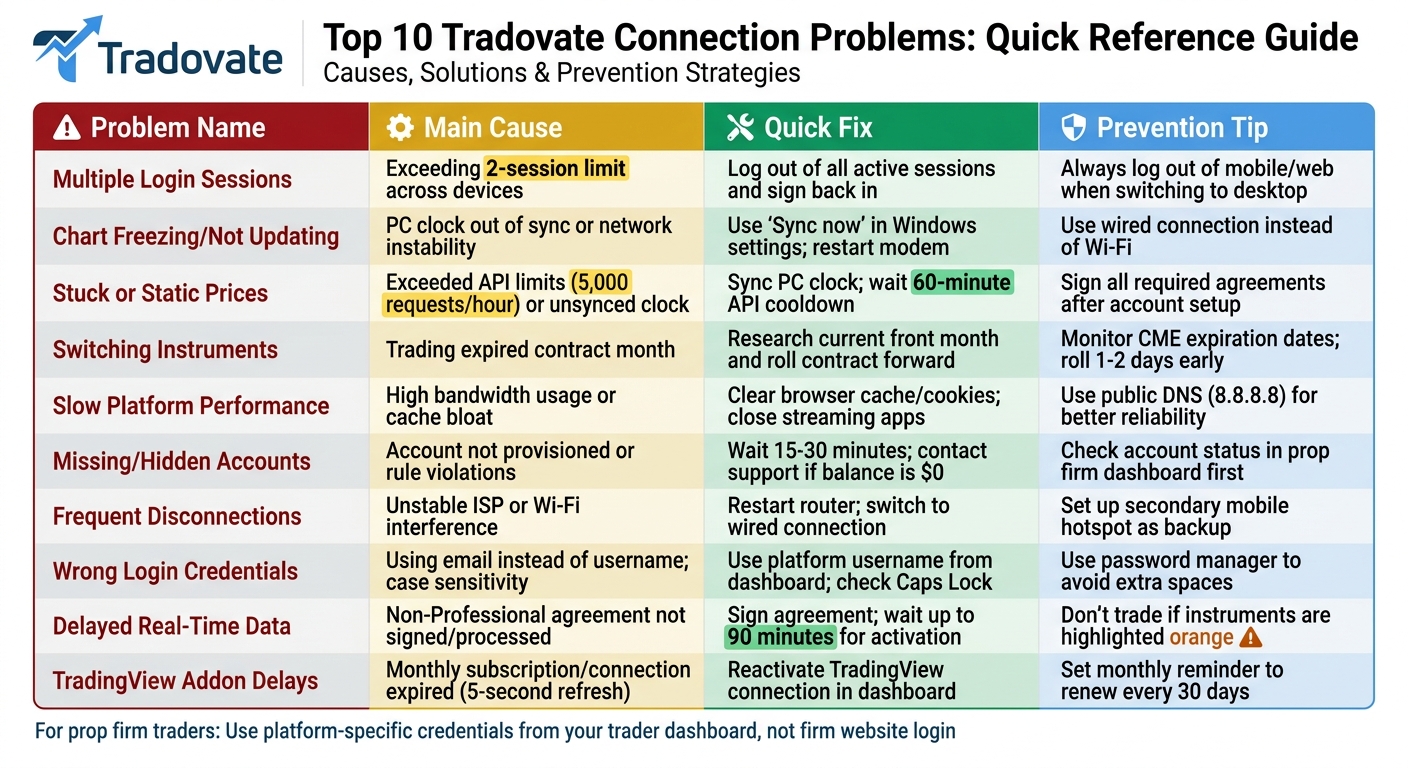
Here’s a quick reference table to help you compare issues, fixes, and prevention strategies for the connectivity problems we’ve covered:
| Problem | Main Cause | Recommended Fix | Prevention Tip |
|---|---|---|---|
| Multiple Login Sessions | Exceeding the 2-session limit across devices [2] | Log out of all active sessions and sign back in [2] | Always log out of mobile or web apps when switching to desktop [8] |
| Chart Freezing/Not Updating | PC clock out of sync or network instability [2][4] | Use "Sync now" in Windows date/time settings; restart modem [2] | Use a wired connection instead of Wi-Fi [4] |
| Stuck or Static Prices | Exceeded API limits or unsynced system clock [7][2] | Sync PC clock; wait out 60-minute API cooldown [2][9] | Sign all required agreements immediately after account setup [1] |
| Switching Instruments | Attempting to trade an expired contract month [1] | Research the current front month and roll the contract forward [1] | Monitor CME expiration dates and roll contracts 1-2 days early [1] |
| Slow Platform Performance | High background bandwidth usage or cache bloat [2][4] | Clear browser cache/cookies; close streaming or gaming apps [2][4] | Use public DNS (8.8.8.8) to improve data feed reliability [4] |
| Missing/Hidden Accounts | Account not yet provisioned or account removal due to rule violations [1][8] | Wait 15-30 minutes for new accounts; contact support if balance is $0 [8] | Check account status in the prop firm dashboard before logging in [8] |
| Frequent Disconnections | Unstable ISP or Wi-Fi interference [2][4] | Restart your router and switch to a wired connection [4] | Set up a secondary mobile hotspot as a backup connection [3] |
| Wrong Login Credentials | Using email instead of username; case sensitivity [2][8] | Use the specific platform username from your dashboard; check Caps Lock [2][8] | Use a password manager to copy/paste credentials without extra spaces [8] |
| Delayed Real-Time Data | Non-Professional agreement not signed or processed [1] | Sign the agreement; wait up to 90 minutes for activation [1] | Do not trade if instruments are highlighted in orange [1] |
| TradingView Addon Delays | Monthly subscription/connection expired [1] | Reactivate the TradingView connection in the Tradovate dashboard [1] | Set a monthly reminder to renew the connection every 30 days [1] |
If you’re using a prop firm like Apex Trader Funding or Topstep, remember that your platform credentials are different from the login details for their website. Always retrieve the correct credentials from the "Platform" tab in your dashboard to avoid login issues [8].
It’s also essential to verify your account status in the prop firm dashboard before you log in. For more detailed troubleshooting steps, refer to the relevant sections above.
Conclusion
Connection issues on trading platforms can have a direct impact on your trades, potentially turning what could have been profitable opportunities into missed chances or even amplified losses. While Tradovate keeps your orders server-side at the exchange – ensuring they stay active during local internet outages [3] – having a reliable connection is still critical for managing and closing your positions effectively. Problems with connectivity can lead to slippage and increased risk, which may hurt your overall trading performance.
The good news? Most connection problems, such as multiple logins or delayed data feeds, are easy to resolve. Simple actions like syncing your PC clock, switching to a wired Ethernet connection, or ensuring you’re using the correct credentials from your prop firm dashboard can address most issues [2][4][8]. These quick fixes can help keep your trading experience smooth and uninterrupted.
If you’re working with futures prop firms like Apex Trader Funding, Take Profit Trader, or Topstep, resources from DamnPropFirms can make a big difference. They offer verified reviews, discount codes, tools like the Consistency Rule Calculator, and TradeSyncer for trade copying across multiple accounts. To dive deeper into troubleshooting tips and tools for optimizing your trading setup, check out DamnPropFirms and connect with their growing community of over 4,500 traders on Discord.
FAQs
How do I see which devices are logged into Tradovate?
To see which devices are logged into your Tradovate account, head to your account settings or security options. Once there, you’ll find a list of active sessions. This section typically provides details about each login session. If you need more help, check out Tradovate’s help resources or use the platform’s session management tools to troubleshoot.
What should I do if I get a 60-minute API cooldown mid-trade?
If you hit a 60-minute API cooldown while trading on Tradovate, it means you’ve exceeded the platform’s API request limit. During this time, it’s important to wait for the cooldown to expire before attempting any further requests. Trying to send additional requests during the cooldown could result in further restrictions. Once the cooldown period is over, you’ll be able to continue your trading activities without issue.
How can I confirm my market data is truly live before trading?
To make sure your market data is live, first confirm that you’ve signed the market data agreement. Once signed, give it up to 5 minutes for activation. After that, verify that contract symbols appear in white, indicating live data. If they’re yellow, it means the data is delayed.