If Tradovate is acting up, the fix is usually boring: bad data permissions, the wrong login mode, a broken browser session, or a dead contract month. Not some mystery bug. I’d check status first, then account access, then data, then orders. In that order. This guide strips it down to the stuff that fixes the problem fastest, including the clock-sync issue, the 10 to 90 minute data activation delay on new accounts, and the order errors that matter. If your charts are frozen, your DOM is stale, or your prop login won’t load, this is the short path to finding the cause without wasting the whole session.
Introduction
When Tradovate blocks an entry, exit, or chart update in the middle of the session, the problem usually lands in one of four buckets: outage or connection trouble, market data entitlement, browser or app failure, or an account/risk restriction.
If the platform opens, orange tickers mean delayed data, and white tickers mean live data is on [3]. For most futures prop evaluation accounts, you should be in the Simulation/Demo environment, not Live.
Use the table below to match the symptom to the likely cause.
| Problem Category | What You’ll See | Where to Look First |
|---|---|---|
| Platform outage / connectivity | Endless loading, "Cannot connect", login won’t load | Tradovate status page; your internet connection; system clock |
| Market data entitlement | Orange tickers, delayed quotes, missing access | Settings > Subscriptions; CME data agreements |
| Browser or app issue | Blank screen, captcha loop, frozen workspace | Switch to Chrome or Edge; clear cache; try incognito |
| Account or risk restriction | "Non-tradable symbol", "Insufficient funds", API rate limit | Order rejection message; account permissions |
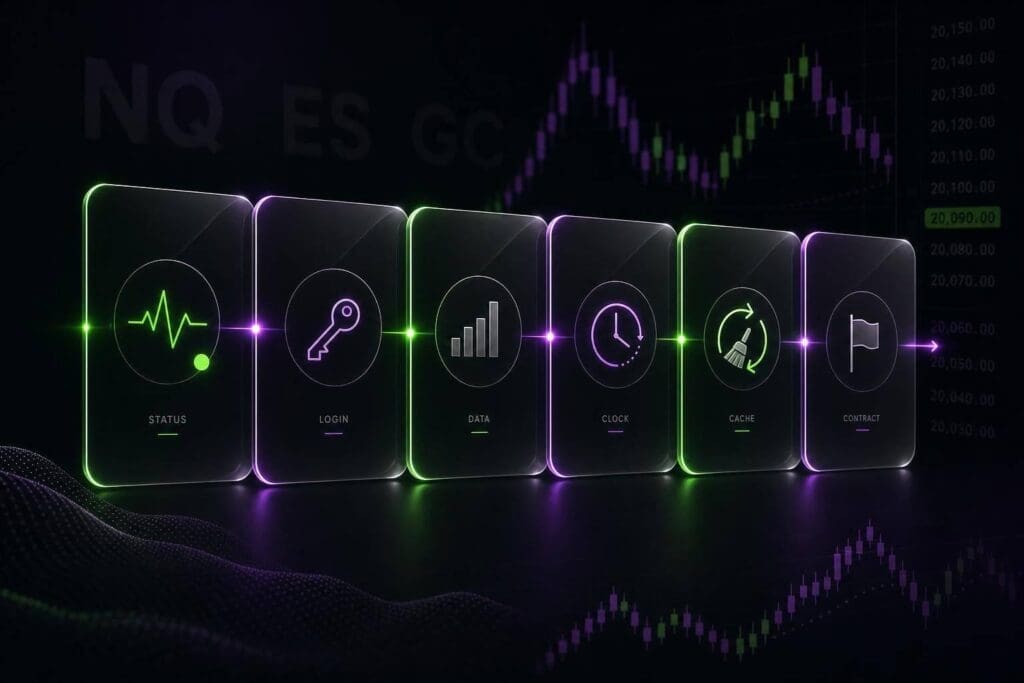
Start with status, login, and data access. Then work through browser, chart, and order fixes. First, check whether Tradovate is down and whether your account and data access are active.
sbb-itb-46ae61d
Check Tradovate Status and Account Basics First
Start here. You want to sort out a platform outage from a login problem, entitlement issue, or bad data feed.
Is Tradovate down right now?
Check the official Tradovate status page first. Look at Frontend Access, Live Execution, and Market Data. Those don’t always fail together. You can see Frontend Access green while Market Data is degraded, which means your charts freeze but order entry still works.
If the status page is green and you still can’t connect, the problem is probably on your side. One dumb but common cause is a system clock that’s out of sync. That can lead to endless loading, dead login buttons, or captcha loops. On Windows, right-click the taskbar clock, open Adjust date/time, then click Sync now.
Can you log in, and is your account eligible?
If Tradovate is up but login still fails, check your credentials and account status next.
A lot of login failures come from extra spaces at the start or end of the username or password. It sounds minor. It breaks logins all the time. Repeated fast attempts can also trigger HTTP 429 throttling, so you need to wait for the Retry-After interval before trying again [4][6].
If you’re on a futures prop firm account, eligibility matters just as much as the login itself. CME simulation access needs either a funded live account or an Extended Simulation Membership ($12.95/month) [1][6]. Use the account switcher and test another account. If one account works and the prop-linked one doesn’t, the issue is probably the prop firm’s routing or credentials, not Tradovate.
Is live market data enabled?
Check your exchange entitlements under Application Settings > Subscriptions. If a ticker is blank, that usually means the exchange isn’t enabled on your account [1][5].
After you add a subscription or change entitlements, log out and log back in. If you don’t, the new permission may not apply yet [1][3].
If status, login, and data all look fine, move on to loading and workspace issues.
Tradovate Won’t Load, Connect, or Open the Workspace
Most load issues come down to three usual suspects: browser cache, clock sync, or a busted workspace.
Fix a blank screen, black workspace, or endless loading
Start simple. Open Tradovate in Chrome or Edge using an incognito window. If it works there, your normal browser session is the problem. Clear your tradovate.com cookies and cache, or just switch browsers. Tradovate tends to behave best in Chrome and Edge.
If incognito doesn’t fix it, check your system clock. This one sounds dumb, but it causes a lot of weird login junk. If your clock is off, you can get endless loading, blank screens, or captcha loops. On Windows, right-click the taskbar clock, open Adjust date/time, then hit Sync now.
Also make sure you picked the right environment for the account type. If you’re logging into one of the top futures prop firms, do the first login and agreement signing in a desktop browser.
If the workspace opens but still hangs or drops later, move on to the freezing and disconnect fixes.
Fix freezing, crashing, or random disconnects mid-session
Mid-session lockups usually come from too many charts, too many apps running in the background, or shaky internet. Tradovate is cloud-based, so bad connection quality often looks like a platform freeze.
If the app locks up, close it all the way and relaunch it. Then kill off heavy background programs. On older machines, or with multi-chart layouts stuffed with indicators, that extra load can be enough to make the platform choke. On mobile, trim down the chart count. The Tradovate mobile app can display a maximum of five accounts at once [3].
If you’re still getting dropped sessions, check your connection for packet loss or jitter. If you can use wired internet, do it.
Fix broken layouts, missing modules, or corrupted workspaces
If Tradovate loads but pieces of the platform are missing, the issue is usually the saved workspace, not the connection.
If your charts, DOM, or order ticket vanish after login, the workspace is probably corrupted. Start with a clean workspace and rebuild the layout from scratch.
A Non-tradable symbol usually means the contract rolled. Switch to the current active contract [3].
If the same layout breaks every time you load it, reset the workspace. Then sign out and back in after any market data or add-on change so the new settings apply [3].
Use the table below so you don’t waste time testing the wrong fix first.
| Symptom | Most Likely Cause | Fastest Fix |
|---|---|---|
| Endless loading / captcha loop | System clock out of sync | Sync Windows date/time → Sync now |
| Blank screen / black workspace | Browser cache or extension conflict | Open incognito window or clear cache |
| Login fails with correct credentials | Wrong environment selected | Switch Simulation ↔ Live at login |
| Freezing mid-session | Too many open charts or background apps | Close background programs; check connection |
| Missing chart or DOM module | Corrupted workspace or rolled contract | Start a clean workspace; update the contract |
Charts, Quotes, or DOM Not Updating? Fix Data Delays and Lag
Stale quotes and a frozen DOM will kill a trade in a hurry. Don’t guess. Figure out first if you’re dealing with data permissions, a bogged-down browser, or a bad connection.
How to Tell Delayed Data from a Live Data Problem
Start with the chart ticker color. Orange means delayed data. White means live data is on [3]. If the ticker is blank, that points to a connection or feed issue, not a permissions issue.
On a new account, an orange ticker usually just means the data subscription hasn’t finished turning on yet. After you sign the non-professional market data agreements, wait 10 to 90 minutes before you trade [3].
If the ticker is still orange after that, go to Application Settings > Subscriptions and make sure the exchange feed for that contract is active [1]. If you changed a subscription, log out and log back in so the new permissions kick in [1]. Also check the contract month. If you’re looking at an expired futures contract, live data won’t load even if your subscription is fine [1].
Use this quick breakdown:
| Ticker Color | What It Means | What To Do |
|---|---|---|
| White | Live data | Ready to trade |
| Orange | Delayed quotes | Check subscriptions; wait up to 90 min after signing agreements |
| No data | Connection or feed error | Check internet; clear cache; verify the contract hasn’t expired |
If the ticker is white and the chart still drags, the browser is the next thing to check.
Fix Slow or Frozen Charts in the Web Platform
If your ticker is white but the charts are still slow or freezing, clear your cache, open the platform in incognito, or switch to Chrome or Edge [2]. A dirty browser session causes a lot of stupid problems.
If you try a clean browser and quotes are still frozen, stop messing with platform settings and look at your connection.
Check Your Internet First
If charts, quotes, or the DOM stall, test your internet before you change anything else [2]. Tradovate runs in the cloud, so packet loss, jitter, or weak Wi-Fi can show up as stale data or a frozen DOM. If you can, use a wired connection.
Orders Rejected, Stuck, or Not Exiting? Read the Exact Reason
If charts and quotes are live but orders fail, the issue is usually one of four things: symbol, account, contract month, or a risk rule. Tradovate usually tells you what went wrong. Read that message first. Then check the symbol, account, contract month, or connection.
Where to Find the Rejection Message in Tradovate
Manual and automated orders don’t always show errors in the same place, so start with the source.
For manual orders, Tradovate shows the rejection when the order fails. Open the Orders module and read the full message.
If the trade came from an automation tool, check the TradingView Alerts log or the alert log inside your connector first. In a lot of cases, that’s where the error shows up first [6].
Before you fire the order again, check your positions and open orders in Tradovate. That’s not busywork. If part of the command went through, or the connection dropped at the wrong time, resending can leave you with an extra position you didn’t mean to take [4].
The Most Common Order Rejection Causes and How to Fix Each One
Most rejections trace back to the same short list:
| Error Message | Likely Cause | Fast Fix |
|---|---|---|
| Non-tradable symbol | Expired contract or wrong contract month | Switch to the current front-month futures symbol [1][5] |
| Insufficient funds | Margin shortfall | Cut size or check account balance [6] |
| Outside session hours | Order placed outside trading hours | Check the trading schedule for that contract [6] |
| Access denied | Account disconnected | Reauthorize the account [6] |
| No entitlement / no access | Account not authorized for that instrument | Turn on access under Application Settings > Subscriptions [6] |
| 429 / rate limited | Too many API requests too fast | Wait for the Retry-After interval before trying again [4] |
If the account is in Liquidation Only mode, you can usually flatten or reduce positions, but you can’t open new ones until that restriction is removed. That often happens after a margin problem or a prop-firm rule hit.
Also check the contract month. This one gets people all the time. An expired ES or NQ contract can throw a non-tradable symbol rejection even if the account itself is fine [5].
What to Do If You Cannot Exit a Position Normally
If an exit fails after a connection drop or automation glitch, don’t keep smashing resend. First, verify your open positions and working orders.
If the issue is a 429 broker_rate_limited response, follow the Retry-After interval and handle urgent exposure manually in the Tradovate UI [4].
Fix the entitlement issue or the contract month first. Then retry the exit.
If the Tradovate account checks out and the order still won’t go, the next place to look is the prop firm or the connector.
Prop Firm and Third-Party Connections Not Working
If Tradovate works but a prop login or third-party connector doesn’t, the problem is usually account routing, add-on access, or API limits.
Why a Prop-Linked Tradovate Login Can Fail Even When Tradovate Is Up
If Tradovate itself checks out, shift your focus to prop-side login and routing issues.
Small login mistakes can kill the session. A copied space at the start or end of the username is enough. Prop usernames often use underscores, like Apex_123456, so the format has to match exactly. A lot of prop firms also want you in Simulation mode, even on funded accounts. If you try Live mode, the account might not load at all. If the account is missing from the dashboard, check whether the firm deactivated or removed it (some firms like TradeDay have specific rules for account deactivation).
If the login goes through but the add-on or outside feed doesn’t, the issue is usually in the connector setup.
Fix TradingView or Other Connector Problems With Tradovate

If the account opens but TradingView or NinjaTrader won’t connect, start with the add-on.
TradingView has to be turned on in Tradovate under Application Settings > Add-Ons. It also needs renewal every 30 days. Miss that renewal and TradingView throws a "Not Entitled to Access" message. After you turn it back on, log out and log back in so the session refreshes [3].
For NinjaTrader 8.1, change Symbology Display Style to Numeric. That fixes the format error [3].
If an automated connector spits out a 429 or broker_rate_limited error, you’ve hit the API rate limit. Stop sending requests and wait for the API window to reset [4].
How to Tell Whether the Problem Is Tradovate, the Prop Firm, or the Connector
Use a demo or retail login to isolate the issue. If that account works, Tradovate is fine and the failure sits in the prop routing or the connector. If that login fails too, the problem is broader.
Next, check the basics:
- Make sure the username format is exact
- Use Simulation mode if the firm requires it
- Check the Add-Ons tab for TradingView or any other outside tool
If none of that fixes it, go straight to the prop firm’s support.
Use the table below to sort out failures that only show up with prop-linked or third-party access.
| Issue | Likely Source | Primary Fix |
|---|---|---|
| "Not Entitled to Access" in TradingView | Expired add-on | Reactivate TradingView in Application Settings > Add-Ons [3] |
| "Input string was not in a correct format" in NinjaTrader | Symbology mismatch | Switch Symbology Display Style to Numeric in NinjaTrader Preferences [3] |
| 429 or "broker_rate_limited" from connector | API rate limit | Stop requests and wait for the API window to reset [4] |
| Prop account missing from dashboard | Deactivated or removed account | Confirm account status with the prop firm directly [3] |
| Account loads in wrong environment | Live mode selected instead of Simulation | Switch to Simulation mode at login [3] |
The Fastest Troubleshooting Order When You Are About to Trade
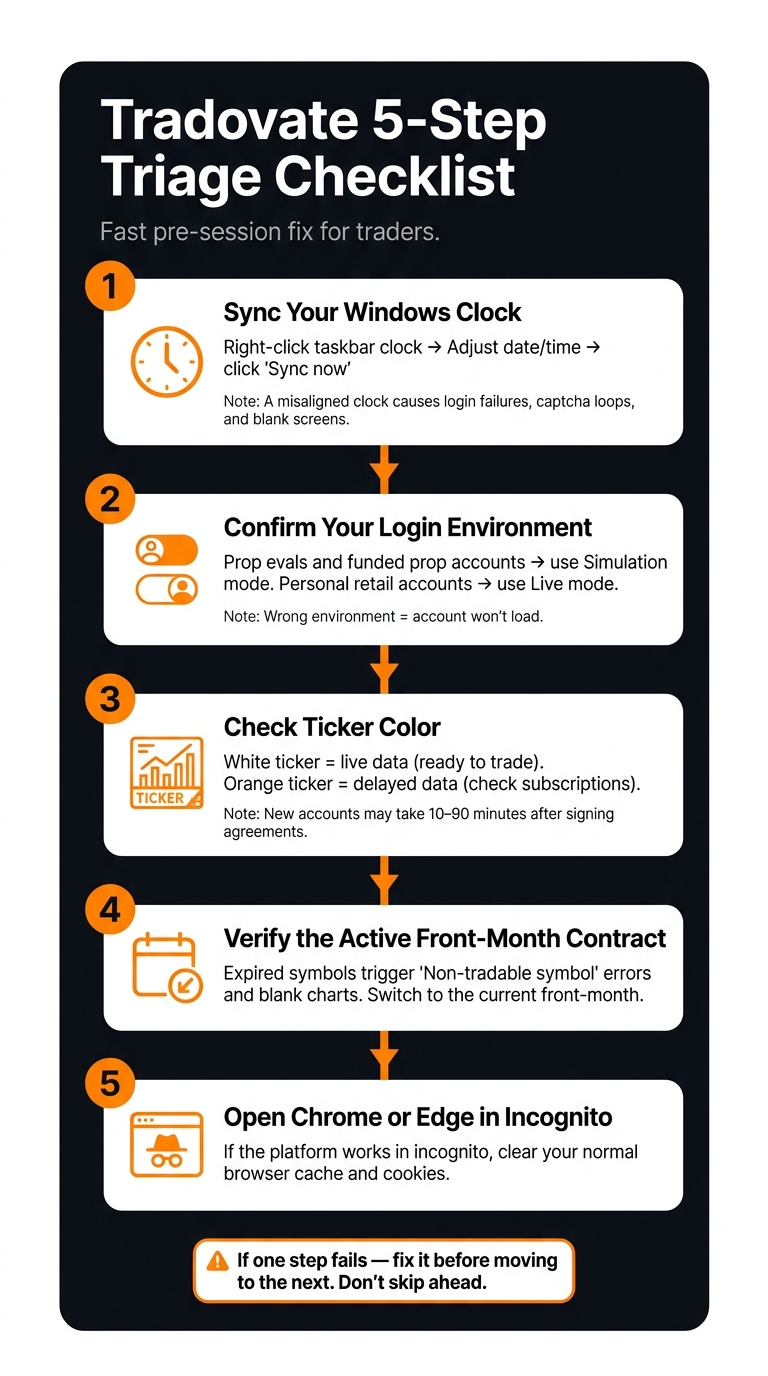
Tradovate Troubleshooting: 5-Step Triage Checklist
When stuff breaks right before the open, don’t bounce around randomly. Run this five-step check first. Use it only after the status, login, and data checks above. This is just the short version of that same flow.
A 5-Minute Tradovate Triage Checklist
- Sync your Windows clock. Right-click the taskbar clock, open Adjust date/time, then hit Sync now [3].
- Confirm your login environment. Prop evals and funded prop accounts usually run in Simulation. Understanding how to pass prop firm challenges is critical once your technical setup is stable. Personal retail accounts use Live [3][5].
- Check ticker color. White = live. Orange = delayed [3].
- Verify the active front-month contract. Expired symbols can trigger "Non-tradable symbol" errors and blank charts [1][5].
- Open Chrome or Edge in Incognito. If it works there, clear your normal browser cache [2].
If one step fails, fix that first. Don’t skip ahead. If all five check out, go to the symptom-specific section that matches what’s still broken.
What to Screenshot Before Contacting Support
Before you open a ticket, grab the details that save time and cut the back-and-forth.
| What to Capture | Why It Matters |
|---|---|
| Exact error text | Full messages like "Non-tradable symbol" or "Input string was not in a correct format" help support narrow down the issue [5][3] |
| Ticker color | White means live data; orange means delayed data [3] |
| Account name and environment | Shows whether you’re in Live or Simulation and which account has the problem [5][3] |
| Contract symbol and expiration | Helps rule out an expired contract [5][1] |
| Timestamp in ET | Helps support match your issue to server logs |
| Order ID | Lets support trace a specific fill or rejection |
If a connector like TradingView with Tradovate is part of the mess, also screenshot Application Settings > Add-ons so support can see whether the add-on is active [3].
Send those screenshots to the right support team so they can match the failure to the exact account, order, or session.
If It Still Fails
If this checklist doesn’t fix it, jump to the matching section below: loading, data lag, order rejections, or connector problems.
Bottom Line
If Tradovate still breaks after the earlier checks, put the issue in the right bucket: data entitlement, login or environment mismatch, workspace glitch, or order rejection.
Start with the ticker color. White means live data. Orange means delayed data.
If the ticker is white and the platform still isn’t working, check your clock sync, make sure the contract hasn’t expired, and read the order rejection message line by line. If that still doesn’t fix it, the next move is simple: follow the rejection message or contact the account provider tied to the account.
If you’re still stuck, send the ticker color, the exact error text, and the matching Subscriptions/Add-Ons screen to Tradovate for platform or data issues, or to your prop firm for account access and market-data entitlement problems.
FAQs
Why is Tradovate showing delayed data even after I subscribed?
Delayed data usually means your setup isn’t finished yet, or your Non-Professional Agreement still hasn’t gone through. If your symbols show up in orange, the feed isn’t live.
Check that you signed every required market data agreement and picked Non-Professional status. Then give it 10 to 90 minutes to process, and log out and back in.
Once the symbols turn white, your live data is on.
How do I know if the problem is Tradovate, my prop account, or my internet?
Use Tradovate’s account switcher to compare accounts side by side. If your retail demo works but your prop firm account doesn’t, the problem is usually with the prop firm setup or data routing, not Tradovate itself.
Check the ticker colors too. White means live data. Orange usually means delayed data or missing exchange agreements. That matters.
If manual orders won’t go through, the issue is often a market data subscription problem. Go back and enter your credentials again, carefully. And make sure you’re using your platform login, not your website login.
Why does Tradovate say "Non-tradable symbol" when I try to place an order?
This error means your account isn’t cleared to trade that instrument.
The usual causes are pretty simple:
- You’re trying to trade an expired futures contract instead of the current active front-month contract
- You don’t have an active real-time market data subscription for that exchange
- You’re trying to trade something that isn’t a futures product, like stocks, crypto, or forex
Tradovate is a futures-only broker. If the symbol isn’t a futures contract, the order won’t go through.