Rithmic is a high-speed platform for futures trading, widely used by proprietary trading firms to provide real-time market data and order execution. It connects traders to platforms like NinjaTrader, Quantower, and MultiCharts. Prop firms such as Apex Trader Funding and Topstep use Rithmic for both evaluation and funded accounts, ensuring smooth transitions between demo and live trading.
Key Takeaways:
- Credentials: Provided by your prop firm, not Rithmic. Access them via your firm’s dashboard or welcome email.
- Setup: Download R|Trader Pro, log in with your credentials, and configure the correct system and gateway (e.g., "APEX" or "Rithmic 01-US").
- Data Fees: Select "Non-Professional" status to avoid extra costs.
- Platform Integration: Use R|Trader Pro as a bridge for platforms like NinjaTrader or Quantower. Enable plugin mode for seamless data flow.
- Troubleshooting: Fix login errors by checking credentials, system, and gateway settings. Ensure agreements are signed in R|Trader Pro.
For traders managing multiple accounts, tools like TradeSyncer simplify trade copying across firms. Visit platforms like DamnPropFirms for reviews, setup guides, and resources to compare prop firm offerings.
Quick Tips:
- Use a password manager for secure storage of Rithmic credentials.
- Always verify account type (demo or funded) and system settings.
- Double-check your position and P&L in R|Trader Pro before ending sessions.
Getting Your Rithmic Credentials
Where to Find Your Credentials
Your Rithmic credentials are provided by your prop firm, not by Rithmic directly. Typically, firms send your Rithmic username and password in a welcome email after you make a purchase or successfully pass a challenge. If you can’t find the email, check your prop firm’s member dashboard – credentials are usually stored there for easy access.
For example, if you’re with Apex Trader Funding, log in to your member account and click on the "Rithmic and Ninja Trader Setup" link. Your Rithmic ID and password will appear on screen. To view the password, click ‘show,’ then copy both fields carefully. Be sure to remove any trailing spaces when pasting, as even a single extra space can prevent you from logging in.
If you’re using Topstep, you’ll find your credentials in the trader dashboard under the section for active accounts or evaluation passes, often labeled as "Rithmic Login." Similarly, firms like Take Profit Trader and FundedNext Futures include this information under sections like "Account Details", "Platform Setup", or "Connection Details." If you’re still unable to locate your login details, reach out to your firm’s support team and specifically request your "Rithmic username and server settings" for your account type.
Once you have your credentials, double-check your account type to ensure you select the right Rithmic system for your trading environment.
Rithmic Account Types Explained
Prop firms assign different types of Rithmic logins based on your account status. If you’re in an evaluation phase, you’ll receive credentials for a demo or paper trading environment. These accounts mimic live market conditions but don’t involve real money. After passing the evaluation and receiving funding, your firm may either update your existing credentials for live trading or issue new login details for the funded environment.
The main distinction lies in the Rithmic system or server you select during login. For instance, Apex evaluations often use the "APEX" system with the Chicago Area gateway, while Topstep might assign "Rithmic Paper Trading" for evaluations and "Rithmic01-US" for funded accounts. It’s crucial to follow your prop firm’s setup instructions to select the correct environment – choosing the wrong one can lead to login errors or missing account data.
When logging into R|Trader Pro for the first time, you’ll need to accept the agreements and select your data subscription. If you’re a retail trader, choose "Non-Professional" to avoid paying higher exchange data fees. This classification applies whether you’re in an evaluation phase or trading with a funded account.
Security Best Practices
To keep your credentials safe, store them in a dedicated password manager like LastPass, 1Password, or Bitwarden. Avoid saving them in insecure places like browser notes, spreadsheets, or plain text files. Use strong, unique passwords with at least 12 characters, mixing uppercase and lowercase letters, numbers, and symbols. Label each entry clearly, such as "Apex_Eval_Username" or "Topstep_Funded_Password", especially if you’re managing multiple accounts.
Never share your credentials with others, including signal providers, trade rooms, or fellow traders. If you need to use trade copying tools, opt for authorized solutions like TradeSyncer, which connect via read-only APIs rather than requiring your login details. If you suspect unauthorized access, immediately contact your prop firm and request a password reset.
Always copy and paste your credentials directly from your prop firm’s dashboard to avoid typos. Remember, Rithmic logins are case-sensitive, and even minor errors in capitalization will prevent you from logging in. Use the "remember me" feature in R|Trader Pro only on secure, personal computers – avoid enabling it on shared or public devices. If you manage multiple accounts, organize your credentials by firm and account type in your password manager to streamline the login process.
Installing and Configuring Rithmic Tools
Setting Up R|Trader Pro
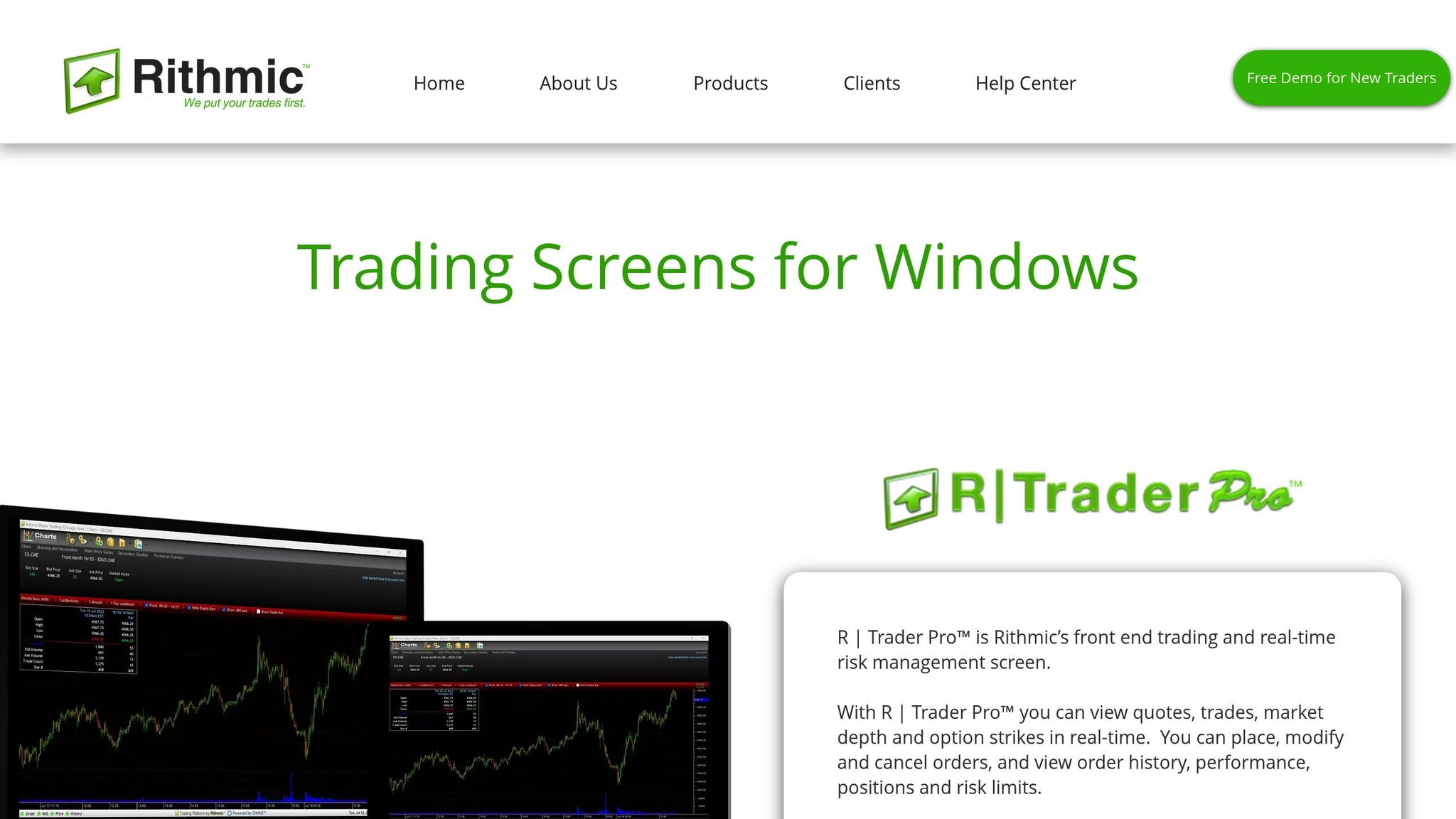
To get started, download R|Trader Pro from your prop firm’s dashboard under the active resources section. If you’re with firms like Apex Trader Funding, make sure to use their specific download link to avoid any version mismatches. If you already have an older version of R|Trader installed, uninstall it completely before continuing. Once the download is complete, right-click the installer and select "Run as Administrator" (Windows users only). After installation, you’ll find the R|Trader Pro icon on your desktop.
Launch the application by double-clicking the icon. Copy your login credentials directly from your prop firm’s dashboard and paste them into the login fields – this helps avoid typos or extra spaces. Next, choose your gateway from the dropdown menu, such as "Chicago Area" or "Rithmic 01 – US", and select the system tied to your account. For Apex accounts, pick "APEX", while demo accounts typically use "Rithmic Paper Trading." If you’re on a secure device, check the "Remember me" box for easier future logins.
On your first login, two agreements will appear. Scroll through each, click "I agree," and select "non-professional" when asked about your user type – this helps you avoid extra exchange data fees. If prompted with a settings screen, click "Skip Settings" to move forward quickly. For initial setup, keep selective mode OFF and market data OFF, especially if you’re connecting to platforms like NinjaTrader. To monitor your trades, enable the account and risk display in the settings menu. Finally, verify your connection by checking for green indicators in the status bar and loading a symbol’s data feed. Once everything is running smoothly, you can move on to setting up R|Trader Pro as a bridge to your trading platform.
Using R|Trader Pro as a Bridge
R|Trader Pro serves as the gateway between your prop firm’s Rithmic data feed and third-party trading platforms. Before you can use platforms like NinjaTrader, Quantower, Sierra Chart, or Medved Trader, you need to log in to R|Trader Pro to establish the Rithmic connection. Without this step, your platform won’t receive live data or process orders. Once logged in, R|Trader Pro works in the background, relaying market data and trade signals seamlessly.
To enable bridging, go into R|Trader Pro’s settings and activate "Allow Plugins." Then, configure your third-party platform to match. For instance, in NinjaTrader, navigate to Connections > Configure > My Rithmic for NinjaTrader, and enter the same credentials you used in R|Trader Pro. Ensure the plugin mode is consistent on both R|Trader Pro and your trading platform – either both enabled or both disabled. If you’re using the Chicago Aggregated gateway, confirm this with your prop firm, as some firms may require "R Trader" mode instead. These steps ensure smooth integration with your preferred trading tools.
Fixing Connectivity Issues
If you encounter connectivity problems, here’s how to troubleshoot effectively. First, double-check your gateway and system selection – choosing "Chicago Area" instead of "Rithmic 01-US", for instance, can block access. Restart R|Trader Pro completely and ensure you’ve agreed to both mandatory agreements as a non-professional user.
For persistent issues, try running R|Trader Pro as an administrator, check your firewall settings, and make sure previous installations have been fully removed. Also, verify that you’re using the correct environment – logging in with demo settings on a funded account will cause disconnects. Use R|Trader Pro’s built-in logs (found in the Help or status menu) to identify error codes, and test your connection on "Rithmic Paper Trading" to narrow down the problem. If the issue continues, ensure your Windows system is up to date and reach out to your prop firm’s support team. Be ready to provide screenshots of your login screen to help them diagnose gateway-specific errors.
Connecting Rithmic to Trading Platforms
NinjaTrader Integration
Before connecting NinjaTrader to Rithmic, make sure R|Trader Pro is installed and logged in. Once that’s set, open NinjaTrader and head to Connections > Configure. From there, create a new connection by selecting "My Rithmic for NinjaTrader Brokerage" from the list. Use the same Rithmic username and password you entered in R|Trader Pro.
Next, choose your System from the dropdown menu. For those using Apex Trader Funding, select "APEX". If you’re working with evaluation accounts, go with "Rithmic Paper Trading." Then, select your Gateway – most U.S.-based proprietary trading firms use "Chicago Area." After saving your connection, activate it by navigating to Connections in the top menu and clicking on your newly created Rithmic connection.
When prompted by NinjaTrader to choose between Live and Simulation, select Simulation. This might seem confusing, but prop firm accounts are considered simulated environments within NinjaTrader. Before placing any trades, double-check that the correct Rithmic account is selected in the Account dropdown of your order entry window. This is especially important if you manage multiple accounts or have demo logins active.
If you encounter login issues, verify your credentials, system, and gateway settings. Also, ensure that no outdated versions of R|Trader are installed on your system. Other platforms require similar attention to detail when setting up Rithmic connections.
Quantower and Other Platforms
Platforms like Quantower, ATAS, Jigsaw, and EdgeProX also support Rithmic connections, either directly or through R|Trader Pro’s plugin mode. For a direct connection, open your platform’s connection manager, add a new Rithmic connection, and input your username, password, system, and gateway. If your platform offers an option like "Connect via R|Trader Pro Gateway," enable it and make sure R|Trader Pro is running with "Allow Plugins" activated in its settings.
When entering symbols, follow the format specified in your platform’s documentation. Tools like MultiCharts and Medved Trader often translate their internal symbol formats (e.g., @ESZ21 for an E-mini S&P December contract) to match Rithmic’s schema. If you experience missing data or order errors, check whether your prop firm subscription includes depth-of-market (DOM) access and confirm that your platform license supports level 2 data.
For troubleshooting connectivity issues, test your login in R|Trader Pro. If it works there, the problem likely lies in your platform’s Rithmic configuration, not your credentials.
Web-Based Tools and Multi-Account Management
Once you’ve set up individual platform connections, managing multiple prop firm accounts becomes an important consideration. Tools like trade copiers and web-based terminals can simplify this process by distributing orders from a master account to multiple follower accounts. For instance, the DamnPropFirms team uses Tradesyncer, a cloud-based system that syncs trades across firms like Tradeify, Apex Trader Funding, Take Profit Trader, Lucid Trading, and FundedNext. It supports platforms such as Tradovate, Rithmic, DxFeed, TradingView, and ProjectX, offering fast executions and built-in trade journaling.
When using trade copiers or web terminals, label your workspaces with account names or numbers to avoid confusion. Also, ensure your tool is compatible with R|Trader Pro’s plugin mode and verify that running multiple sessions doesn’t violate your prop firm’s rules. Some firms restrict concurrent logins, so review your agreement before connecting multiple platforms. If you’re comparing prop firms that support Rithmic, DamnPropFirms provides verified reviews, discounts, and tools like the Consistency Rule Calculator to help you find the best fit for your trading needs.
R Trader Pro Desktop Explained: Setup, Login & Trading Tutorial
sbb-itb-46ae61d
Prop Firm-Specific Rithmic Tips
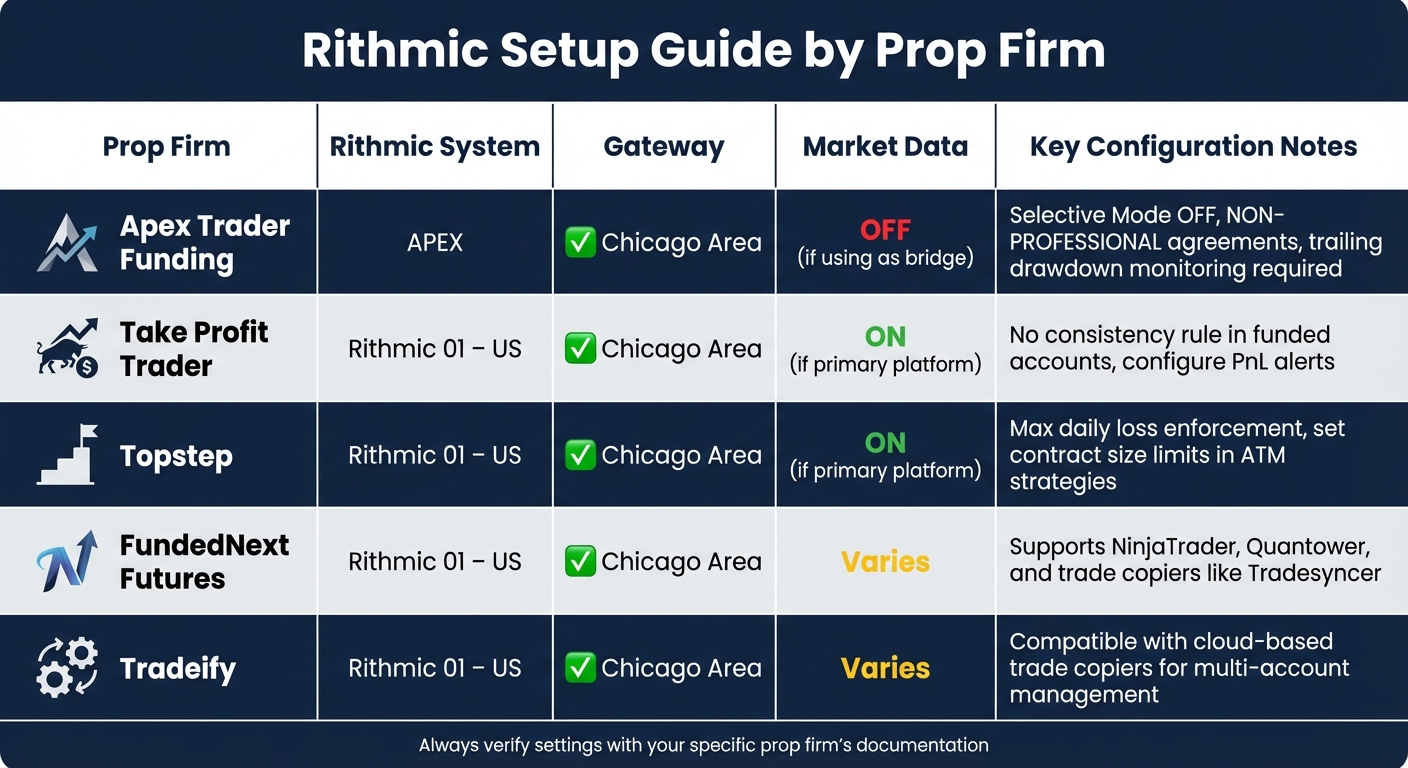
Rithmic Setup Settings Comparison by Futures Prop Firm
Fine-tuning your Rithmic setup for each prop firm can make a big difference in your trading experience. Below, you’ll find specific tips to optimize your configuration based on the firm you’re working with.
Recommended Settings by Prop Firm
For Apex Trader Funding, proper configuration of R|Trader Pro is essential to avoid connection issues. Start by uninstalling any conflicting R|Trader versions. Then, launch R|Trader Pro and select System: APEX and Gateway: Chicago Area. If you’re only using R|Trader Pro as a bridge, disable Market Data to conserve resources and avoid duplicate fees. Keep Selective Mode OFF, and during agreements, select NON-PROFESSIONAL to avoid additional charges. Since Apex employs trailing drawdowns and daily loss limits, enable real-time account values and PnL columns in your trading platform. This setup helps you monitor your balance and open PnL, reducing the risk of breaking any rules.
For firms like Topstep and Take Profit Trader, use the Rithmic 01 – US environment or the specific system name provided in your welcome email. Choose the Chicago Area gateway to reduce latency for U.S. futures markets. Configure alerts in your platform to notify you when your realized and unrealized PnL hits 50–80% of your daily or trailing limit. Pay attention to position sizing – if the firm restricts the number of contracts until you reach a profit threshold, set a maximum contract size in your ATM strategies or order templates. Tools like the Consistency Rule Calculator on DamnPropFirms can help you align your position sizes and daily goals with the firm’s rules.
Managing Multiple Prop Firm Accounts
If you’re trading with multiple Rithmic accounts on the same machine, organization is key. Only run one version of R|Trader Pro at a time, and avoid logging into the same Rithmic username on multiple devices simultaneously to prevent forced logouts. For firms such as Apex Trader Funding, FundedNext Futures, and Tradeify, use separate Rithmic logins for each firm. Never share credentials across firms.
Within NinjaTrader or similar platforms, create dedicated workspaces for each firm. For example, use names like "APEX – 50K – ######" or "TPT – 100K – ######" for easy identification. Assign a unique connection profile to each firm to avoid session overlaps. Ensure the default account on your charts or DOM matches the correct firm’s account, and disable other accounts in the "Accounts" tab to prevent accidental trades. If you encounter disconnections when switching between firms, disconnect the active Rithmic session and close your platform before logging in with a different firm’s credentials.
Prop Firm Comparison Table
Here’s a quick reference guide for Rithmic settings and operational notes specific to each firm:
| Prop Firm | Rithmic System | Gateway | Market Data | Key Notes |
|---|---|---|---|---|
| Apex Trader Funding | APEX | Chicago Area | OFF (if using as bridge) | Selective Mode OFF, NON-PROFESSIONAL agreements, trailing drawdown monitoring required |
| Take Profit Trader | Rithmic 01 – US | Chicago Area | ON (if primary platform) | No consistency rule in funded accounts, configure PnL alerts |
| Topstep | Rithmic 01 – US | Chicago Area | ON (if primary platform) | Max daily loss enforcement, set contract size limits in ATM strategies |
| FundedNext Futures | Rithmic 01 – US | Chicago Area | Varies | Supports NinjaTrader, Quantower, and trade copiers like Tradesyncer |
| Tradeify | Rithmic 01 – US | Chicago Area | Varies | Compatible with cloud-based trade copiers for multi-account management |
For traders juggling multiple accounts, DamnPropFirms offers verified reviews, discounts, and comparison tools. Their Consistency Rule Calculator is particularly useful for aligning your trading plans with the rules of different firms, ensuring that your Rithmic setup supports your risk management strategy effectively.
Troubleshooting Common Rithmic Issues
Even with the correct setup, issues can still pop up when using Rithmic. These problems often boil down to things like choosing the wrong environment, unsigned agreements, or mismatched credentials between R|Trader Pro and your trading platform. Below, you’ll find practical solutions for common problems related to login, data feeds, and orders.
Connection and Login Problems
If you see an "authentication failed" error while logging in, double-check your Rithmic ID and password. It’s best to copy and paste your credentials directly from your prop firm’s dashboard to avoid mistakes. Make sure Caps Lock is off, and remember to use your Rithmic credentials – not the login details for your prop firm’s portal.
Before connecting your trading platform, log in to R|Trader Pro first. Choose the correct system (like "APEX" for Apex Trader Funding or "Rithmic 01 – US" for others) and the Chicago Area gateway. You’ll also need to sign both agreements as a nonprofessional user. If the agreements don’t show up, close and reopen R|Trader Pro. Without completing this step, your account won’t appear in other platforms, and data feeds won’t work.
If your platform says it’s "connected", but no accounts show up in the dropdown, ensure that both R|Trader Pro and your trading platform are using the same system and gateway settings. Many platforms require you to add Rithmic twice: once for data and once for trading. If you only set up the data connection, you might see charts, but your account list and order routing will be missing. Platforms like Tickblaze also require plugin mode to be enabled in both R|Trader Pro and the platform settings. If one is enabled and the other isn’t, the connection might work, but your accounts won’t load.
Data Feed and Symbol Issues
If your charts aren’t showing any data, make sure you’ve signed all Rithmic agreements, enabled market data, and matched the symbol formats to your platform’s requirements. Some prop firms require you to turn market data ON in R|Trader Pro after logging in, while others (like Apex when using a bridge) might require you to leave it OFF to avoid session conflicts. Always check your firm’s specific instructions.
Missing or unresponsive symbols are usually tied to symbol mapping. Platforms like MultiCharts, ATAS, and Investor/RT often need you to import or manually build a symbol list for Rithmic. The format must match the exchange – for example, "ESZ5" versus "ES 12-25." Use your platform’s symbol search tool or rebuild the symbol dictionary if that’s an option. If market depth (DOM) or Level II data isn’t available, confirm that your Rithmic package includes market depth – some accounts only provide top-of-book quotes.
For issues with delayed or choppy data, start by checking your local internet connection. A wired connection is more reliable than Wi-Fi, and it helps to close bandwidth-heavy apps like streaming services or cloud backups. You can also test latency to your selected gateway region. If data problems persist, move on to resolving account visibility and order processing issues.
Account and Order Errors
If your account doesn’t appear in the platform dropdown, confirm its active status in R|Trader Pro and ensure you’ve set up both a data connection and a trading connection. For order rejections, check whether the market is open, the order type is allowed, and your prop firm’s rules (like contract limits and daily loss thresholds) are being followed.
Some prop firms restrict specific order types, such as OCO, ATM, or synthetic orders. Make sure your orders align with these restrictions. Also, adhere to limits on contract size, daily losses, and trailing drawdowns – violating these can result in Rithmic rejecting your orders.
If your orders or positions appear out of sync between your platform and R|Trader Pro, enable Broker Sync (if available, such as in Tickblaze) to keep positions and orders updated in real time. Disconnect and reconnect the Rithmic connection, then refresh positions and orders in your platform. Before the session ends, always verify your flat or position status in R|Trader Pro, as it serves as the most reliable source of truth. If you’re using plugin mode, ensure that it’s enabled on both R|Trader Pro and your platform – any mismatch will cause account and order issues, even if the connection seems fine.
Conclusion
To get started, download R|Trader Pro using the link provided by your prop firm. Log in with the credentials from your welcome email, select the Chicago Area gateway, and opt for non-professional status to avoid unnecessary data fees. Before connecting to platforms like NinjaTrader or Quantower, make sure to enable plugin support in R|Trader Pro. If you’re managing multiple accounts, turn market data off initially to prevent session conflicts. These steps ensure a smooth setup for reliable execution and effective risk management.
Proper account management is essential for low-latency data and dependable order execution, all while staying compliant with your prop firm’s rules. For instance, configuring "My Rithmic for NinjaTrader Brokerage" after logging into R|Trader Pro helps avoid disconnections and allows traders to scale accounts without violating firm guidelines. Always test your connections in simulation mode first, as prop firm accounts operate within simulated environments.
If you’re handling multiple accounts, a trade copier can simplify synchronization across firms. Back in December 2025, DamnPropFirms recognized Tradesyncer as the top trade copier for futures prop firms. With Tradesyncer, traders can instantly sync trades from a single master account to over 40 follower accounts across firms like Tradeify, Apex Trader Funding, Take Profit Trader, Lucid Trading, and FundedNext. This tool showcases how a well-integrated Rithmic setup can streamline cross-account management.
When selecting a prop firm, visit DamnPropFirms for verified reviews, discounts, and helpful tools like the Consistency Rule Calculator. To maintain low latency and ensure reliable execution, always configure your accounts consistently. Double-check your credentials to avoid login errors, keep your software updated, and verify your positions in R|Trader Pro before wrapping up each session.
FAQs
How can I access and use my Rithmic login details from my prop firm?
When you join a prop firm, your Rithmic login details are usually shared via their account portal or included in your onboarding email. Keep an eye out for your username and password, as these are key to accessing Rithmic.
After receiving your credentials, input them into your trading platform during the setup process. This step enables you to access market data and execute trades efficiently. Be sure to follow any detailed instructions from your prop firm to ensure everything is set up correctly.
How can I troubleshoot connectivity issues with R|Trader Pro?
If you’re having trouble connecting to R|Trader Pro, the first thing to check is your internet connection – make sure it’s stable and working as expected. Double-check your login credentials to ensure they’re entered correctly, and confirm that the server status is up and running. Keeping your software updated to the latest version can also fix many common issues.
Still stuck? Try restarting both the application and your computer. It’s also a good idea to review your firewall and antivirus settings to ensure they aren’t blocking R|Trader Pro. Lastly, verify that your network settings are properly set up to support the software. These steps should resolve most connectivity issues effectively.
What’s the best way to efficiently manage multiple prop firm accounts with Rithmic?
Managing multiple Rithmic accounts across various prop firms can be a challenge, but tools like Tradesyncer make it much simpler. A trade copier like this allows you to sync trades across accounts in real-time, eliminating the need for manual updates and saving you a ton of effort.
By using a trade copier, you can maintain consistency across all your accounts while staying organized – even when juggling multiple firms. It’s a practical way to simplify your trading workflow and keep everything running smoothly.